Loading...

Schedule not Running - Create a New Residence

If a schedule is not running at the designated time, it may be because the Decora Smart Wi-Fi device has the incorrect time.

Make certain all devices are running the latest firmware:

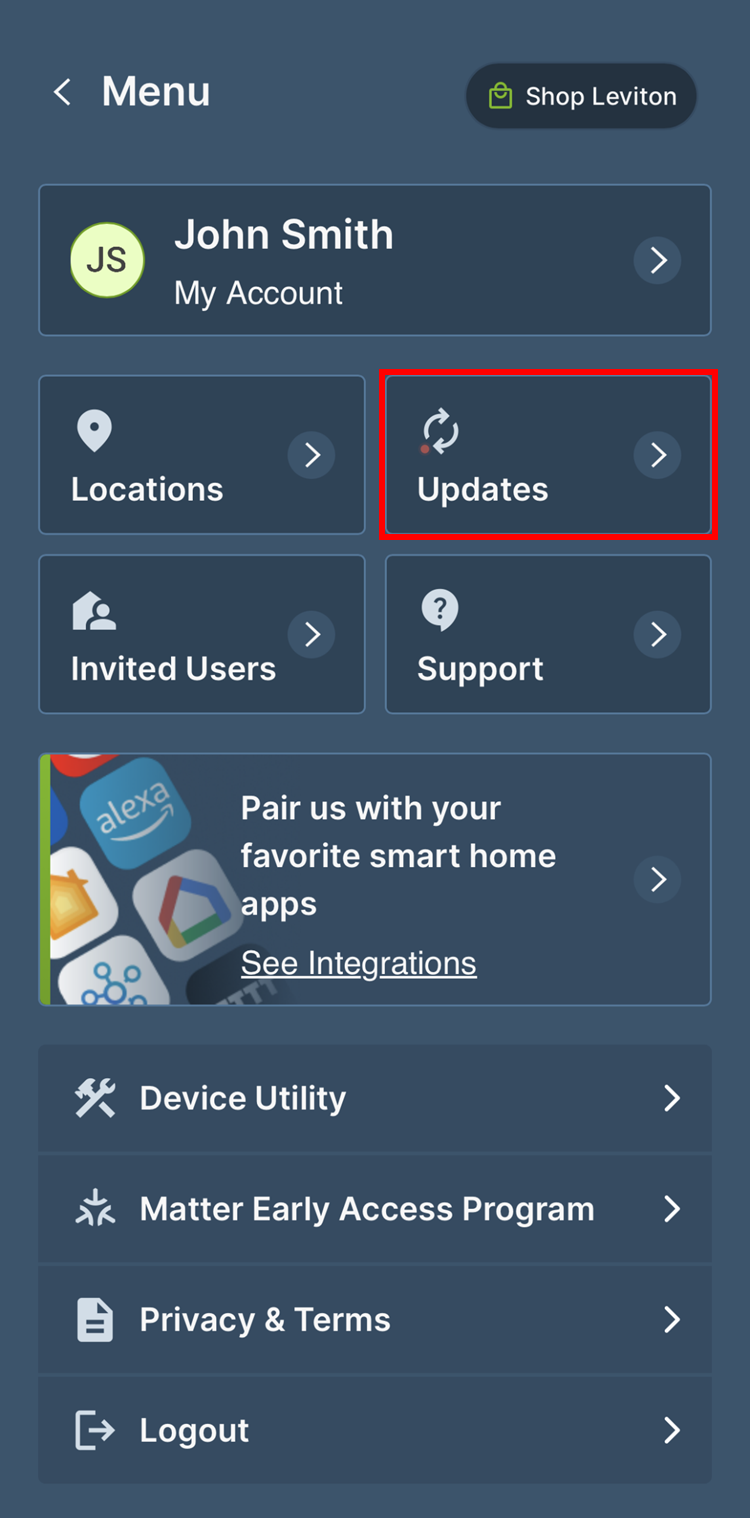
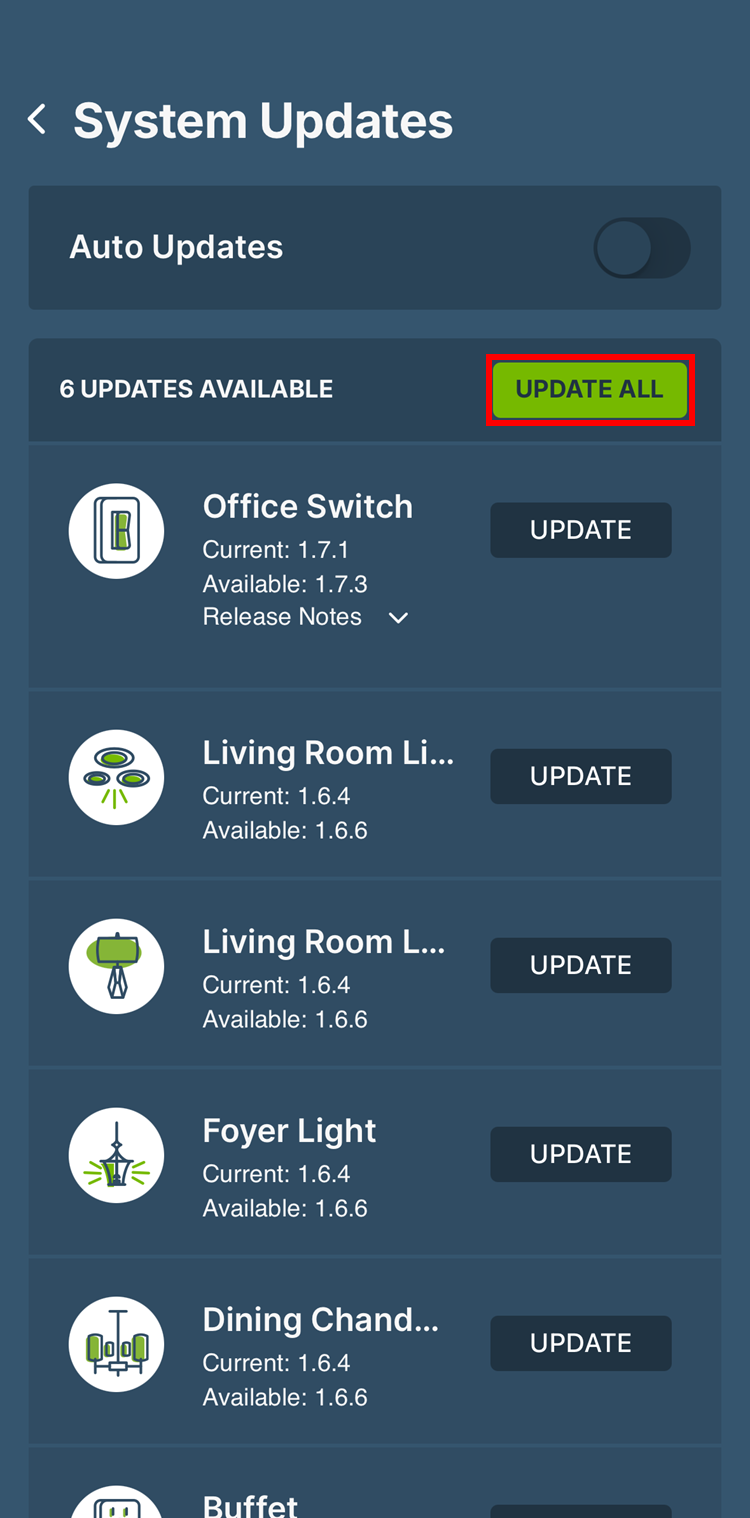
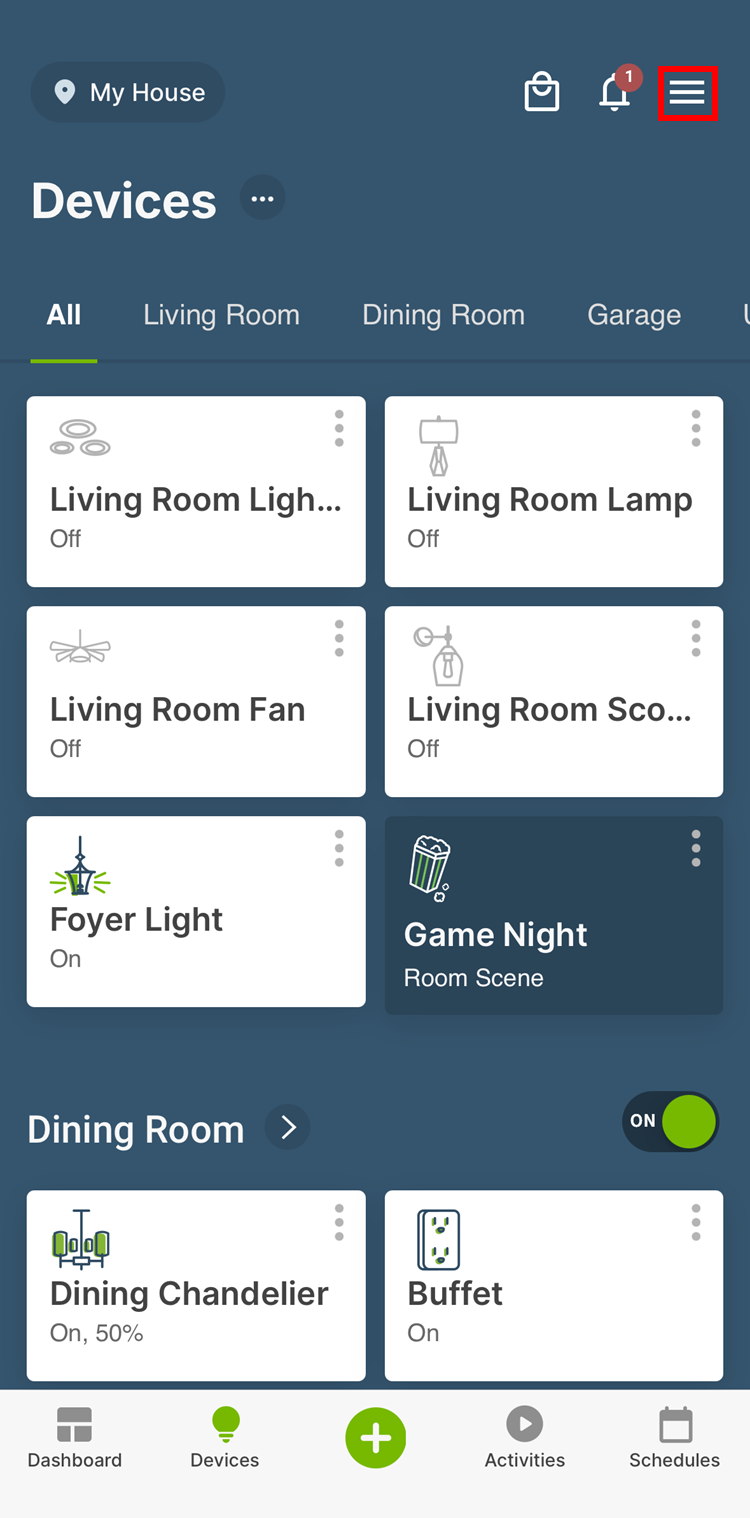
  • Tap the Menu ≡ button and then select Updates.  Update the devices individually or select Update All
Devices
Devices
Devices
  • If any devices are in need of updating, complete the update prior to the next step, factory default.

Restore each Decora Smart Wi-Fi Device back to factory default:

https://decorasmartsupport.zendesk.com/hc/en-us/articles/360051563073-How-Do-I-Return-My-Decora-Smart-Wi-Fi-Device-to-Factory-Default


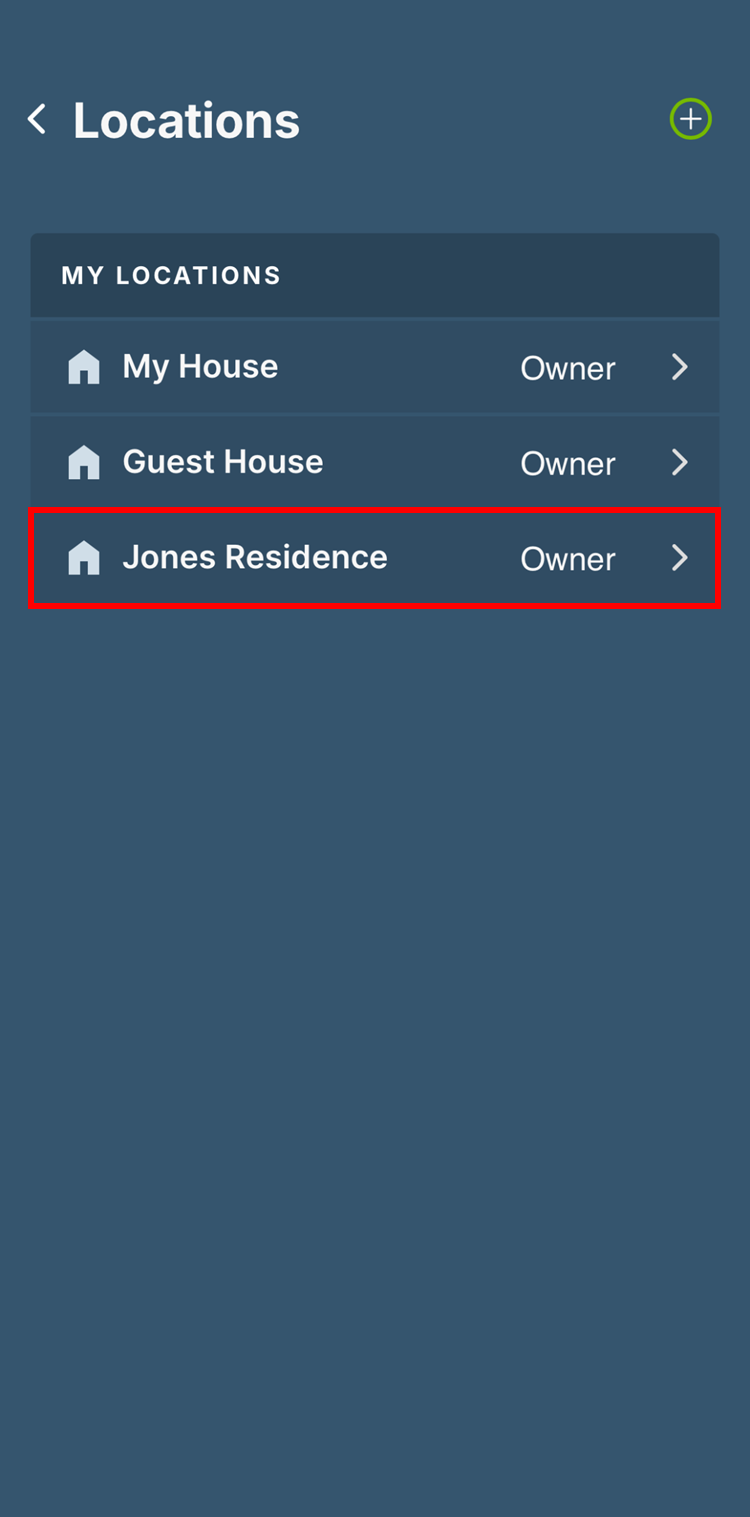
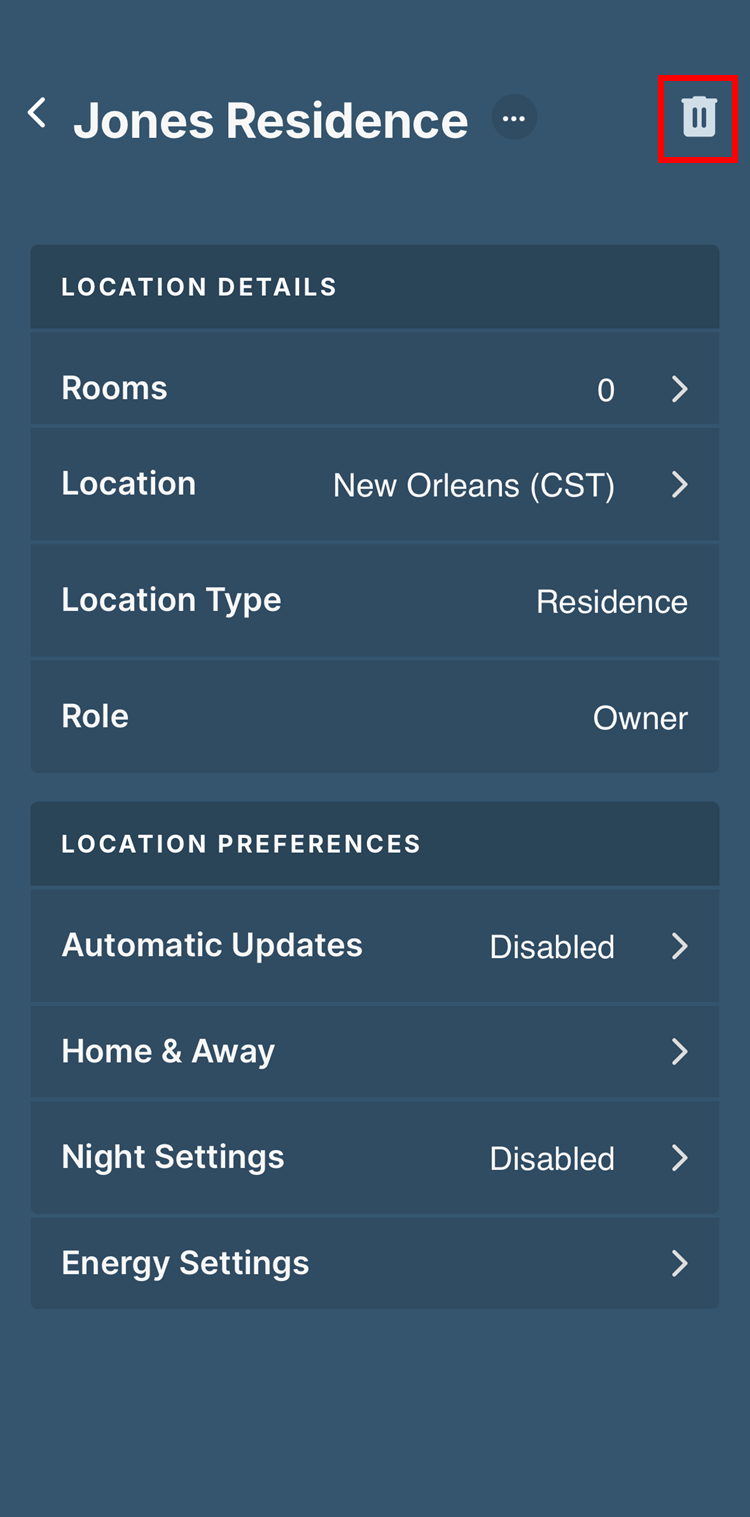
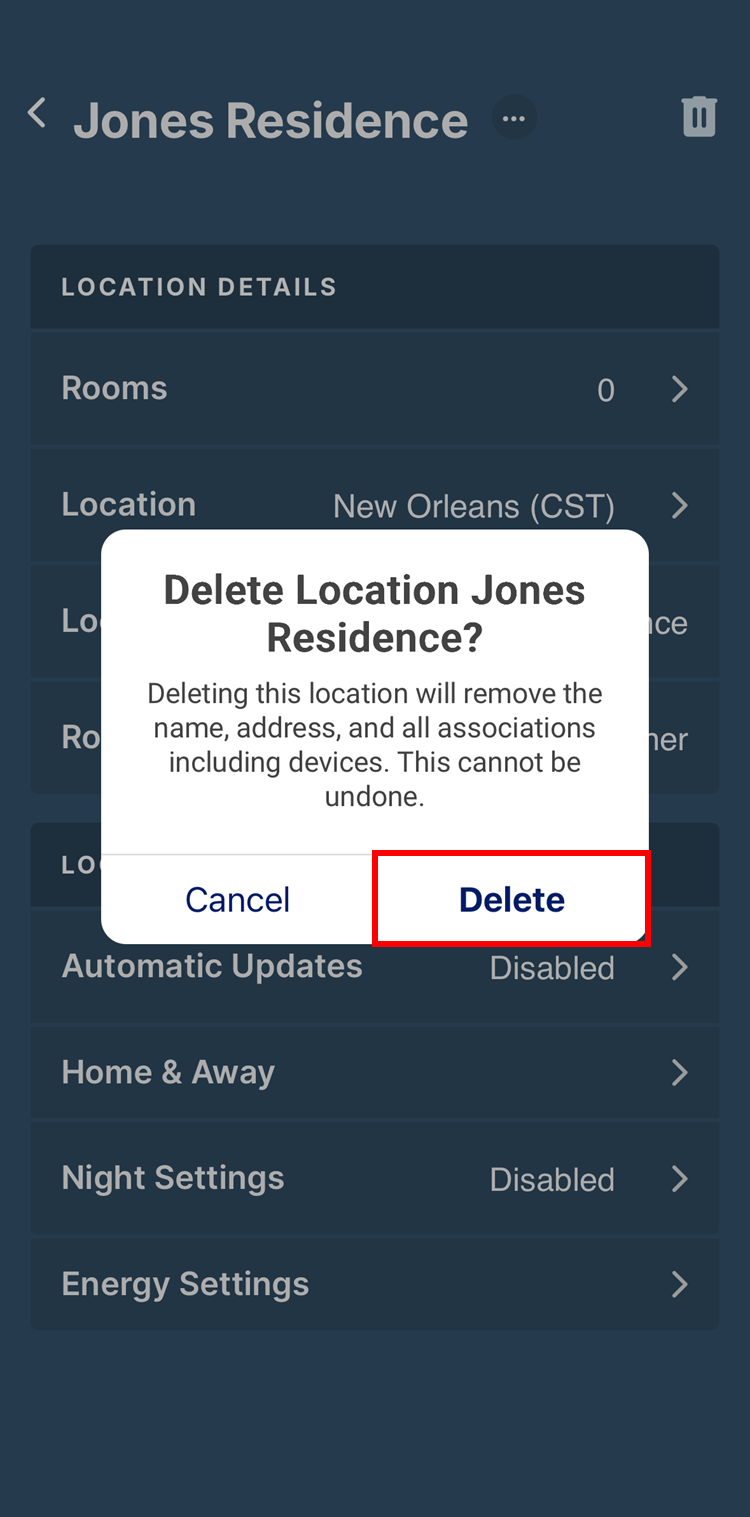
With the devices restored to factory default delete the current residence:

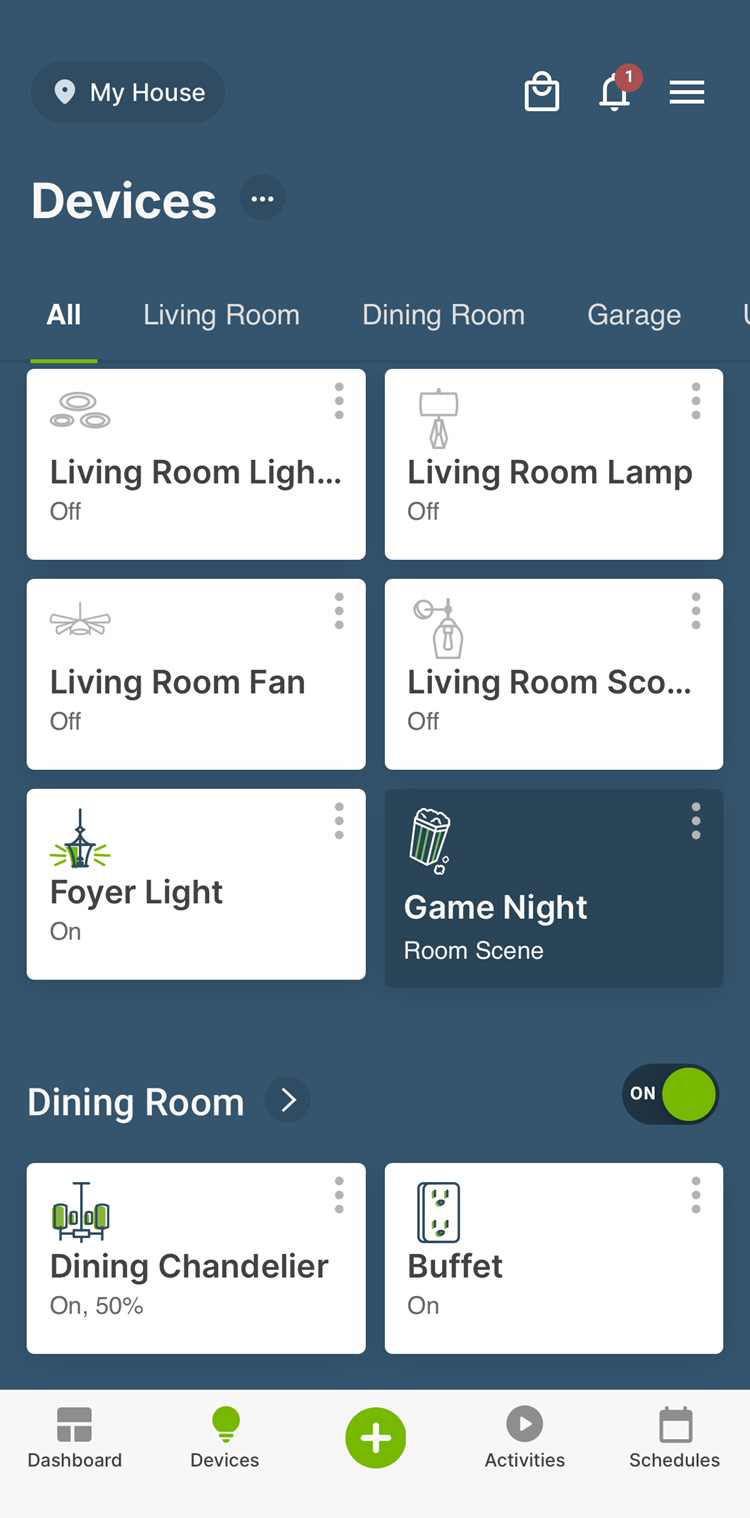
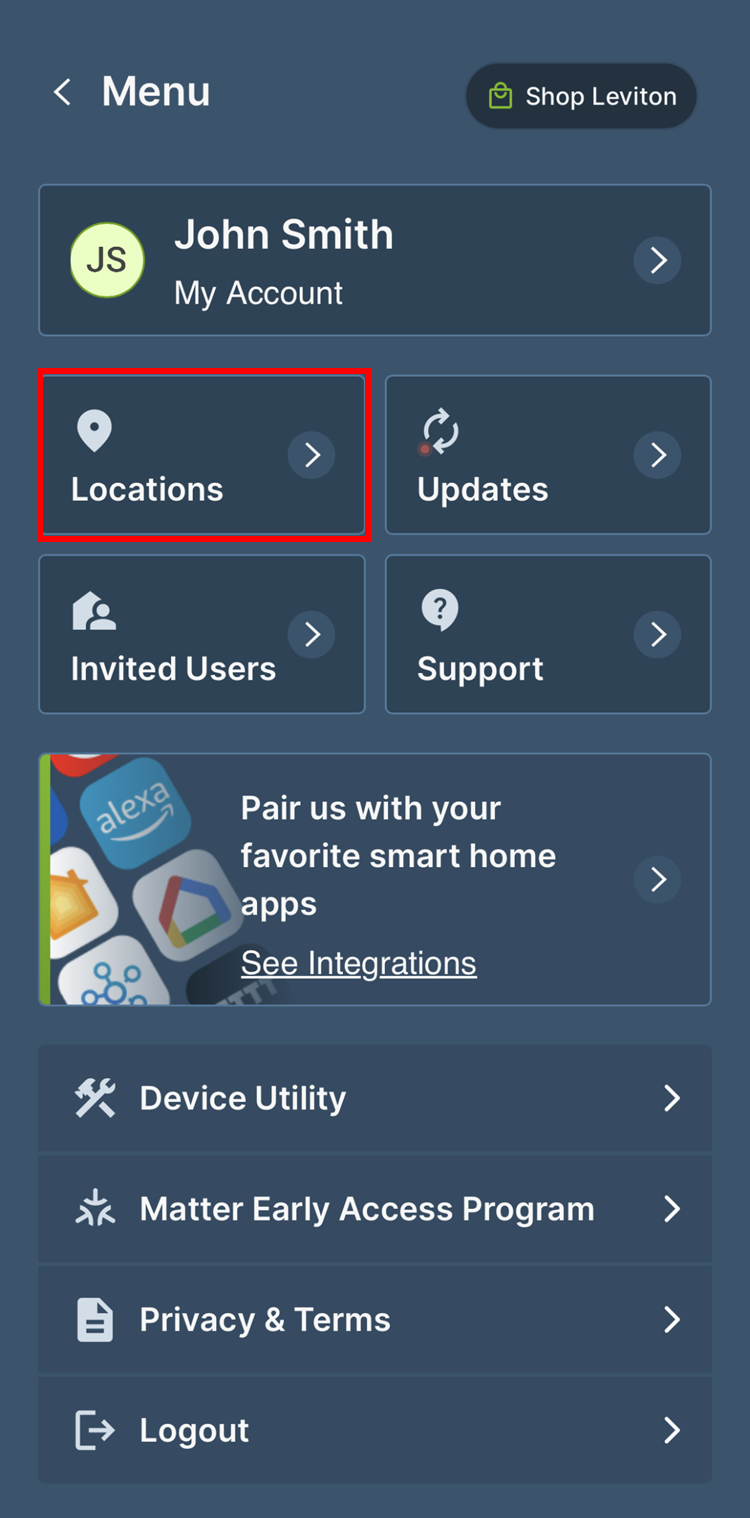
  • Tap the Menu ≡ button in the upper right corner and then Residence Settings.  Choose Delete Residence.
Devices
Devices
Devices
Devices
Devices
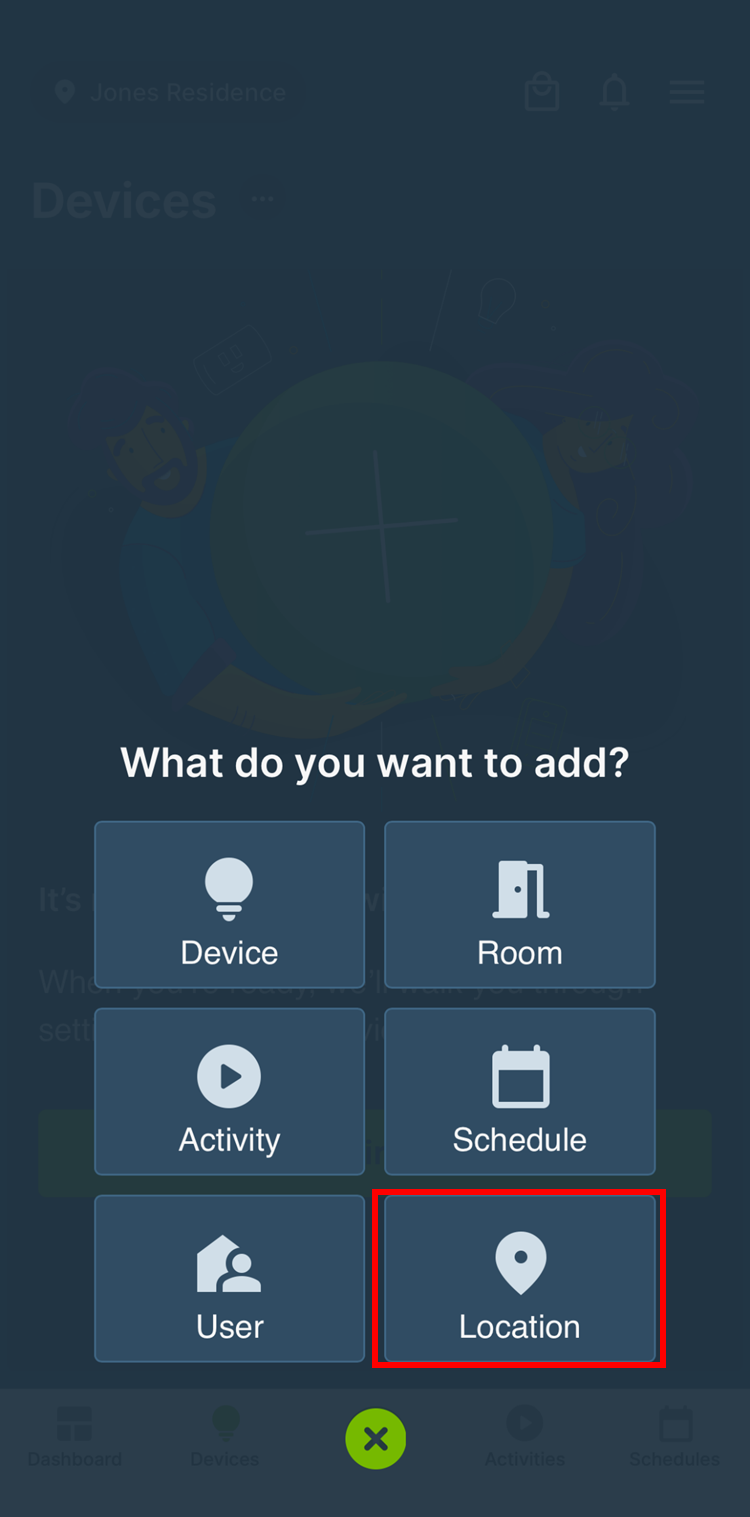
  • With the old residence and all devices deleted, select Location on the Add menu. 
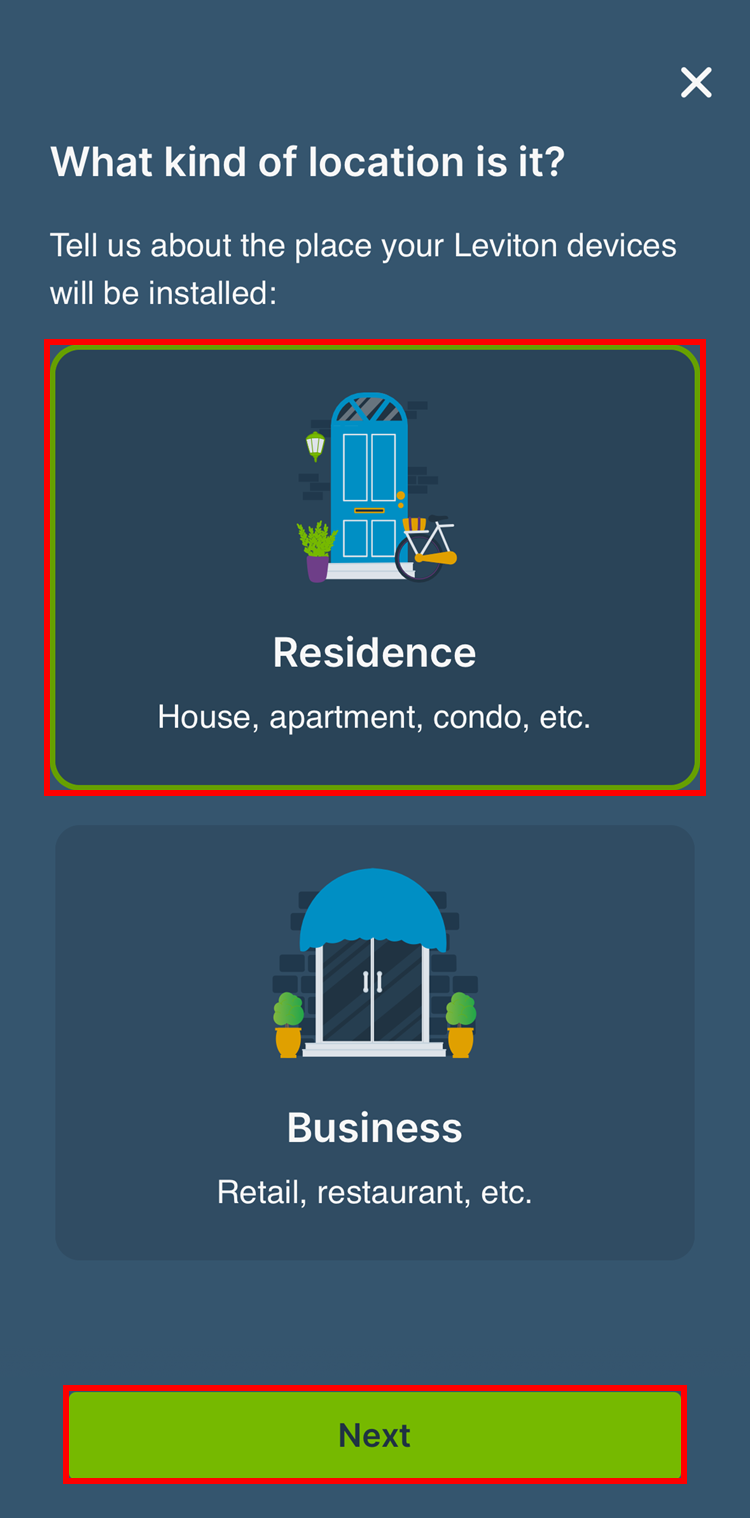
  • Select the type of location - Residence or Business - then select Next
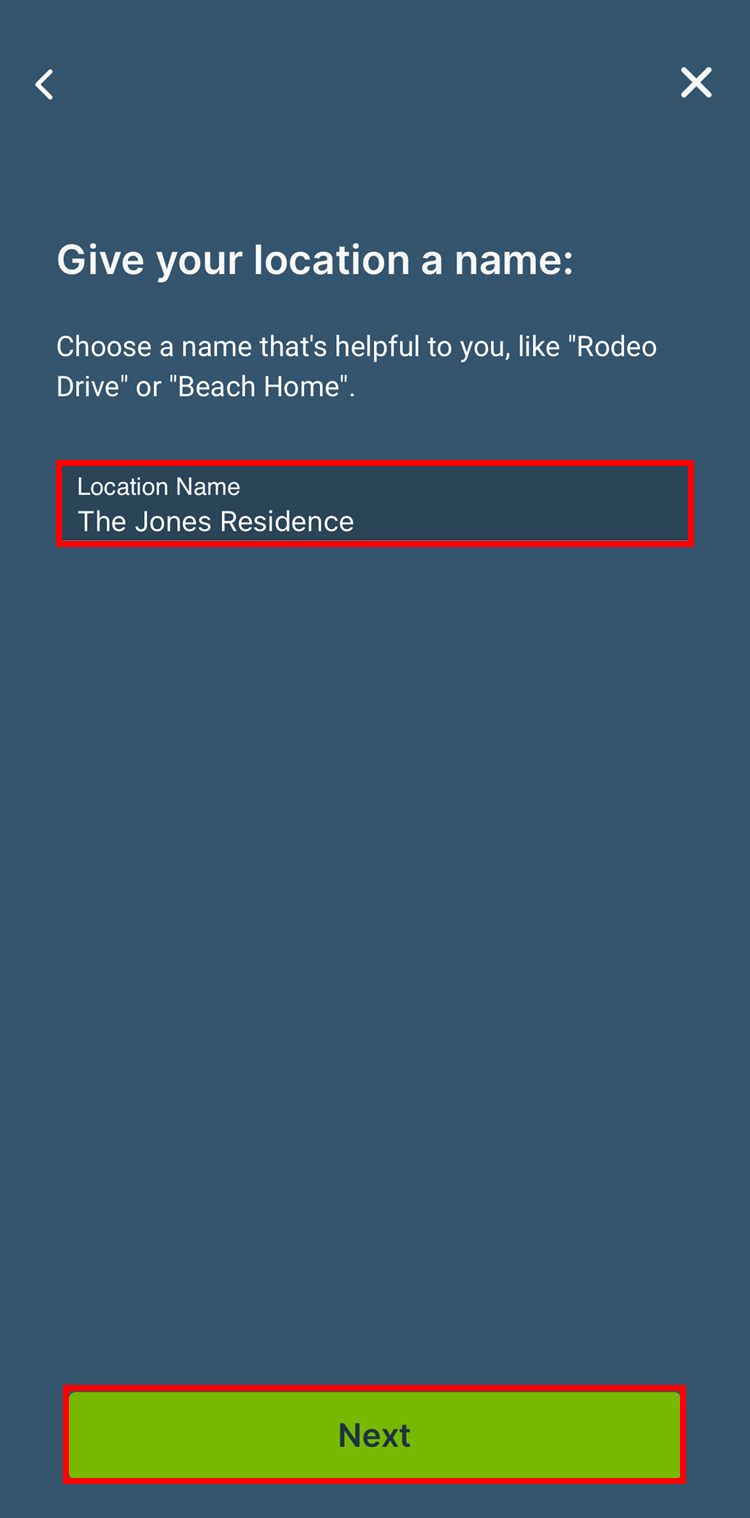
  • Enter the Location Name and then select Next.
Devices
Devices
Devices
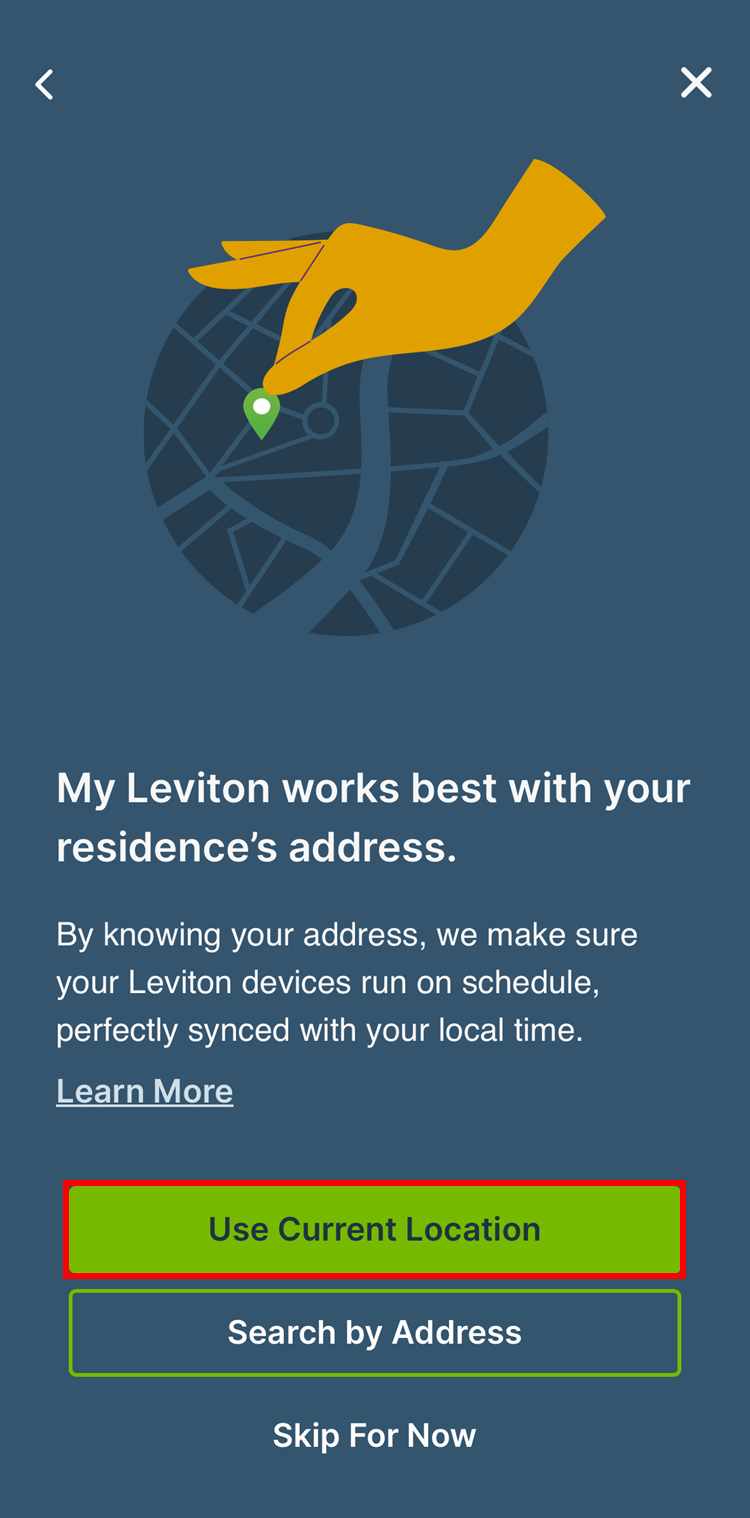
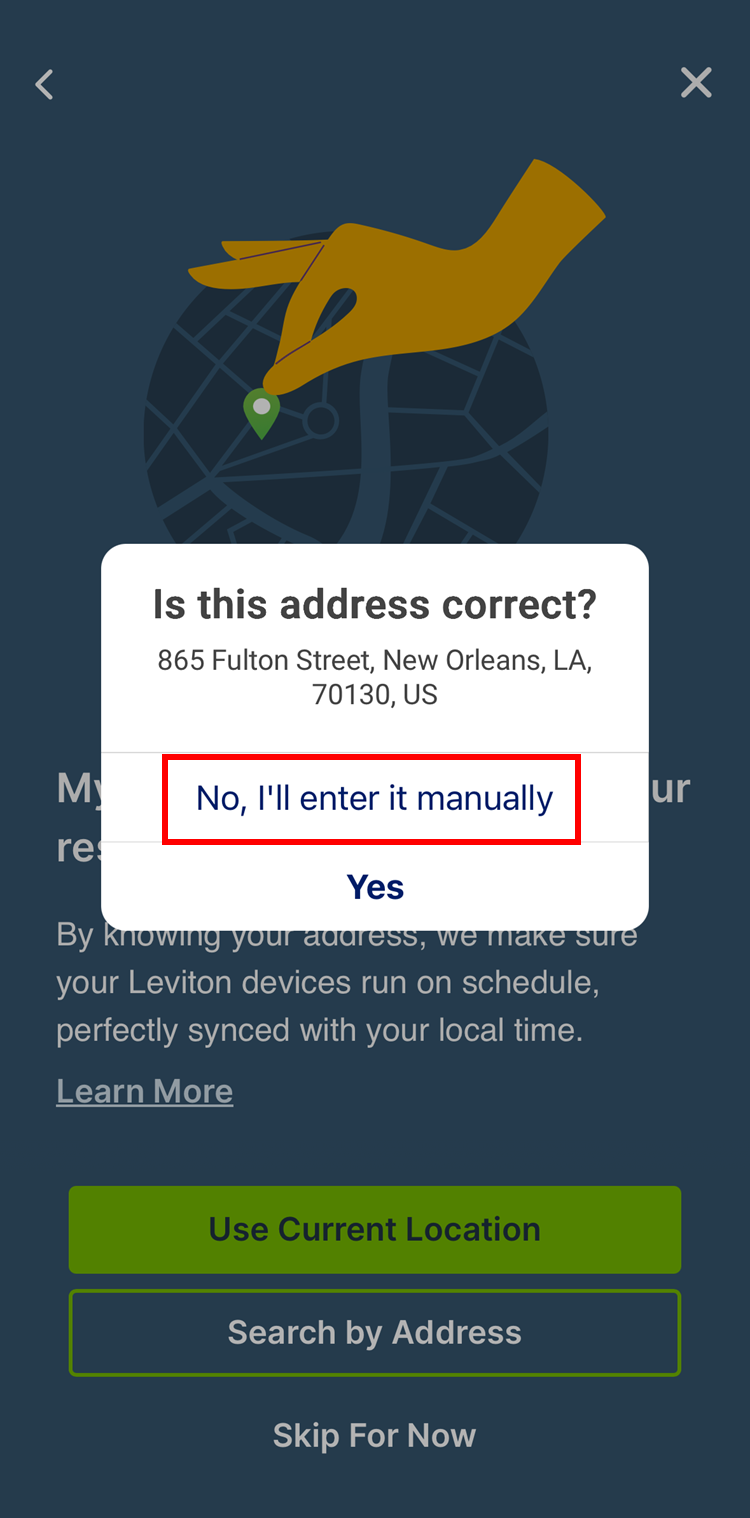
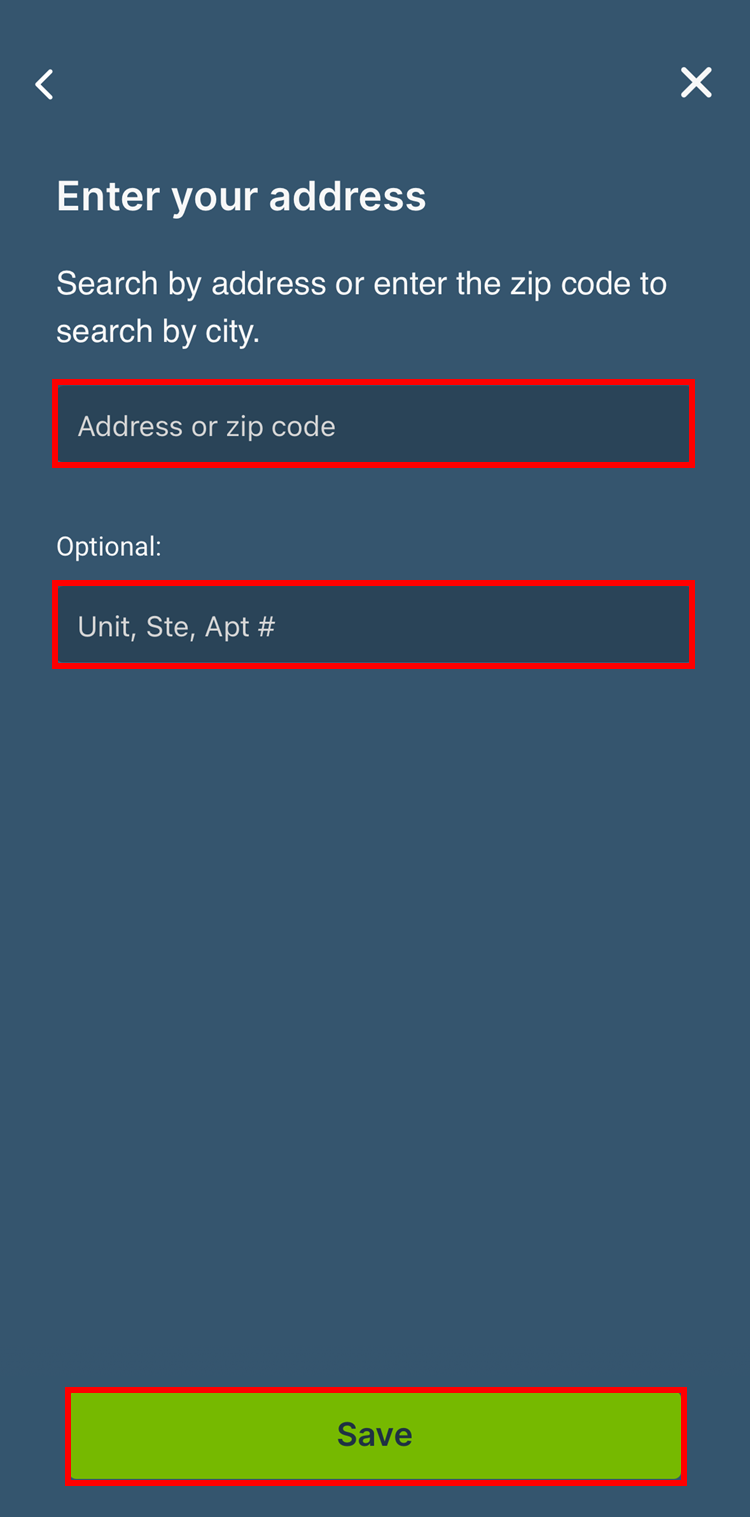
  • In the next step, you are prompted to enter the location of the Residence.  The location information is used to set the correct time zone and calculate sunrise/sunset times for the Decora Smart devices.  If you were experiencing issues with schedules you should not use your phone location information, instead enter the address manually including the  zip code.  Do not skip the location information or you will not be able to create any automation schedules.    

Setting Up the Location:

Tap Use Current Location then select No, I'll enter it manually.  Enter the address in the spaces provided and then tap Save.

Devices
Devices
Devices

Now, create a test schedule and see if it runs at the designated time.