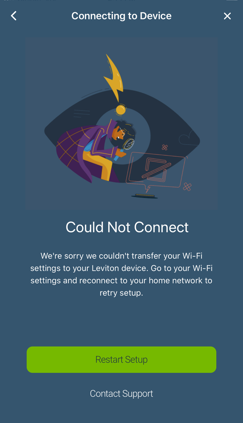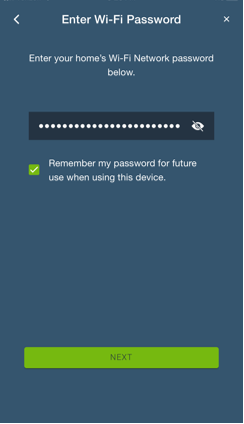
If you are having trouble connecting your Decora Smart Wi-Fi device to your Wi-Fi network, take note of where the failure is occurring during the process (as described below), and follow the troubleshooting procedures for that step in the process.
Before you begin, please verify that you are attempting to enroll a Decora Smart Wi-Fi device. The first 2 characters of a Decora Smart Wi-Fi device is DW (e.g. DW15S, DW6HD, DW15P, etc.). If the device begins with a DH or DZ (e.g. DH15S, DZ15S, etc.), it is not a Decora Smart Wi-Fi device and cannot be used with the My Leviton App.
This article was written for the Decora Smart Gen 1 devices, if your device is a Decora Smart Gen 2 Wi-Fi devices the part number will start with D2, please refer to the article Add a 2nd Gen Decora Smart® Wi-Fi Device to the My Leviton App.
Also, make sure that the mobile app that you are using is named My Leviton. Other Leviton mobile app, such as Decora Smart Home or Decora Digital Dimmer & Timer cannot be used for Decora Smart Wi-Fi devices.
Unable to connect directly to the Decora Smart Wi-Fi device
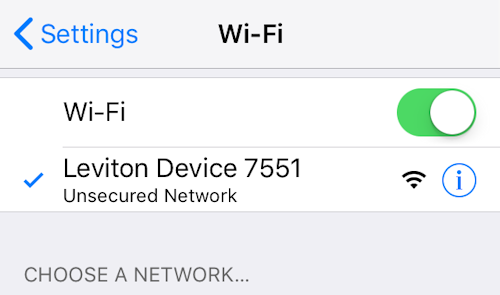
In Step 2 of the process, where you attempt to connect directly to the Decora Smart Wi-Fi device that is listed in the Wi-Fi networks (it will be listed in the format of Leviton Device-xxxx), instead of connecting you receive a message stating it is "unable to connect" or simple never connects (e.g. no check mark next to the device).
The image below shows a successful connection to the Decora Smart Wi-Fi device. If the device connects and you see this screen, skip to Decora Smart Wi-Fi device will not connect to the Wi-Fi Network or Leviton Cloud.