Loading...

How do I view the Matter pairing code for my Decora Smart Wi-Fi 2nd Gen device?

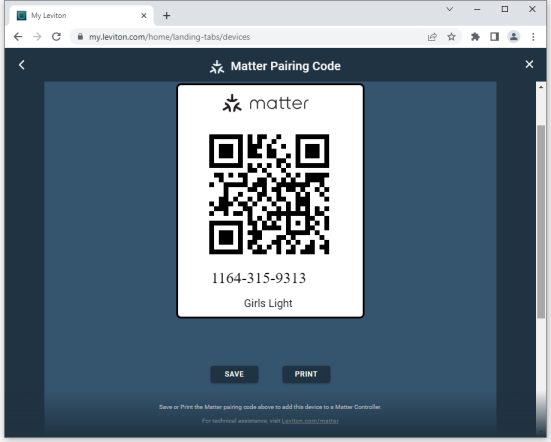
You can view the Matter pairing code at any time under Device Settings in the My Leviton app or using the My Leviton web app (http://my.leviton.com).

Using the My Leviton app:

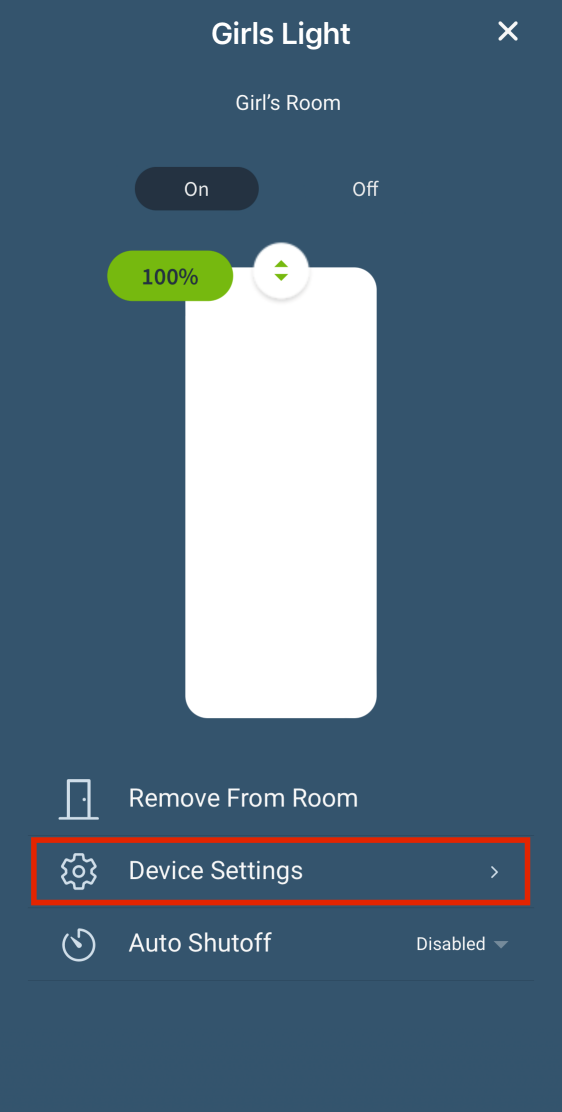
1. Open the My Leviton app and select the device from the device list.

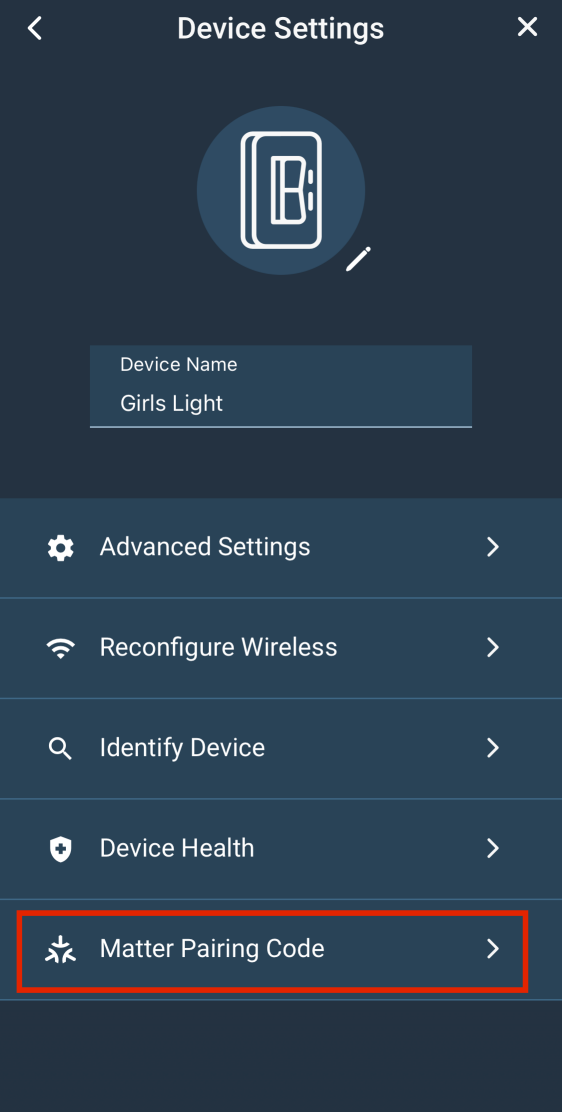
2. Tap Device Settings.

3. Tap Matter Pairing Code.

Devices
Devices
Devices

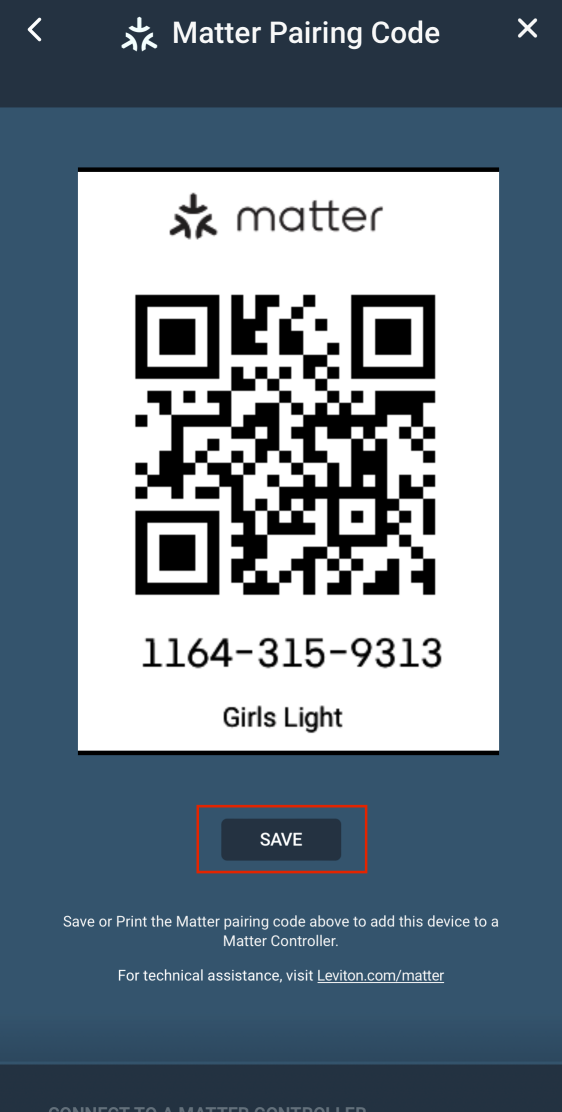
4. Use the Save button to Print the QC Pairing code, text/email it, or store it on the phone.

Helpful Tip: When adding a Matter device to Apple Home, Save the QR Pairing code to Photos on your iOS device. You can then access the photo of the device to add to Apple Home. For additional information, see: How Do I Add a Decora Smart Matter Device to the Apple Home App?


Use the My Leviton web app:

Using the My Leviton web app makes it easy to scan the Matter pairing code using your mobile device, directly from a computer monitor.

1. Open a web browser on a PC or Mac.

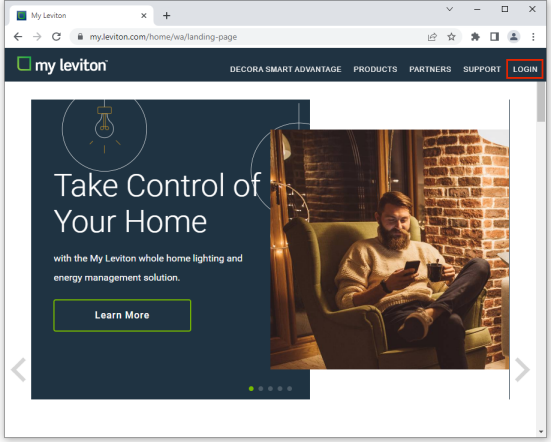
2. Browse to http://my.leviton.com.

3. Click Login on the top-right of the page.

My Leviton

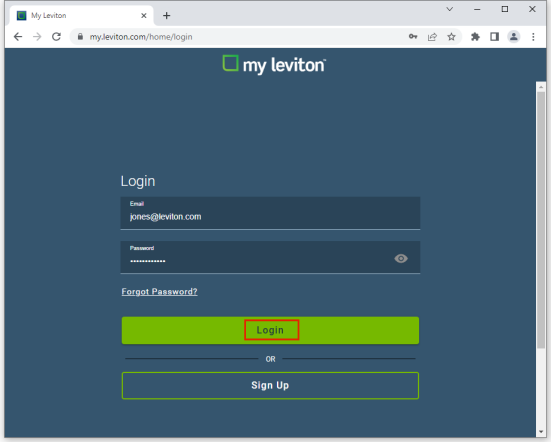
4. Enter you My Leviton login credentials (Email and Password), and then click the Login button.

My Leviton

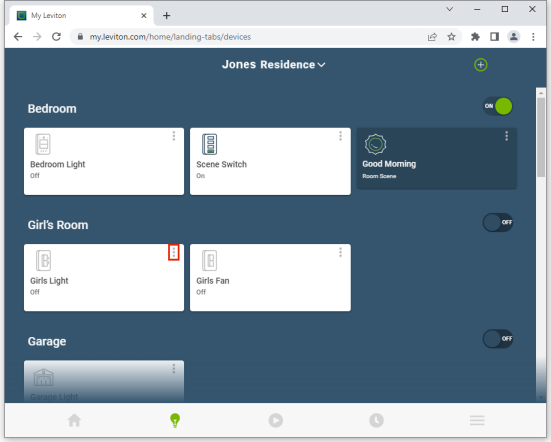
5. Select the device by clicking on the 3 dots [] in the upper-right corner of the device card.

My Leviton

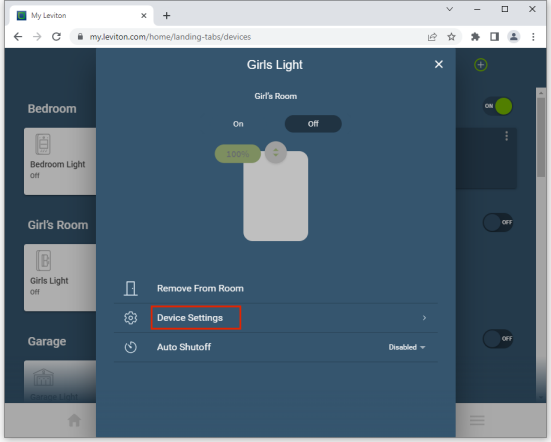
6. Click Device Settings.

My Leviton

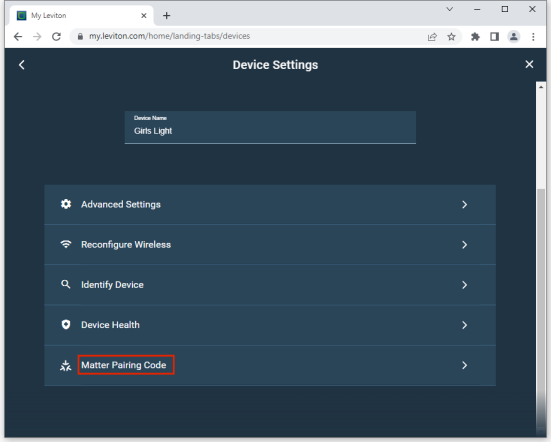
7. Click Matter Pairing Code.

My Leviton

8. Using your mobile device, scan the Matter pairing code from the monitor.

My Leviton

You can also Save the Matter pairing code to the computer or Print it.