Loading...

Do Second Gen Decora Smart® Wi-Fi Products work with Apple HomeKit Technology?

Decora Smart® Wi-Fi Second Gen (D26HD, D215S, D23LP, D215P) products are compatible with HomeKit technology.  For more information on compatible products, see the article "How do I know if my Decora Smart® Device is HomeKit compatible?"

Getting Started

Install your Decora Smart® Wi-Fi 2 Gen product and add it to the My Leviton App.  For more information see the article "Add a Decora Smart® Wi-Fi Device to the My Leviton App".

App Home App

To add Siri and HomeKit compatibility open the Apple Home app.  The Home app is typically installed as a default app, or it can be downloaded via the Apple App store.
Home

Adding An Accessory

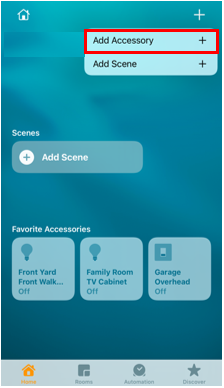
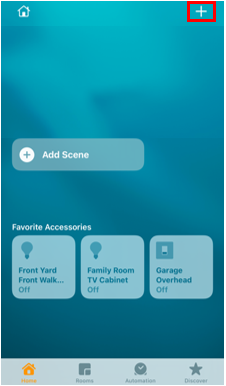
From the Home screen press the + in the upper right corner and choose Add Accessory

HomeKit
HomeKit

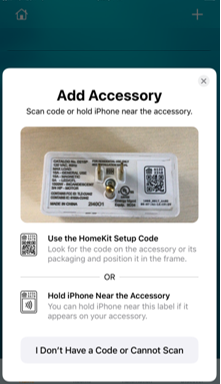
Locate the HomeKit QR Code and use the camera on your mobile device to scan the code:

  • On the cover of the Get Started Guide
  • On the front strap of the switch or dimmer
  • On the back of the plug-in modules
HomeKit

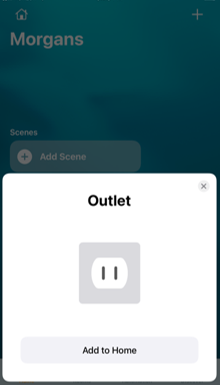
The Home App will identify the product.

Before Pressing "Add to Home" be make certain the Decora Smart 2nd Gen Wi-Fi product is powered,  and the LED on the bottom is not flashing.

Press Add to Home

HomeKit

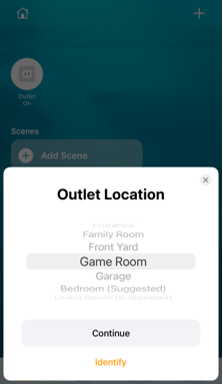
The app will state "Connecting" for a brief period.  Once connected you will be asked to place the device in a room.

HomeKit

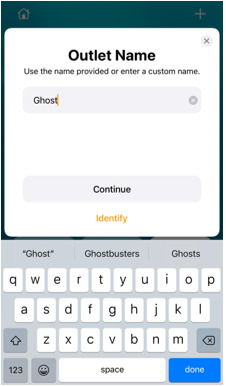
Give the device a name

HomeKit

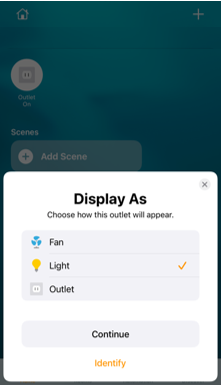
Choose an icon for your product

HomeKit

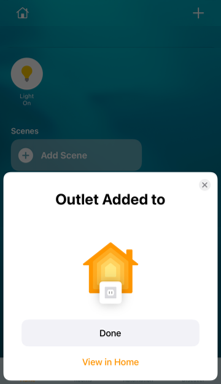
Your device is now added to your Home app

HomeKit

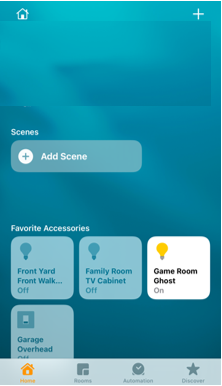
Test your device by pressing the icon.

Test Siri with a simple command like "Siri, Turn <your light name> On"

HomeKit