Loading...

Adding Decora Smart® DN No-Neutral Dimmer Or Switch to HomeKit Using a My Leviton Account

Decora Smart DN No-Neutral Switches and Dimmers can be added to Apple HomeKit after the MLWSB bridge and DN devices have been paired.

See the article Add a Decora Smart® No-Neutral Device to the My Leviton App to enroll the MLWSB and DN Devices.  Once the devices are enrolled, use the Home app to add the MLWSB bridge to HomeKit.

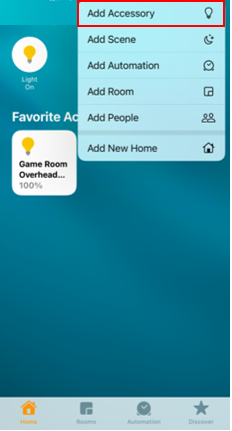
Choose the + in the upper right corner

Decora Smart

Choose Add Accessory

Decora Smart

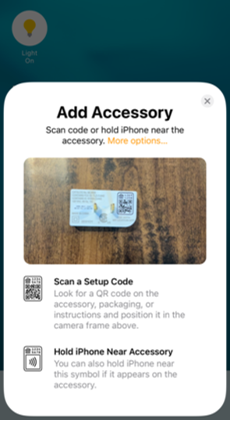
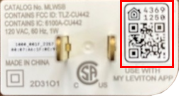
Using the camera on your iPhone, scan the HomeKit code on the MLWSB Decora Smart Wi-Fi Bridge.

Decora Smart
Decora Smart

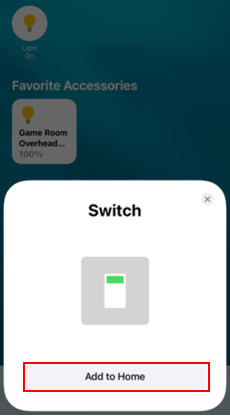
The MLWSB may be identified as a Switch or a Bridge. 

Plug the Bridge into an outlet and wait for the LED to start flashing green

Choose Add to Home

Decora Smart

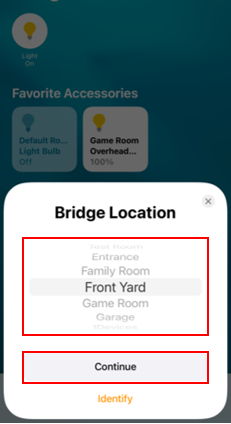
Choose the room where the Bridge is located

Decora Smart

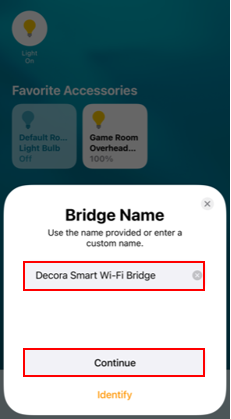
Name the Bridge and press Continue

Decora Smart

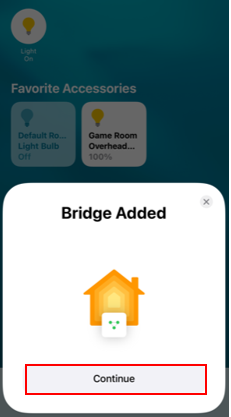
Press Continue

Decora Smart

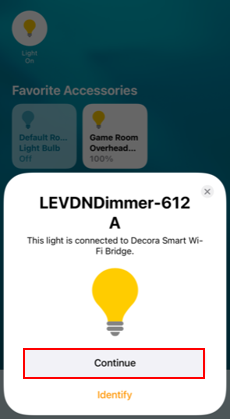
The Home app will begin adding each dimmer or switch connected to the Bridge.

Decora Smart

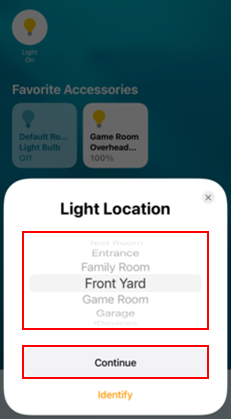
Choose the room for the connected switch or dimmer

Decora Smart

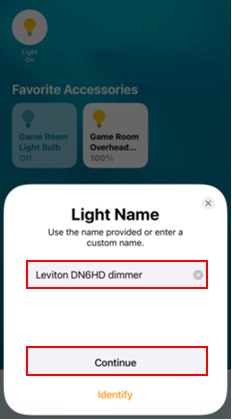
Name the switch or dimmer

Decora Smart

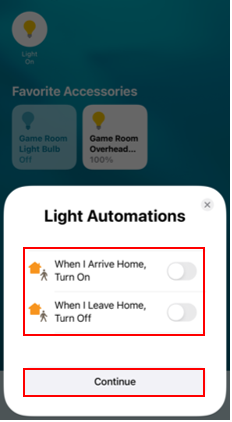
Part of the HomeKit experience is to identify lights that should turn on or off based on the movements of your iPhone.  Choose if you would like your light to turn on or off based on arriving or leaving home.

Decora Smart

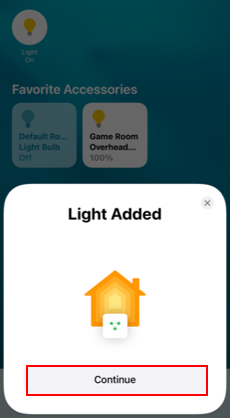
The Bridge and DN No-Neutral Switch or Dimmer have been enrolled.

HomeKit