Loading...

Add a Decora Smart® No-Neutral Device to the My Leviton App

These instructions are for adding Decora Smart No-Neutral products.  These products begin with the part number DN and require a MLWSB Decora Smart Wi-Fi Bridge.  For more information please consult the article How Do I Know If My Decora Smart® Wi-Fi is 1st or 2nd Generation.

Preparing to Add a Device:
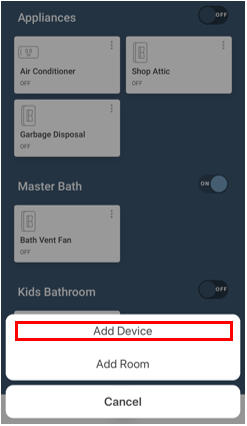
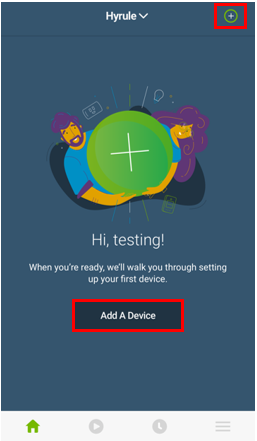
When no devices are currently enrolled, choose the Add a Device option.

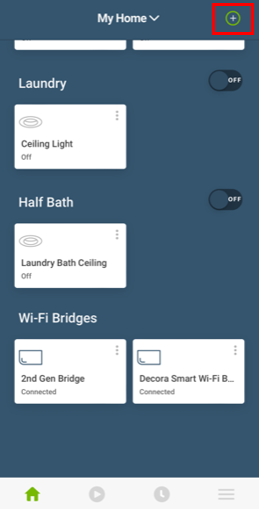
Note: If a device has been previously enrolled, it will be shown in the app. Choose the + button in the upper right and select Add Device.
Enroll
Voice

Adding the MLWSB Decora Smart Wi-Fi Bridge
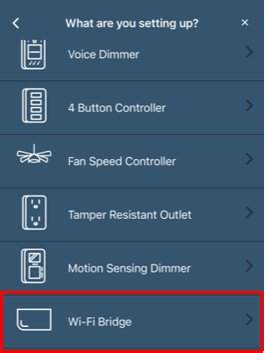
Select the Wi-Fi Bridge 

No Neutral

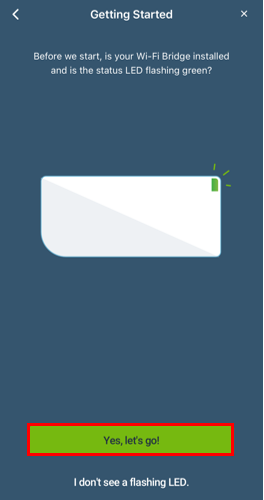
Plug the MLWSB

After several seconds the green LED will begin to flash

Press "Yes, let's go"

No Neutral

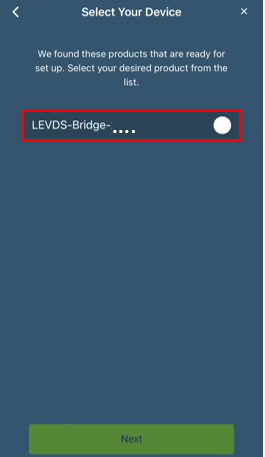
Select the Bridge to enroll. 

Note, there will be four characters instead of "...." in the image below

No Neutral

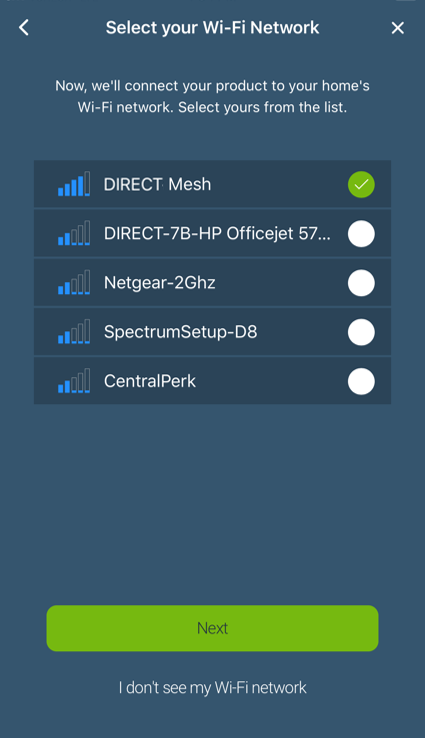
The app will provide a list of visible wireless networks available to the MLSWB Wi-Fi Bridge

Choose the network with the best signal strength available that you are authorized to join

Note: If your SSID is hidden it will need to be visible during the enrollment process.  Once the Decora Smart Wi-Fi is enrolled the SSID can be re-hidden. 

Press Next.

Enrollment

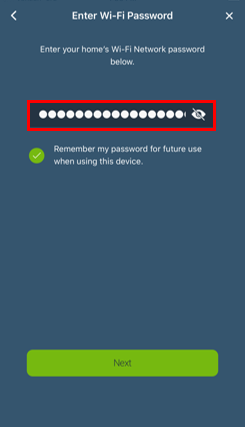
Enter the network password

Please note that passwords are case specific

If you are in a safe location to show your password, press the eye icon to see the text

Press Next.

Enrollment

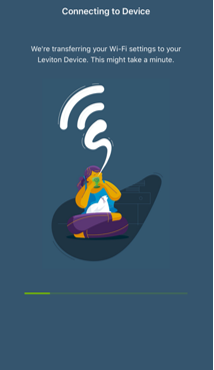
The app passes the Wi-Fi information to the MLSWB Wi-Fi Bridge

Enrollment

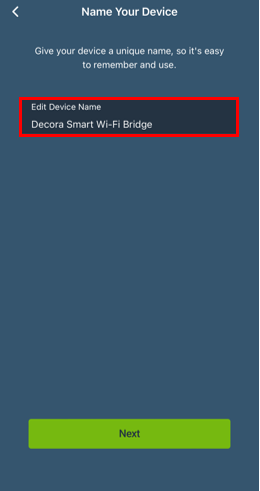
Choose a name for your MLSWB Decora Smart Wi-Fi Bridge

No Neutral

Once the MLWSB is enrolled you can now add DN No-Neutral switches and dimmers.

  • The Decora Smart Wi-Fi Bridge provides up to 2,500 sq. ft. of coverage, and should be placed in a central location within 50 ft. of Decora Smart No-Neutral devices
  • One Decora Smart Wi-Fi Bridge supports up to 25 devices
  • Multiple Bridges can be installed per residence


Image3.jpg

Adding Decora Smart No-Neutral Devices: 

Choose the + in the upper right corner

No Neutral

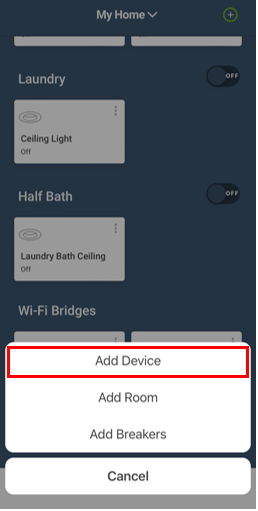
Choose Add Device

No Neutral

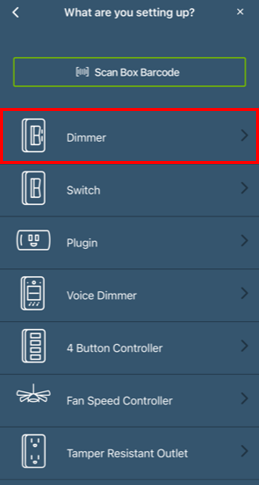
Choose Dimmer or Switch

No Neutral

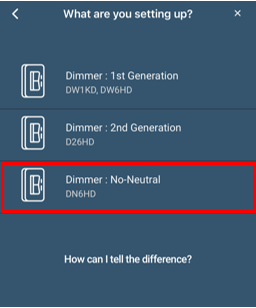
Choose Dimmer or Switch: No-Neutral

DN6HD or DN15S

No Neutral
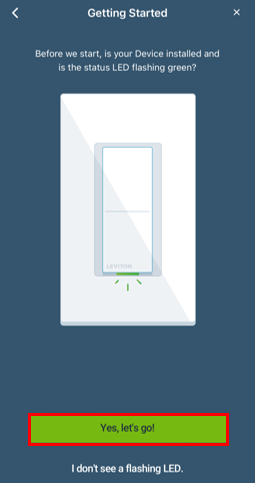
  • Power the DN6HD Dimmer or DN15S Switch
  • The bottom LED will begin flashing green
  • If the LED is no longer flashing green hold the top rocker for 7 seconds and let go

Choose Yes, let's go

No Neutral

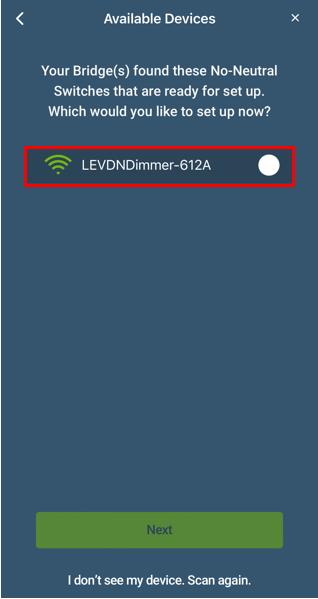
 Choose the DN Dimmer or Switch that needs to be paired

HomeKit

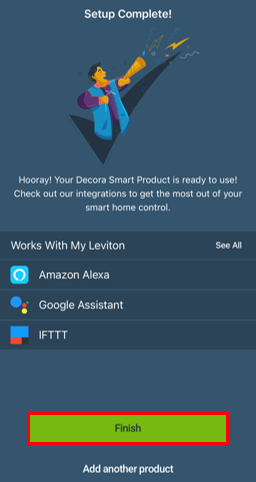
The app will pair the Decora Smart DN Switch or Dimmer to the Bridge

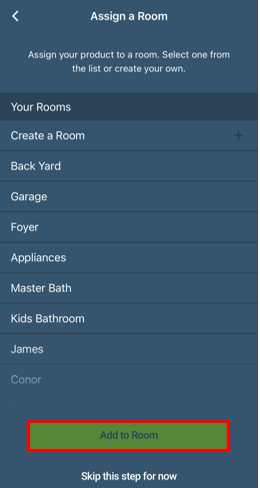
Choose from the existing room list or use the Create a Room option to give a new room a name

Press Add to Room

No Neutral
No Neutral