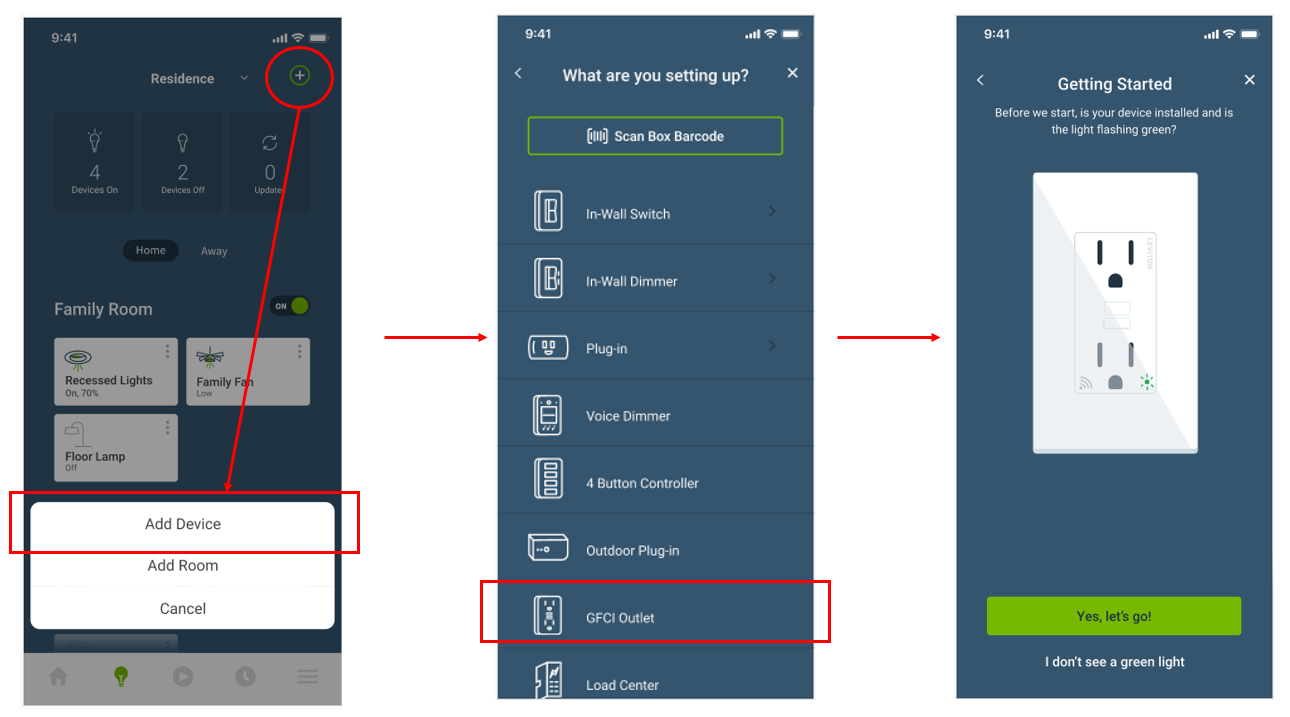
Click on the plus symbol in the upper right corner of the My Leviton app. Choose ‘Add Device’, then choose ‘GFCI Outlet’. Once the screen comes up showing an outlet, verify your device is in setup mode (the indicator LED should be flashing green). Press the green button for ‘Yes, let’s go!’.
How do I add the Smart GFCI to the My Leviton app?
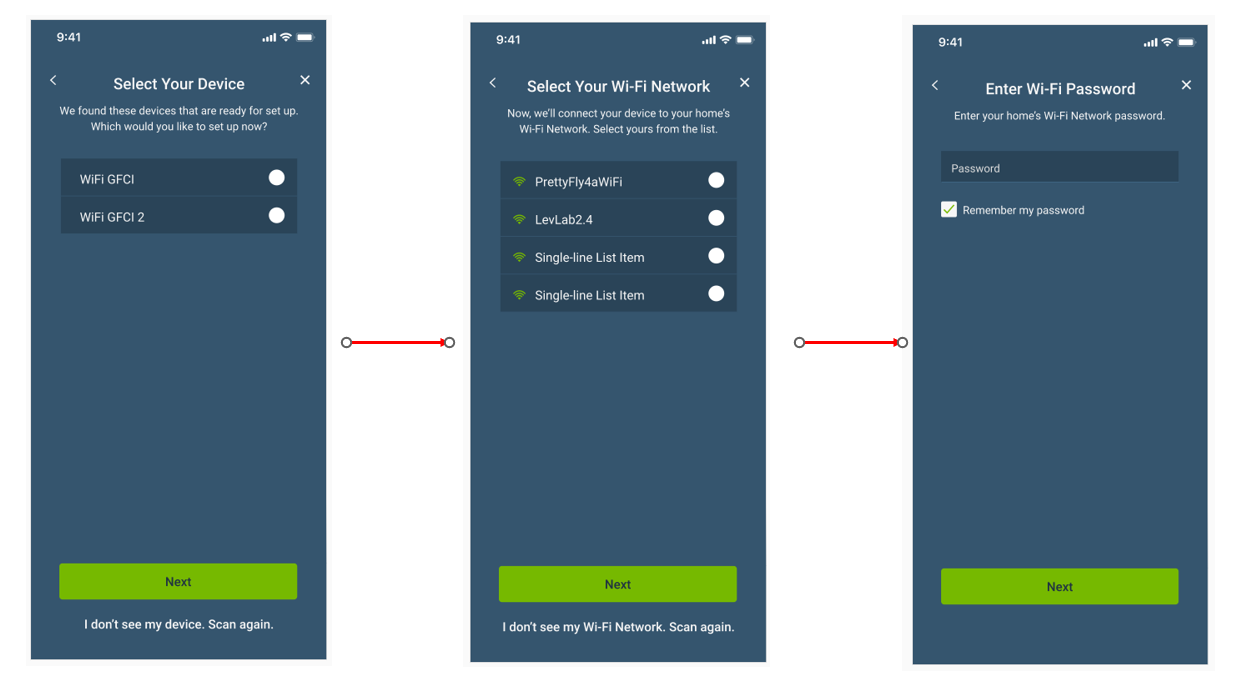
My Leviton will scan nearby devices to find the Smart GFCI Outlet and will display a list of available devices. Click on the Smart GFCI you wish to enroll and follow the prompts for connecting to your WiFi.
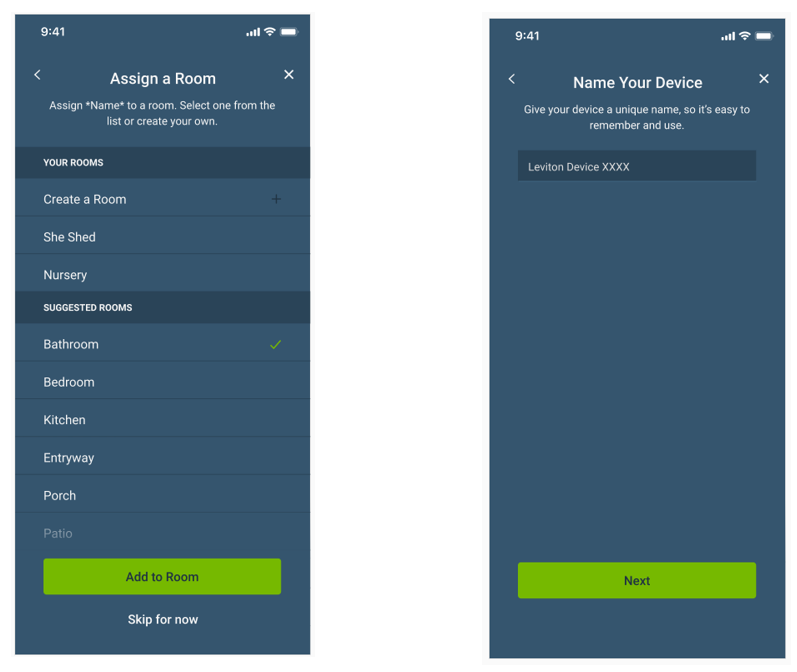
Once the Smart GFCI Outlet is set up with your WiFi, you will have the option to add it to a room and name it.
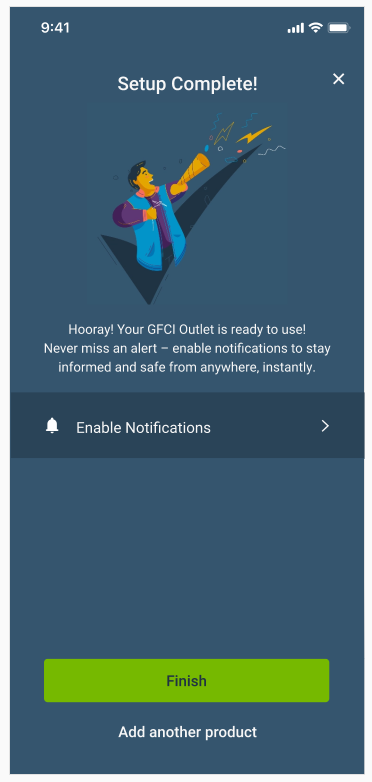
Setup is now complete and you should see the following screen: