Loading...

How Do I Use The D2SCS Decora Smart® Wi-Fi Scene Controller Switch With HomeKit?

The D2SCS Decora Smart® Wi-Fi Scene Controller Switch is designed for use with My Leviton, HomeKit and IFTTT.  Each service offers a unique set of controls.  While it is OK to use multiple services with the Scene Controller Switch, please note there is no system in place to resolve potential conflicts across each service.  Once the Scene Controller Switch is installed and operational the instructions below will walk you throught the unique set of HomeKit options.

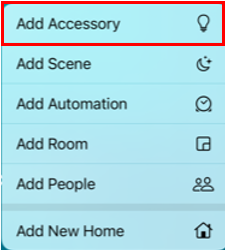
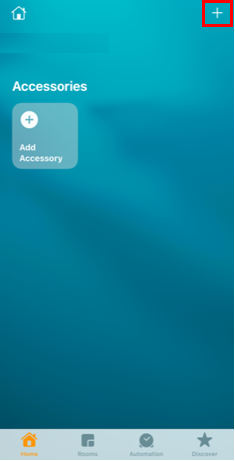
To get started press the + in the upp right corner of the Apple Home App: 
HomeKit

Choose Add Accessory:

HomeKit

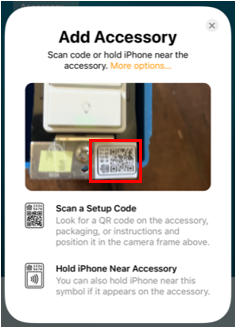
Using your camera scan the HomeKit QR Code which is located in the lower right corner on the strap.

  • Note, the wall plate must be removed
HomeKit

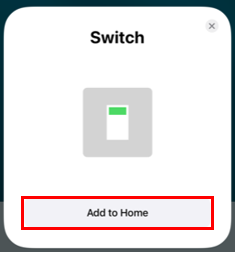
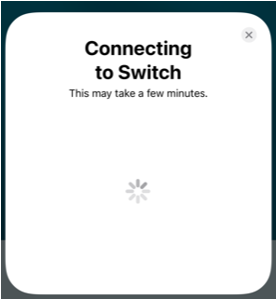
HomeKit will begin scanning for your Switch

HomeKit

Once found HomeKit will connect and transfer the necessary information to connect the Scene Controller Switch to your Wi-Fi network

HomeKit

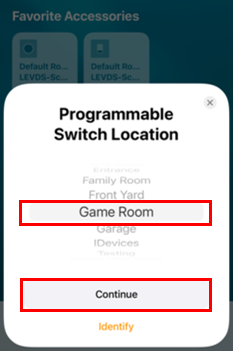
Choose the room that you installed your Scene Controller Switch

HomeKit

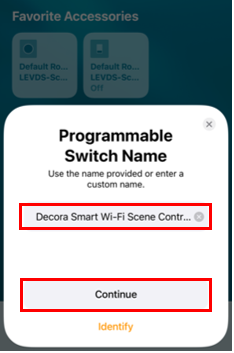
You can give your Scene Controller Switch a name

  • Press Continue
HomeKit

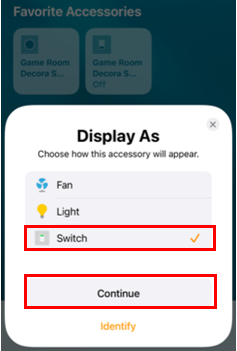
The switch may be controlling different types of loads. 

  • Homekit allows you to choose Fan, Light or to use the generic Switch Icon
  • Press Continue
HomeKit

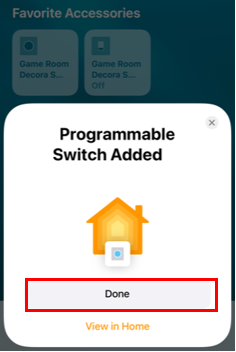
The Scene Controller Switch is now added

  • Press Done
HomeKit

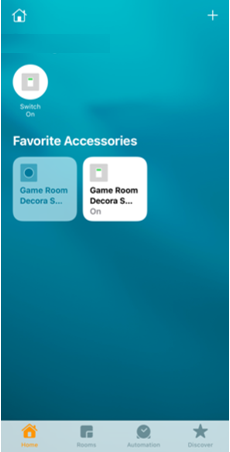
You can test the switch control by tapping the Switch icon On and Off

HomeKit

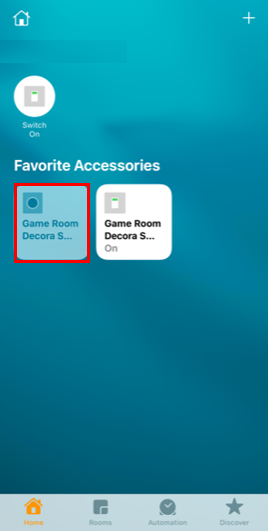
To setup the 3 buttons on the Scene Controller Switch press the Controller button

HomeKit

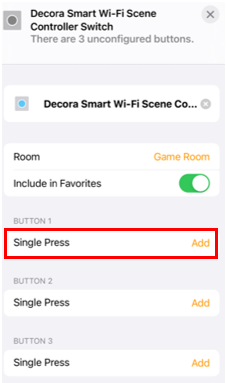
Each of the 3 buttons follow the same programming process

  • Press Add to the right of Button 1 Single Press
HomeKit

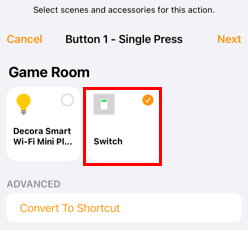
Select which HomeKit enabled devices you wish to control when the button is pressed

  • In the example we are showing the Scene Controller Switch and a Decora Smart Wi-Fi Plug-in Dimmer
HomeKit

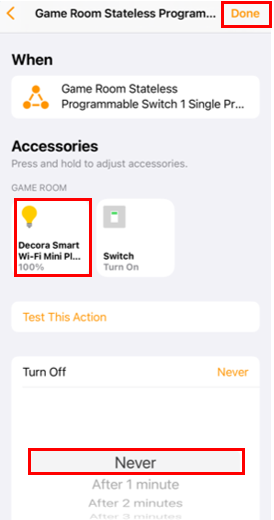
The selected devices will show under Accessories

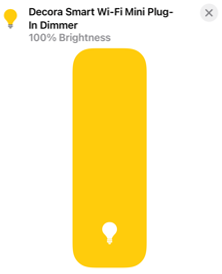
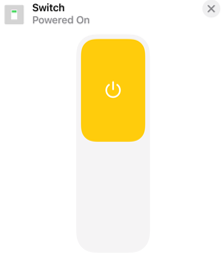
  • Tap the devices to change how you would like each device to react
  • The Switch can be On or Off
  • A dimmer can be turned On to a specific level

You can press Done and the Button will be programmed

  • Repeat the process for buttons 2 and 3
  • Note there is Turn Off option that will automatically turn each device Off after the selected period of time
HomeKit
HomeKit
HomeKit

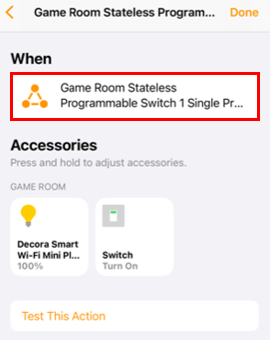
There are additional more advanced options if you press the When action

HomeKit

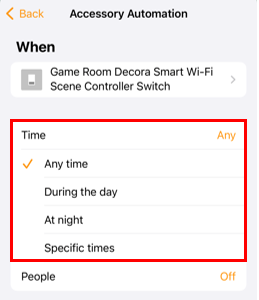
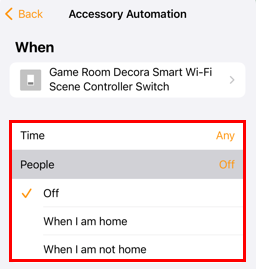
Below the When action you will be presented with 2 options; time and people

  • The time option allows the button press to act differently when pressed during different times of day
HomeKit
  • The People option allows the button press to act differently when pressed and select people are home or away
  • The home or away location is determined based on the location of their iPhone
HomeKit