Loading...

How Do I Create a Schedule?

To create a schedule:

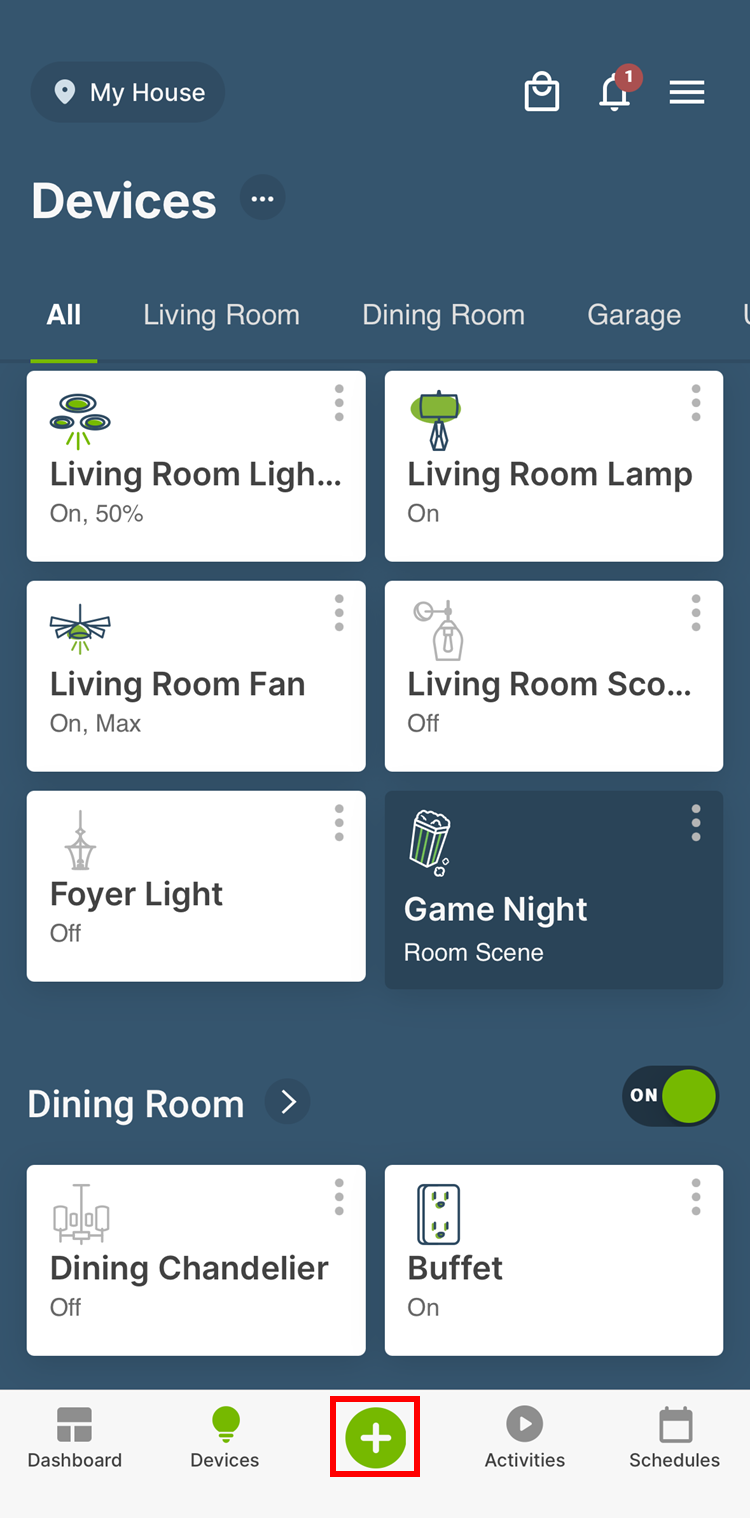
1. Select the plus sign icon on the bottom toolbar.
Devices

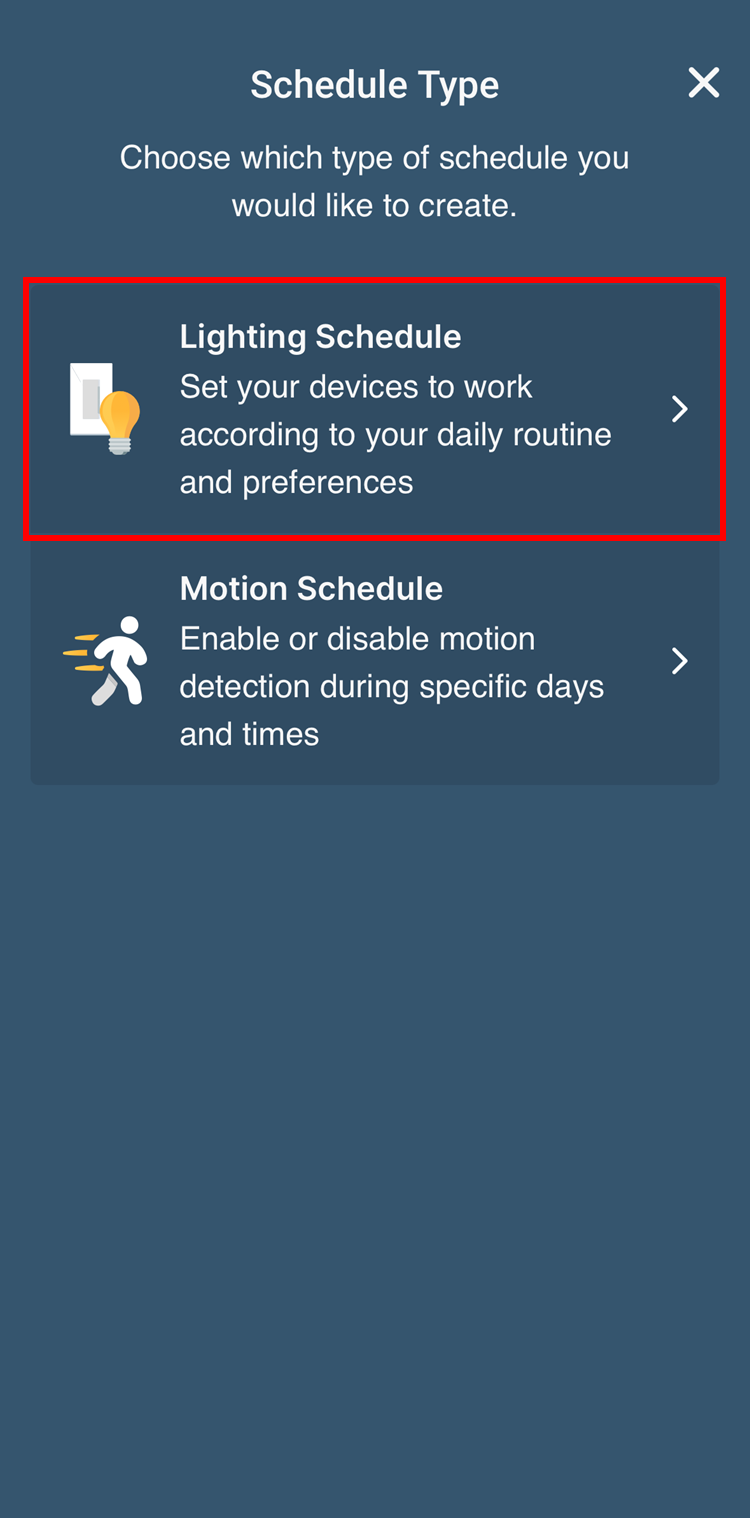
Choose Schedule and then select the Schedule Type.
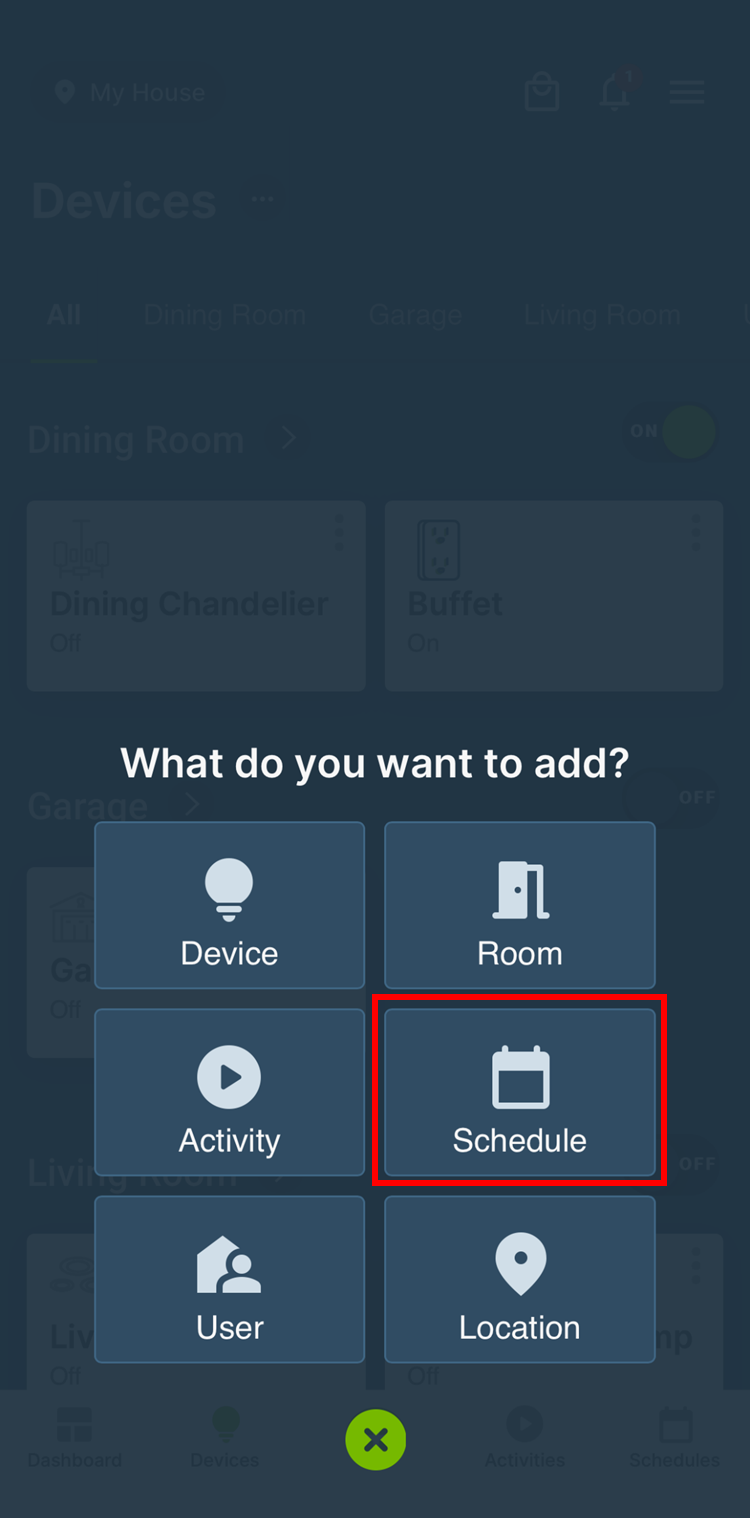
  • There are several Schedule Types. Only supported Schedule Types will be displayed, based on the devices that you have in your My Leviton Residence.
Devices
Devices

3. Select the device(s) to be scheduled and tap Next.
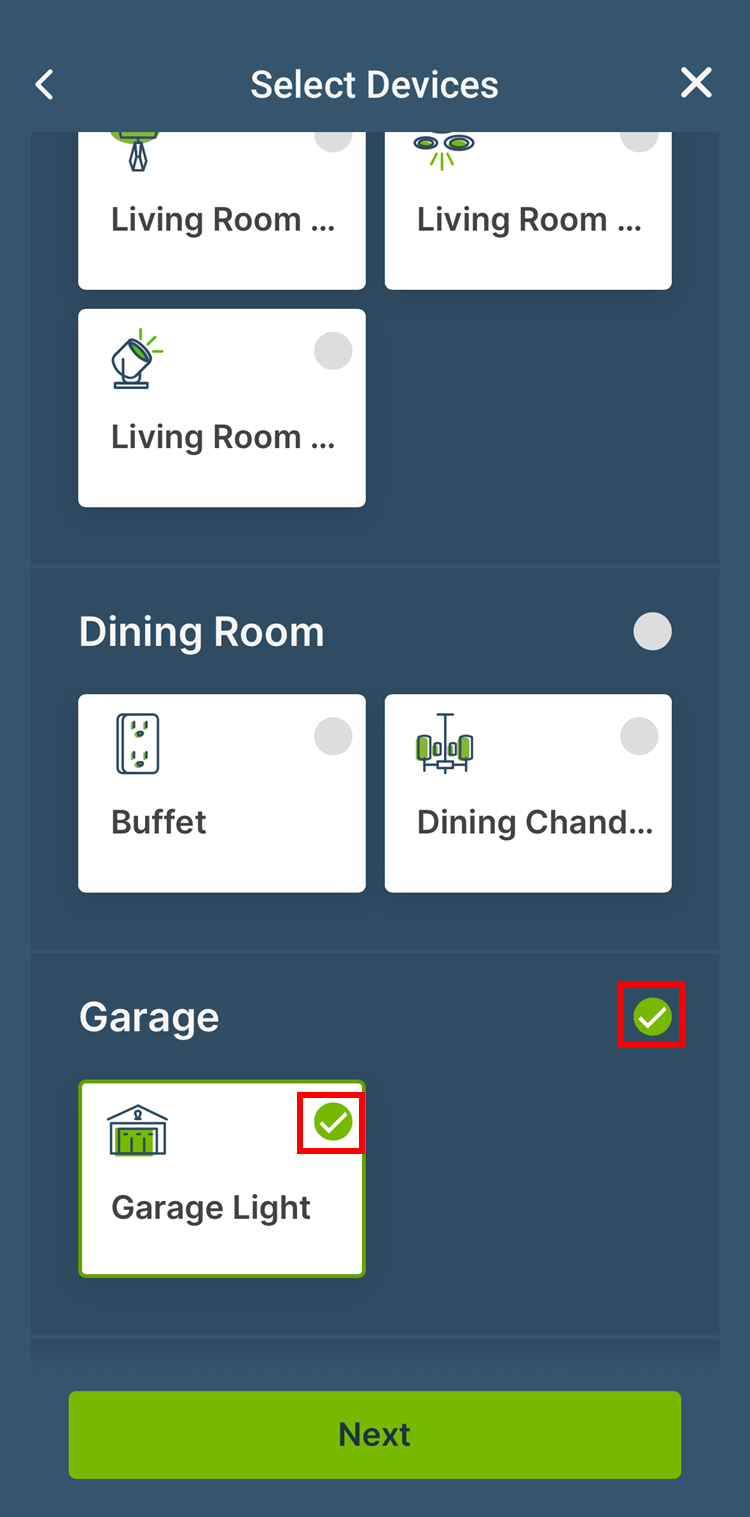
  • Only devices that support the selected Schedule Type will be displayed.
  • If you are using Rooms, and check the Room name, all items in the Room will be selected. 
  • When scheduling Decora Smart Wi-Fi devices, the motion sensor on a D2MSD, a Leviton Smart Load Center, and/or a Leviton Vehicle Charger, a separate schedule is required for each group.
Devices

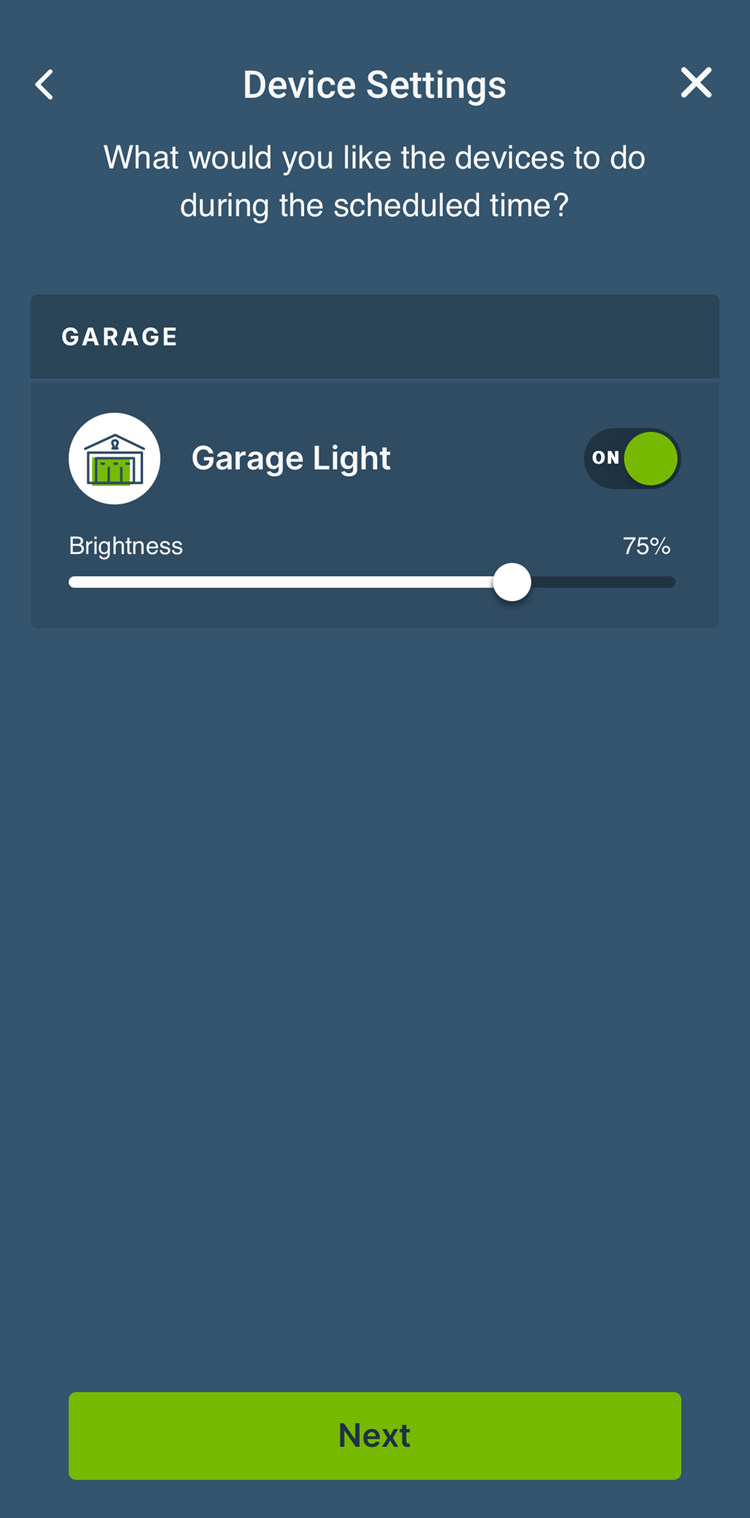
4. Now select how the device(s) should react when the schedule is run. Tap Next.
Devices

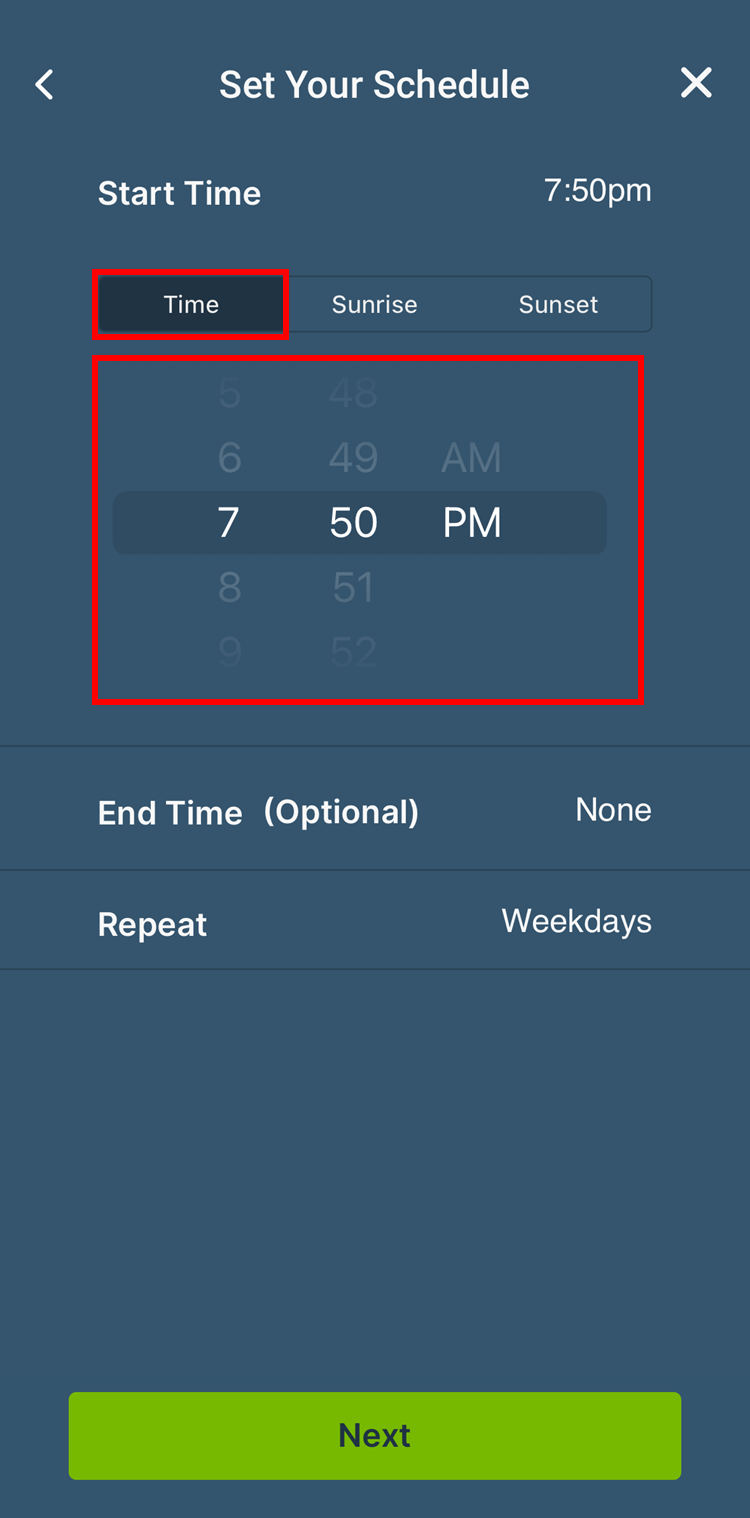
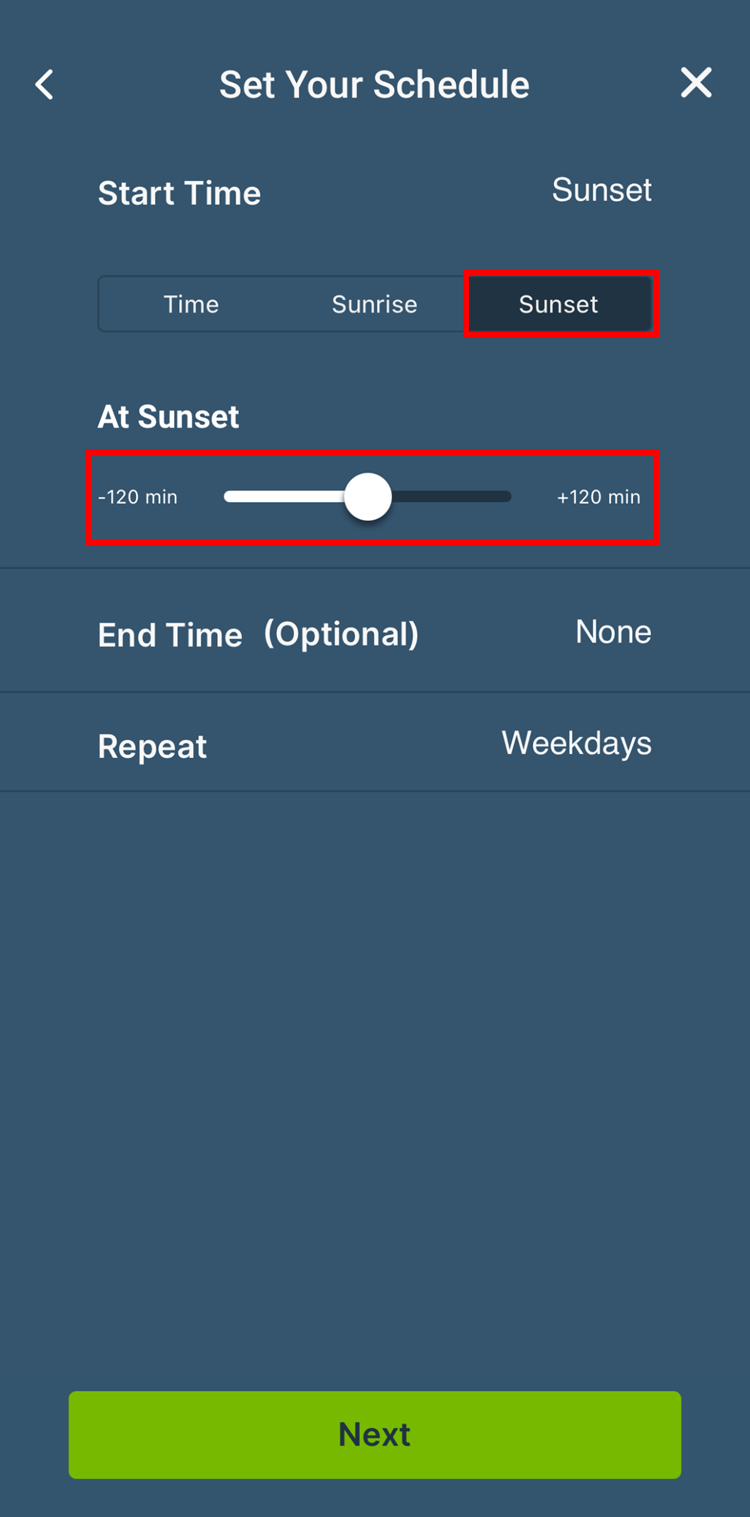
5. Choose the Start Time (specific TimeSunrise, or Sunset).

  • If you choose Sunrise or Sunset, you will have the option to choose a time frame before or after sunrise or sunset. 
  • Note, when you created the Residence, you were asked for an address. The location information is used to determine the correct times for sunrise/sunset.
Devices
Devices

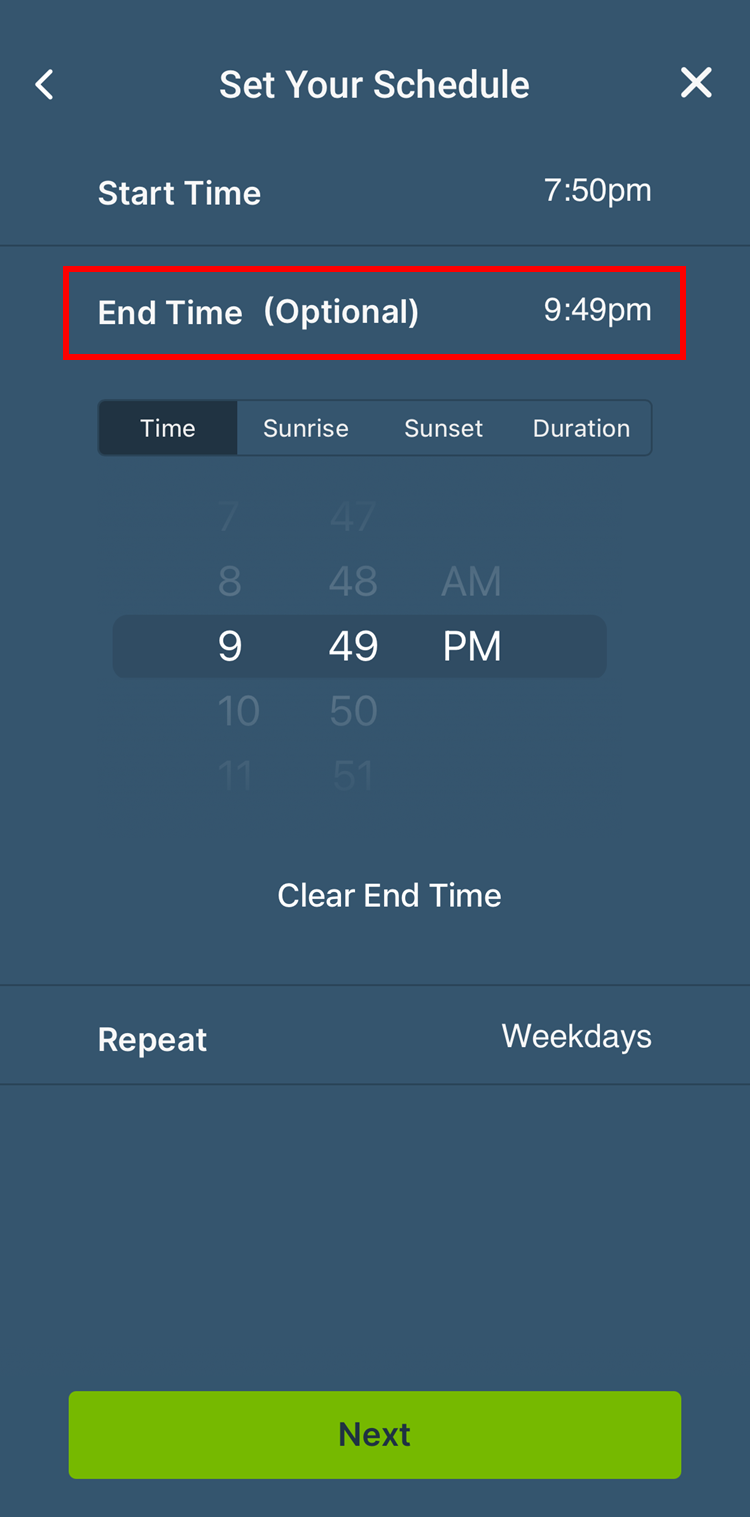
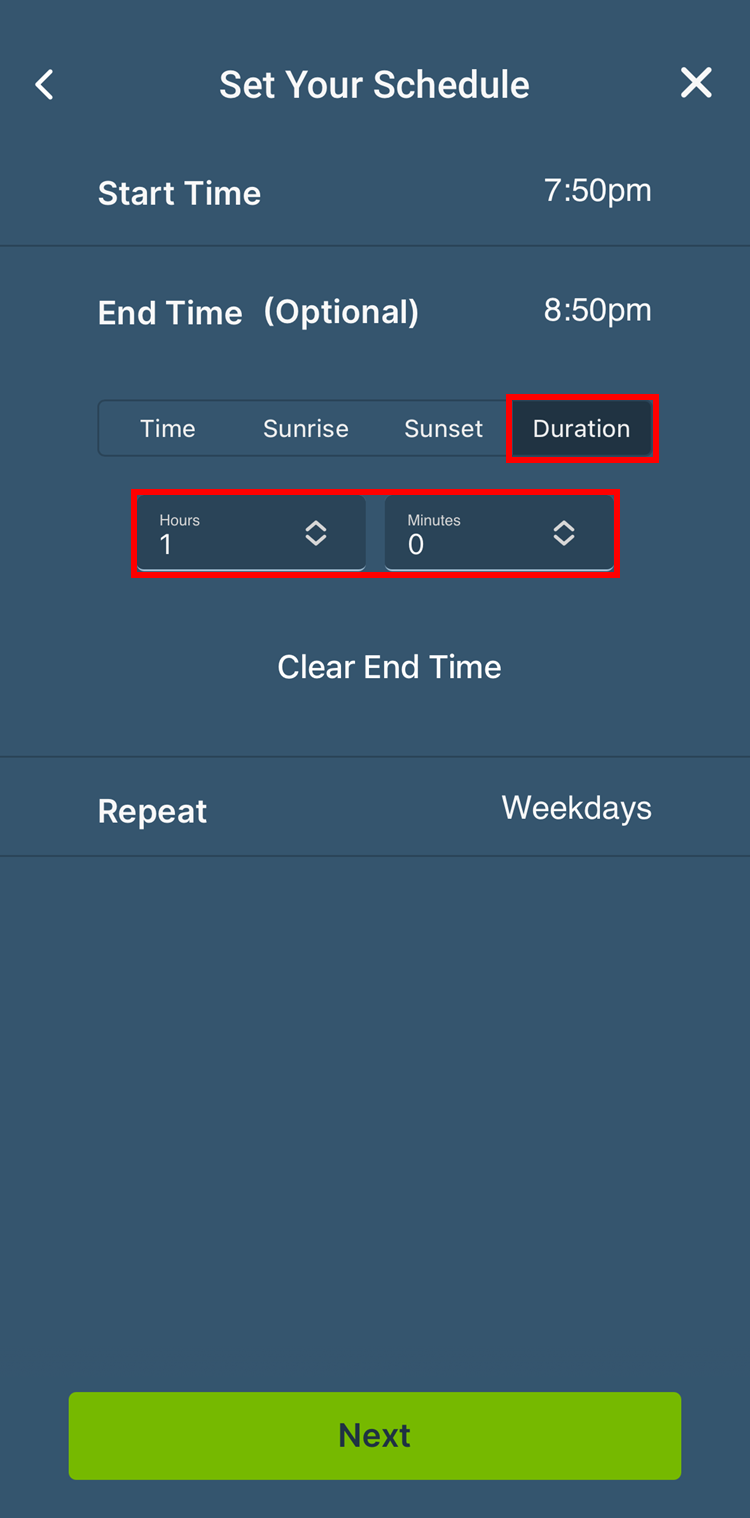
6. Each schedule has a start time but can also have an optional End Time

  • To set the end time, tap on the End Time option. 
  • As with the start time, you can have a specific TimeSunset or Sunrise
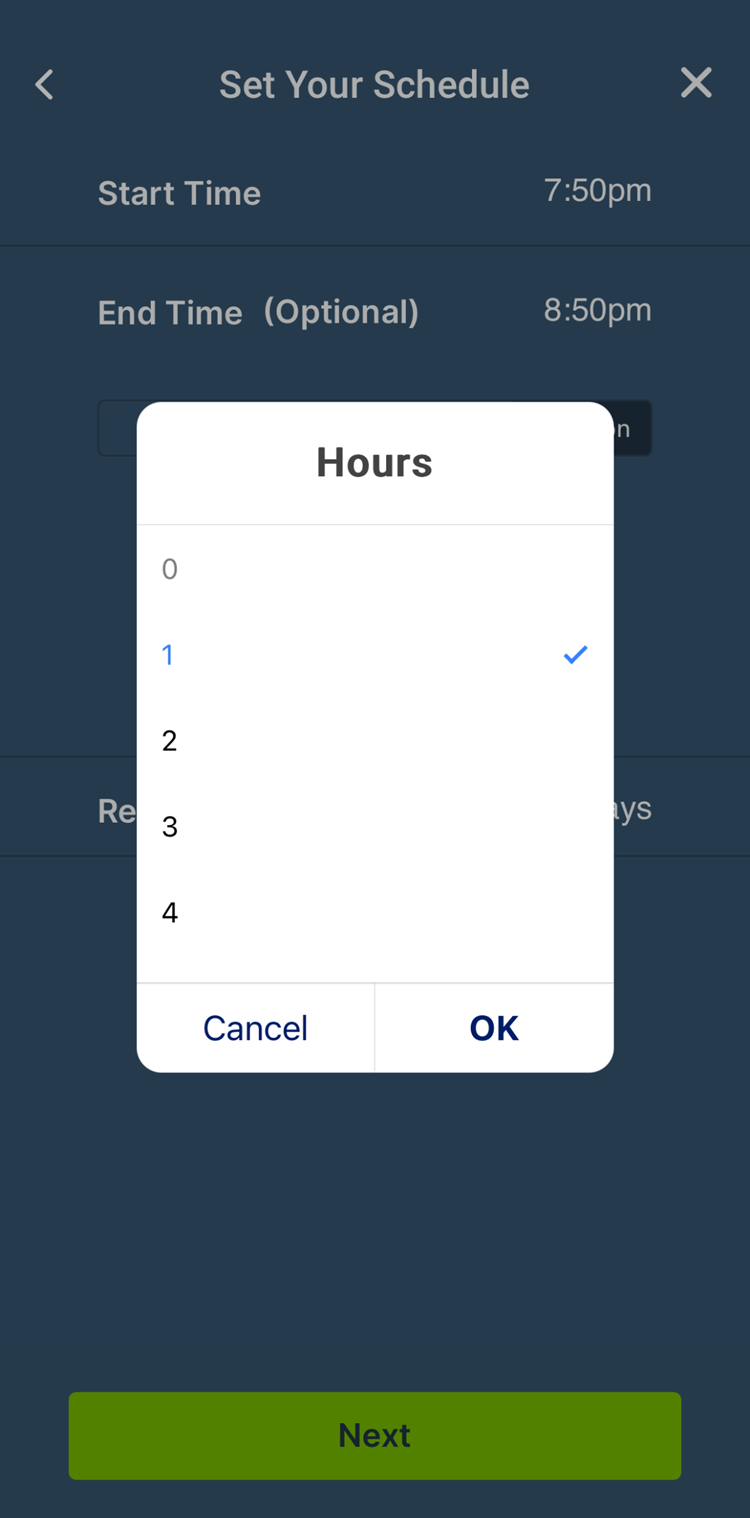
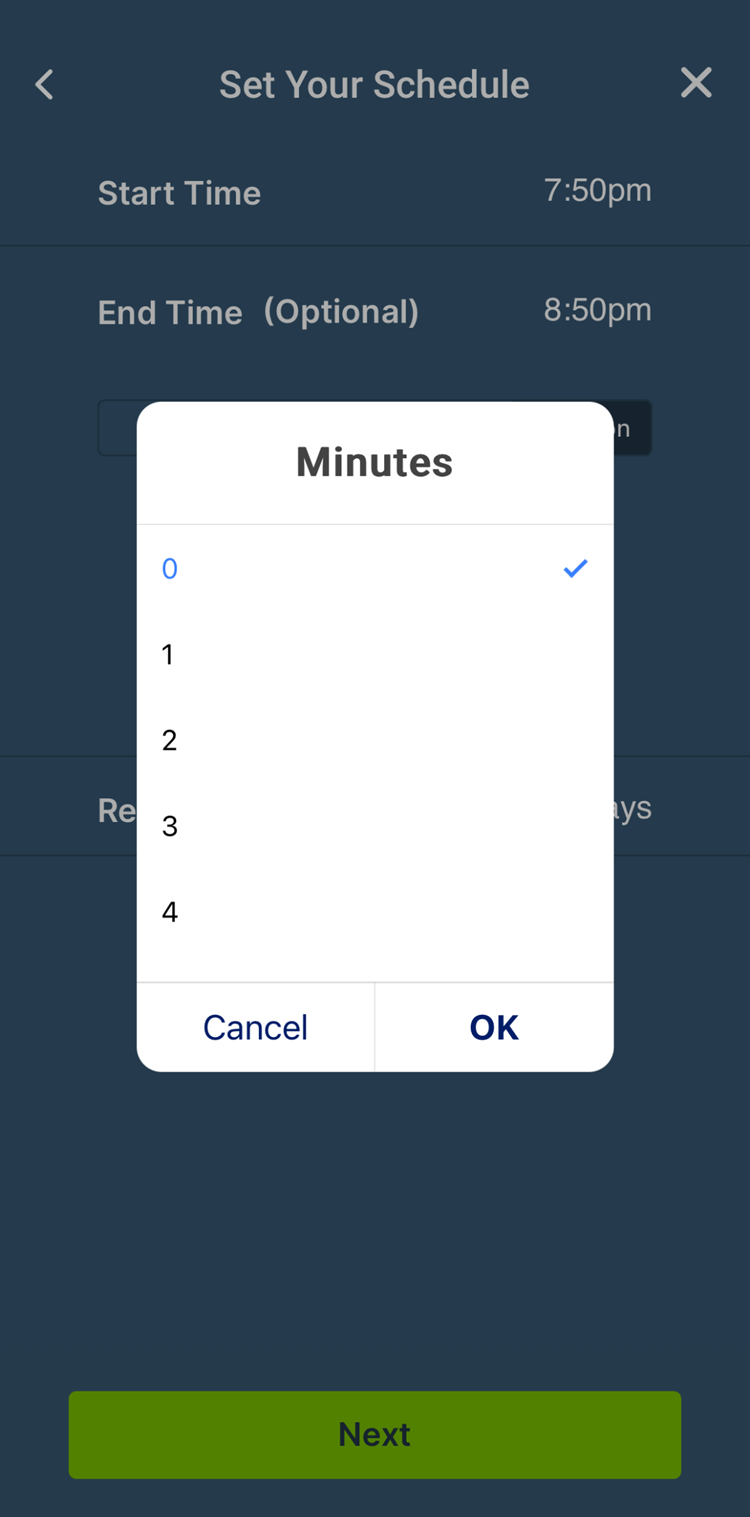
  • If you prefer, you can select Duration and dial in how long the schedule should run.   
  • Setting the End Time is optional.
Devices
Devices
Devices
Devices

7. With the Start Time and End Time set:
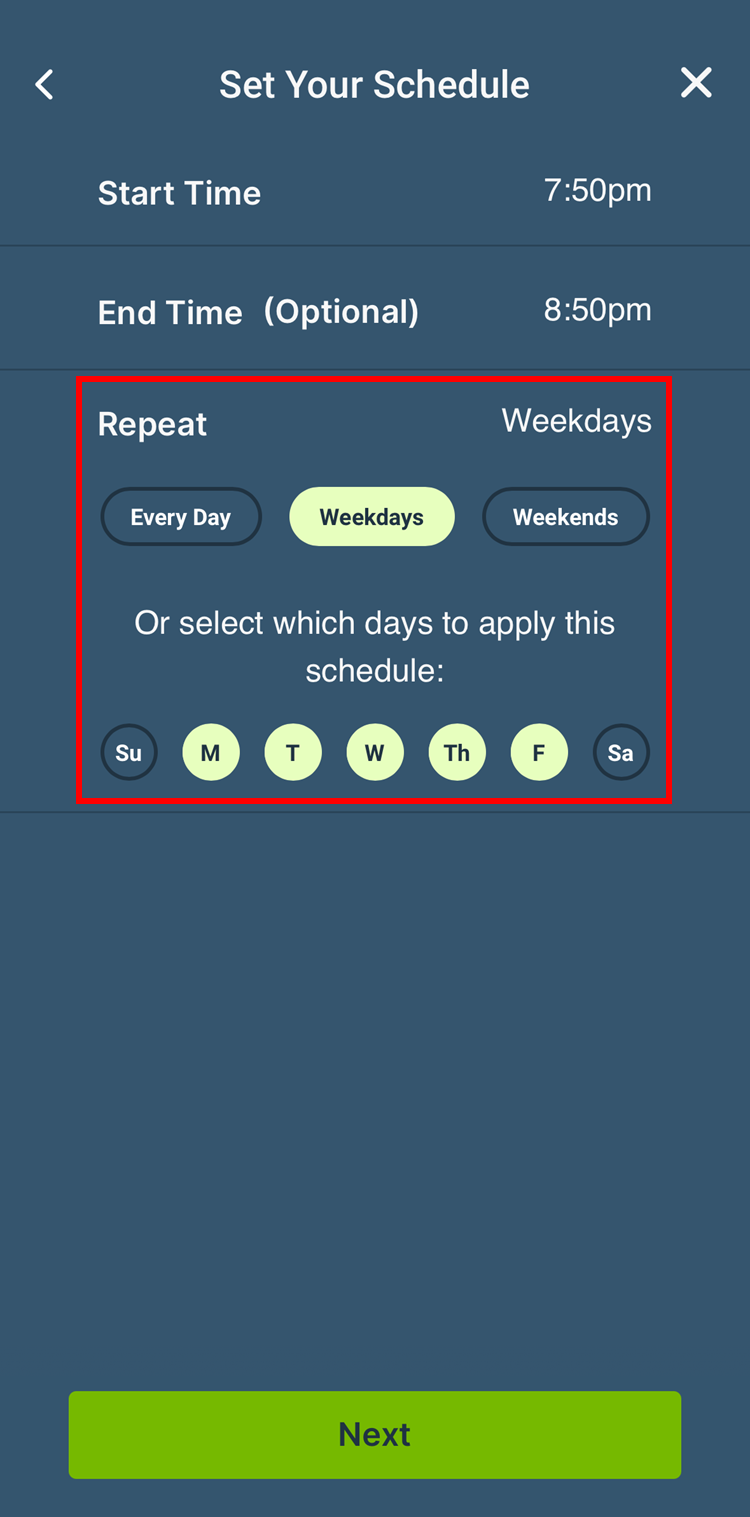
  • Choose the days that the schedule will run by selecting the days, by tapping Repeat.
  • Select Every DayWeekdaysWeekends, or tap the specific days for the schedule to run, and then tap Next.
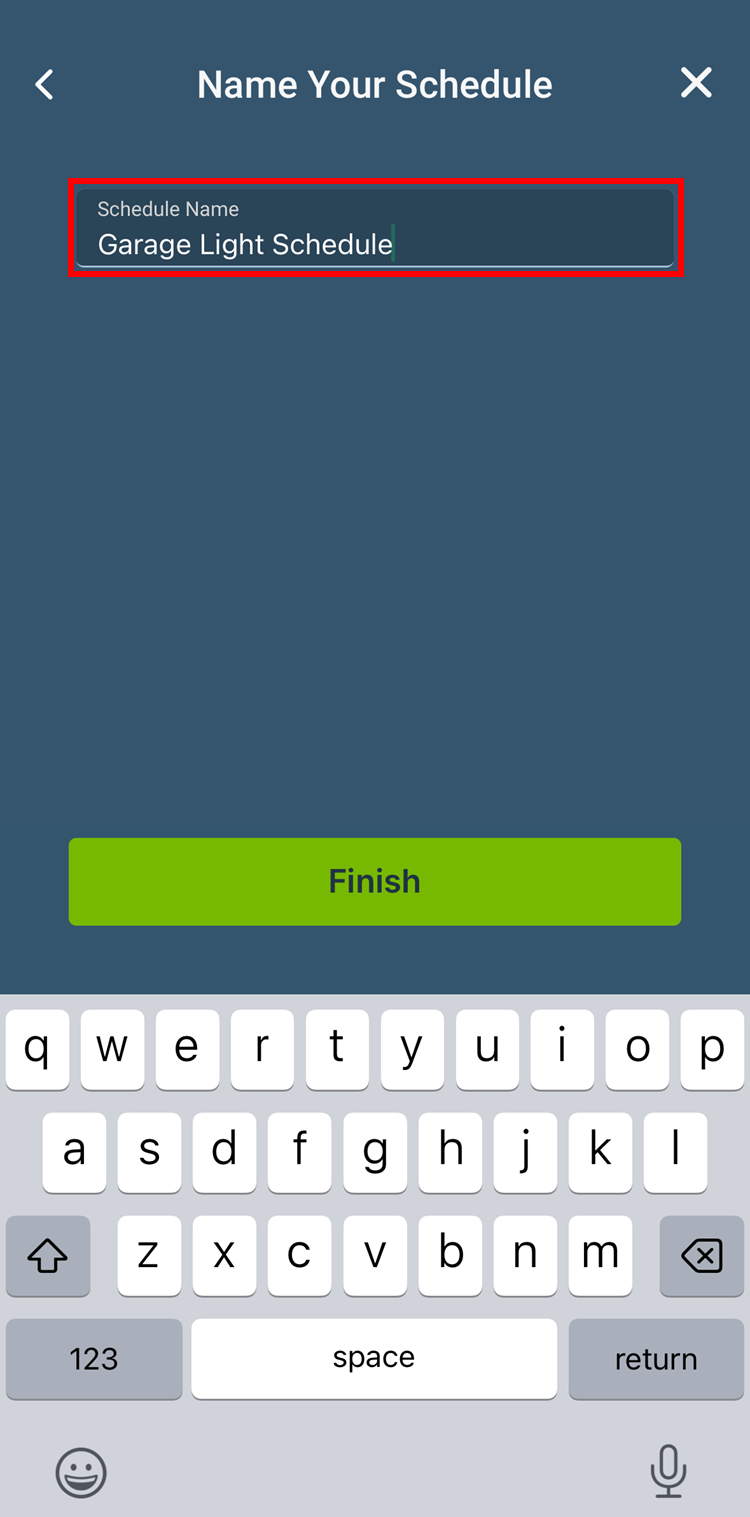
  • Enter a Schedule Name and then tap Finish.
Devices
Devices

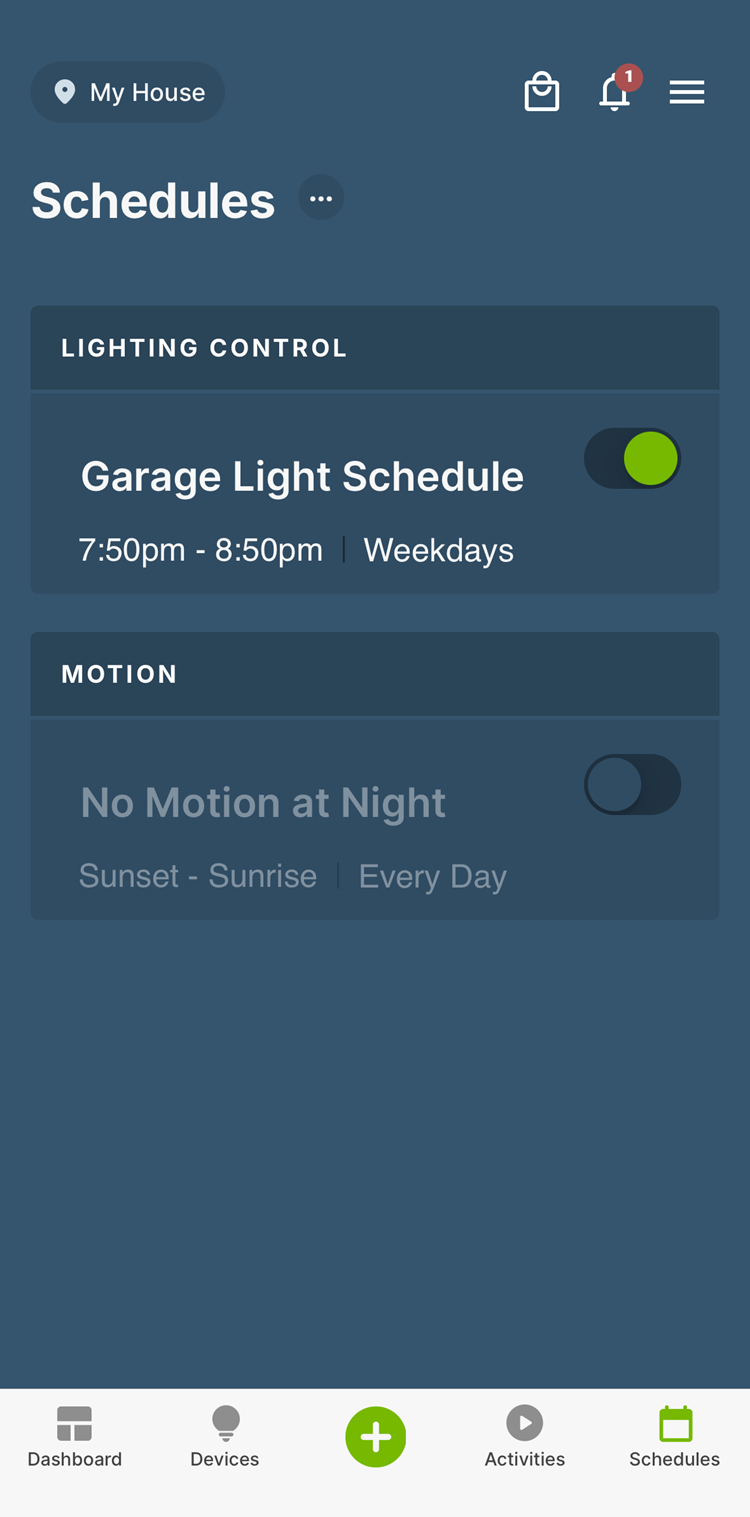
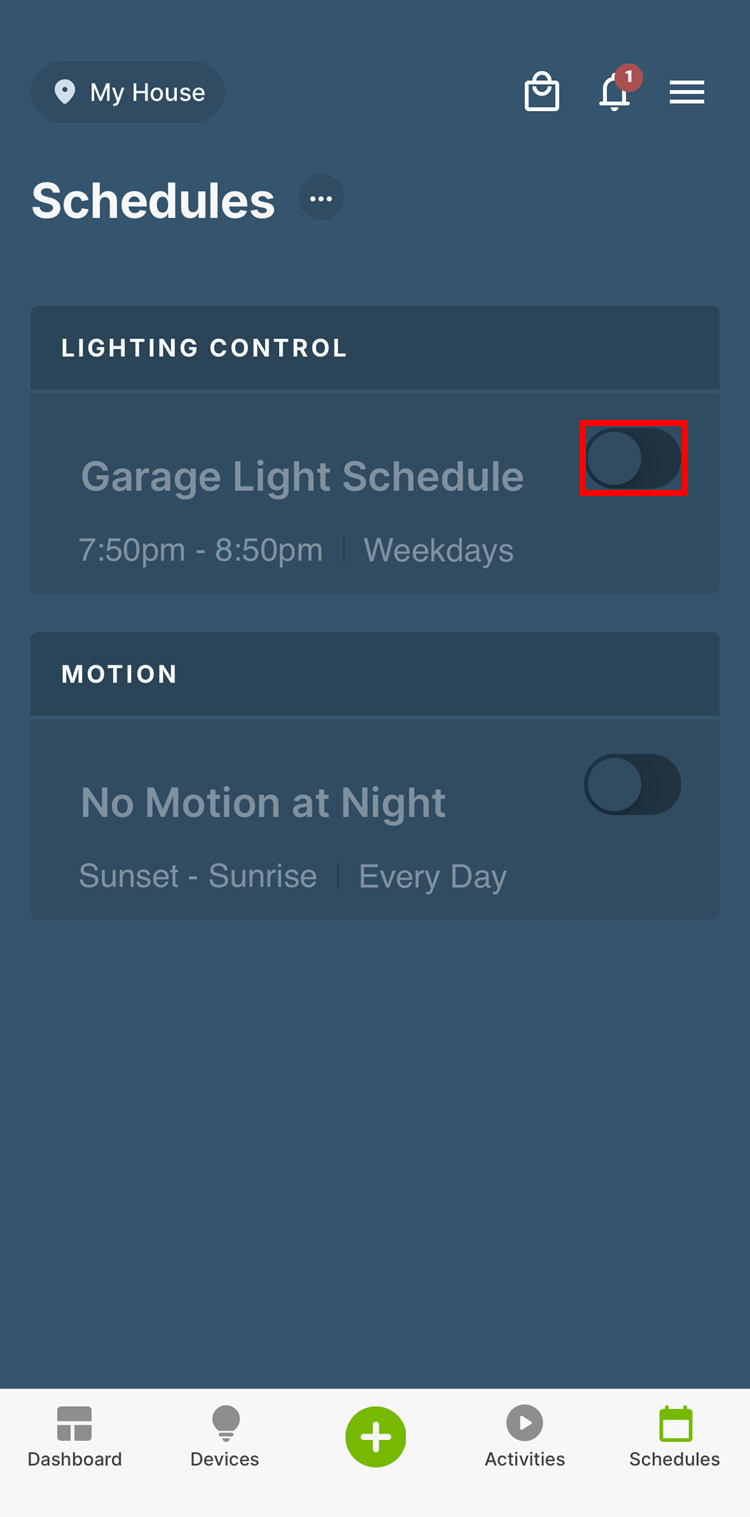
8. The schedule is then displayed.

  • The schedule can be enabled and disabled using the switch next to the schedule.
Schedules
Schedules

Note: Your schedule will continue to run even if you experience an interruption with your Internet.  When a Decora Smart Wi-Fi device connects to the My Leviton Cloud Service, it receives current time, the location's time for sunrise/sunset, and schedules.  As long as power remains, the schedules programmed via the My Leviton App will continue to run even if the Internet service is lost.