Loading...

Connecting to Amazon Alexa - Alternate Method

Yes, Decora Smart Wi-Fi works with Amazon Alexa for hands-free operation of Decora Smart Wi-Fi products.
 

Getting Started

With Amazon Alexa and the My Leviton smart home skill, you can control your Decora Smart Wi-Fi devices with your voice. To get started, your Alexa device (e.g. Echo, Echo Dot, Tap, Leviton Voice Dimmer, etc.) will need to be installed and configured before proceeding. You will also need your Decora Smart Wi-Fi devices installed and ready to go.

If you are already familiar with Alexa Smart Home, you can enable the My Leviton skill by visiting the following link: My Leviton Skill

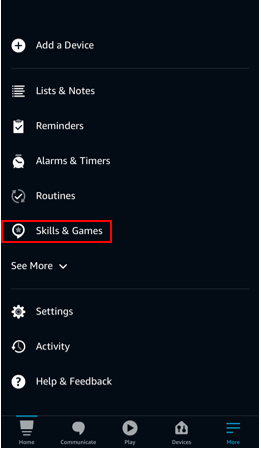
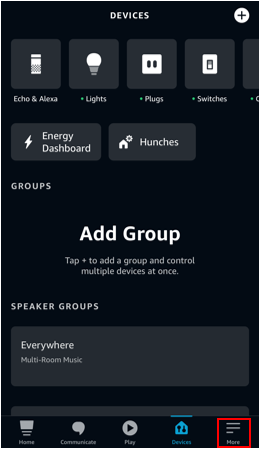
1. Open the Alexa app on your mobile device and select the More option in the lower-right corner. 
Alexa

2. Select Skills & Games in the menu options.

Alexa

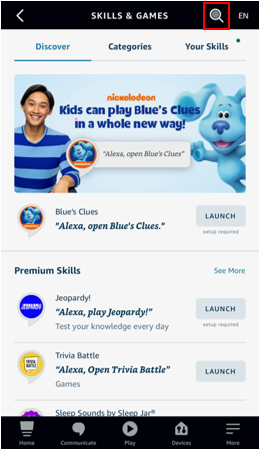
3. Select the search icon in the top-right corner.

Alexa

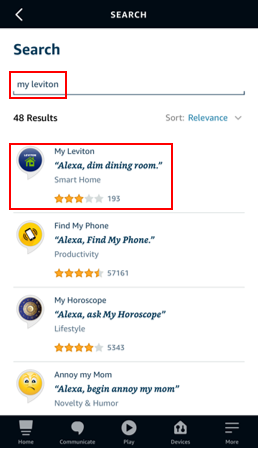
4. Enter "My Leviton” under Search and then select the My Leviton skill from the search results

Alexa

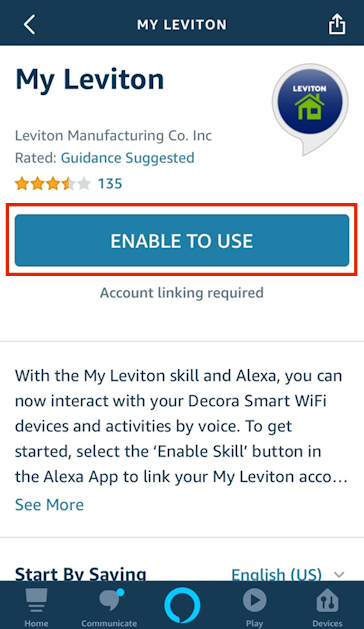
5. Select the ENABLE TO USE button.

My Leviton

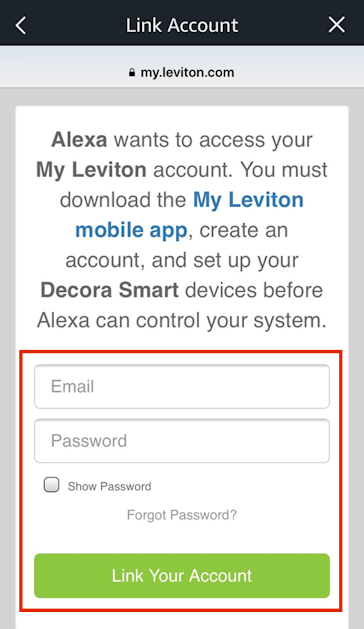
6. Enter your My Leviton email address and password and select Link Your Account

My Leviton

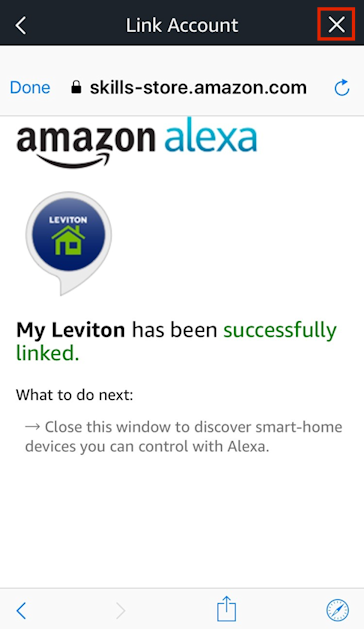
7. When your My Leviton account has been successfully linked, press the X in the top-right corner. 

My Leviton

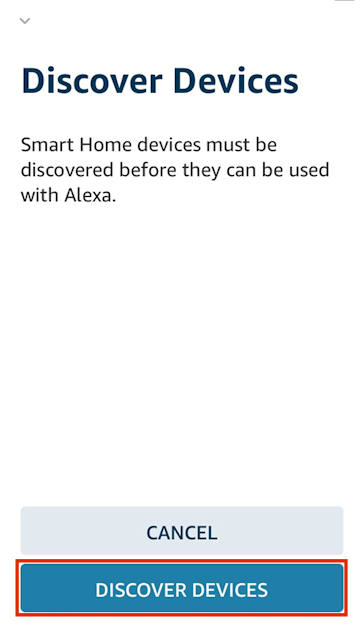
8. Select Discover Devices

My Leviton

9. Please wait while Alexa discovers your devices. 

Alexa

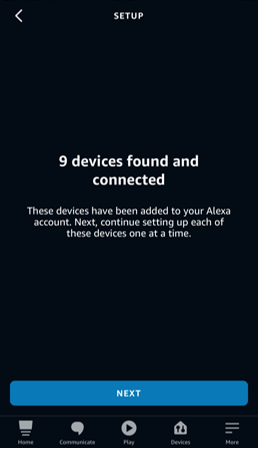
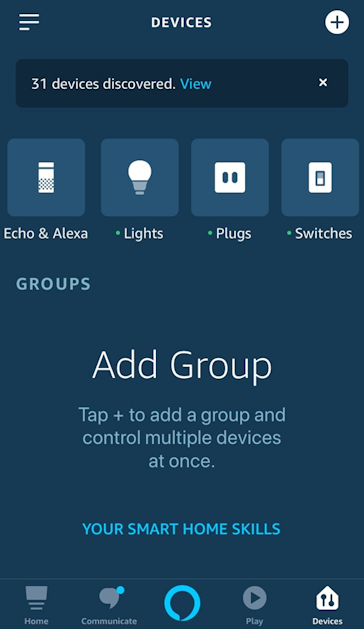
10. After discovery is complete, you will see how many devices were discovered.

Select CHOOSE DEVICE to finish setting up each device.

Alexa

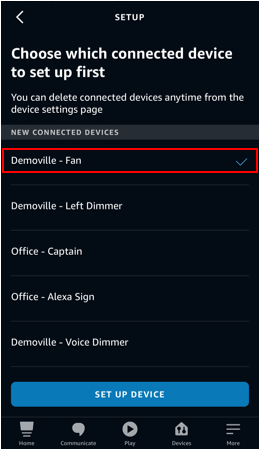
11. Select a device that you want Alexa to control, one at a time.

 Select SET UP DEVICE.

Alexa

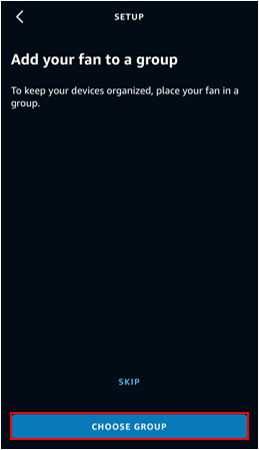
12. Select to add your device to a group, often the group will be a room or an area.  At the bottom of the suggested group names is the option to create you own custom group name.

Alexa
Alexa

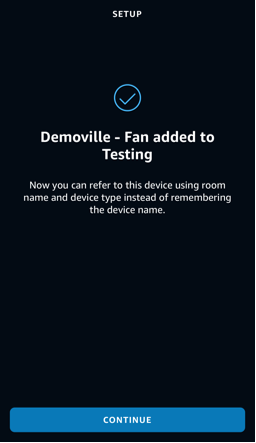
13. The device is now ready to be used with Alexa. Select CONTINUE.

Alexa

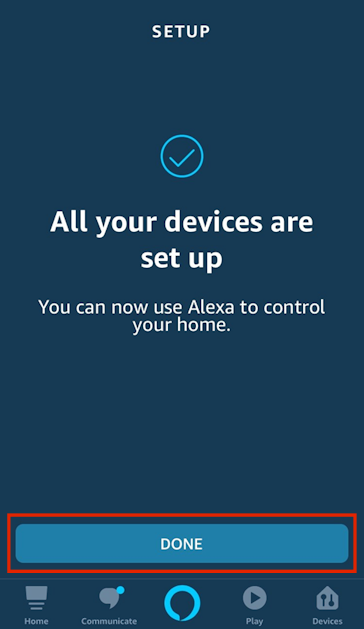
14. After all devices have been selected, select DONE.

My Leviton

15. You can now start interacting with Alexa to control your Devices and Activities.


Note: If Devices or Activities are added or renamed in My Leviton, you can simply tell Alexa to discovery your new devices by saying, "Alexa, discover my devices". Alternatively, you can select Add Device in the Alexa app by selecting + in the top-right corner on the DEVICES screen. Otherwise, Alexa will eventually find the new Devices/Activities and allow you to start interacting with them.

My Leviton

16. Please see the section below for commands you can give to Alexa. 


Alexa Commands


You can issue the following commands to Alexa to interact with your Decora Smart Wi-Fi devices.


Switches:

  • "Alexa, turn on [Switch Name]."
  • "Alexa, turn off [Switch Name]."

Dimmers:

  • "Alexa, turn on [Dimmer Name]."
  • "Alexa, turn off [Dimmer Name]."
  • "Alexa, set [Dimmer Name] to percent."
  • "Alexa, brighten [Dimmer Name]."
  • "Alexa, dim [Dimmer Name]."

Activities:

  • "Alexa, turn on [Activity Name]."