Loading...

Can I randomize lighting to make my home look lived in when I'm away?

Yes! In the Residence setup, you have the ability to run Activities when you arrive home or leave home, as well as randomize on/off times for select lighting when you are away.

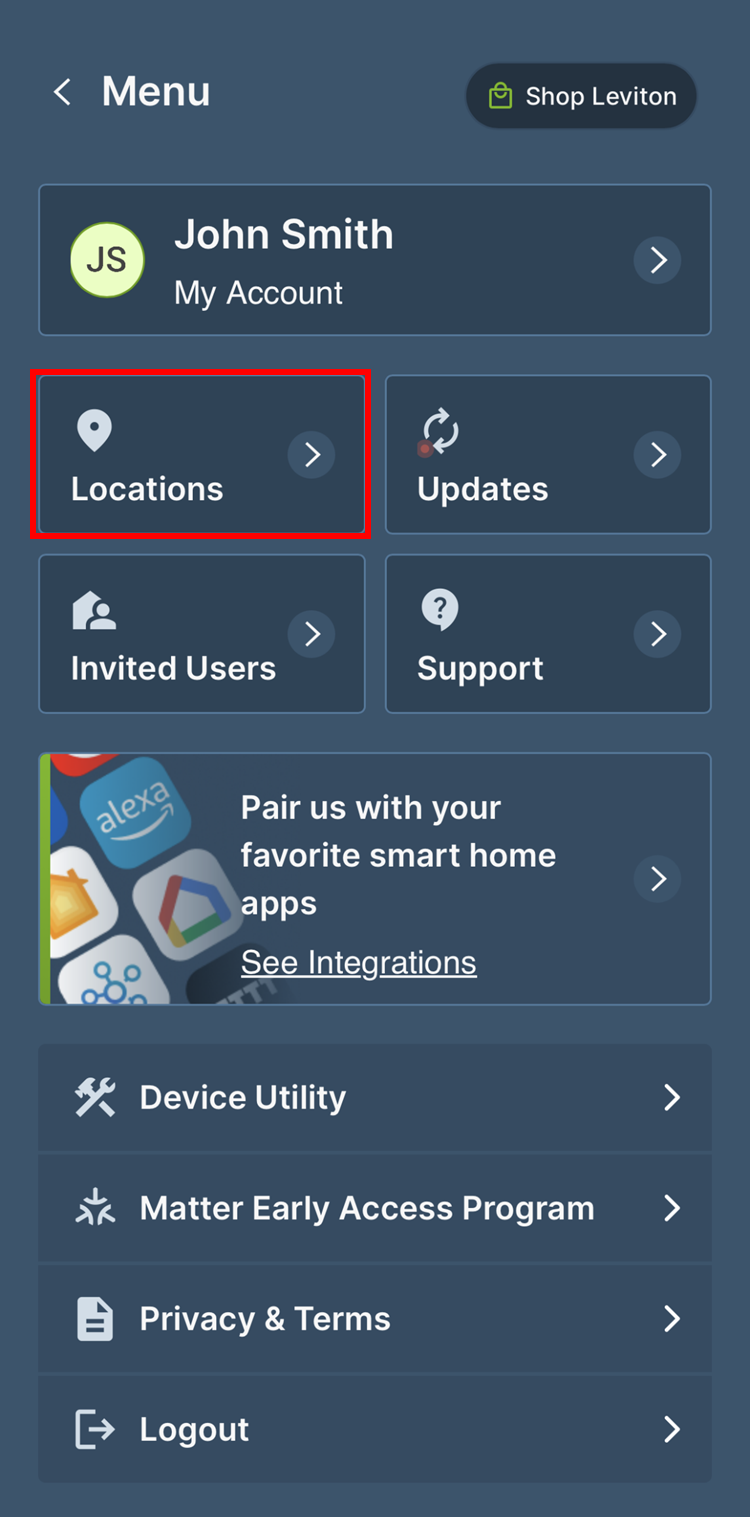
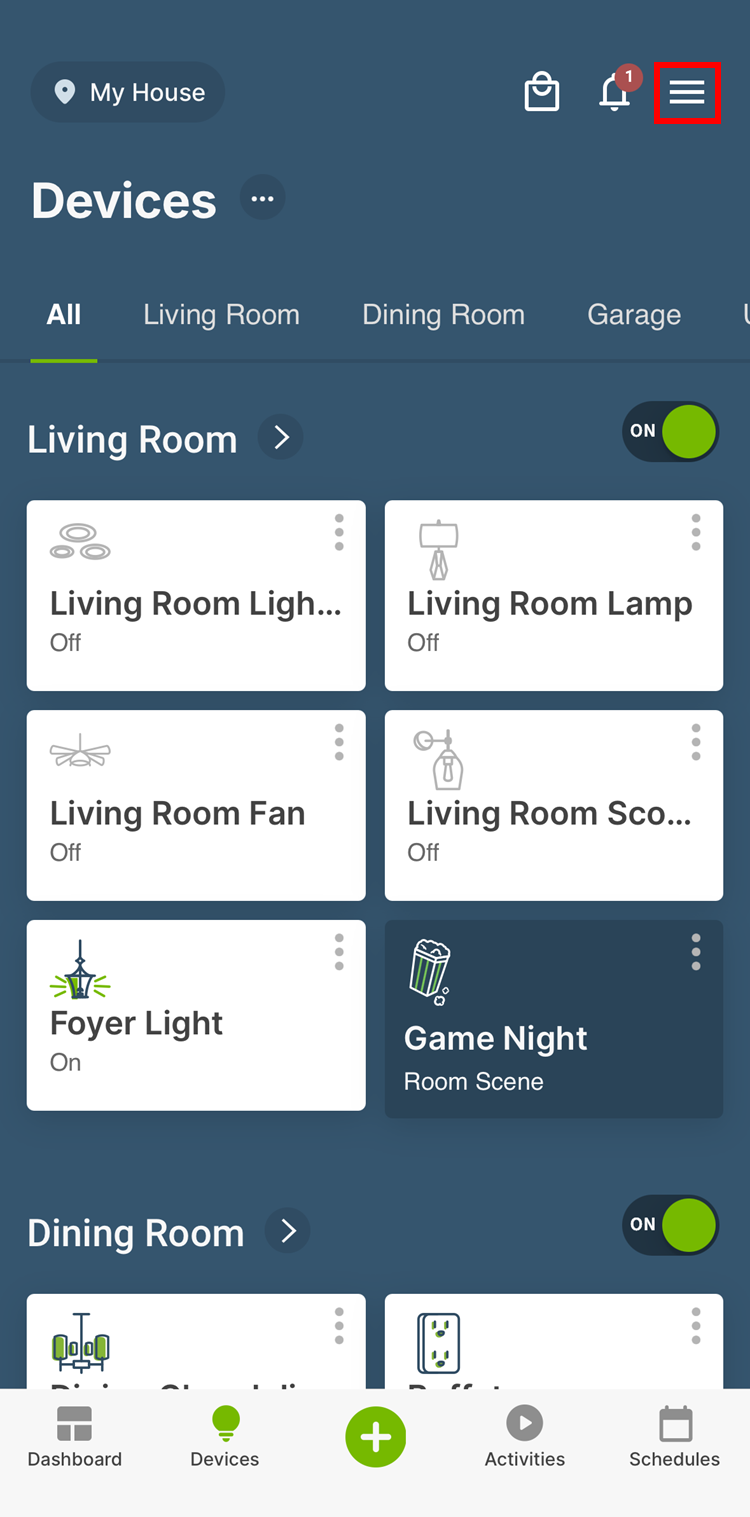
In the My Leviton app select the menu button () in the upper right corner.

Select Locations to edit the Residence settings.
Devices
Devices

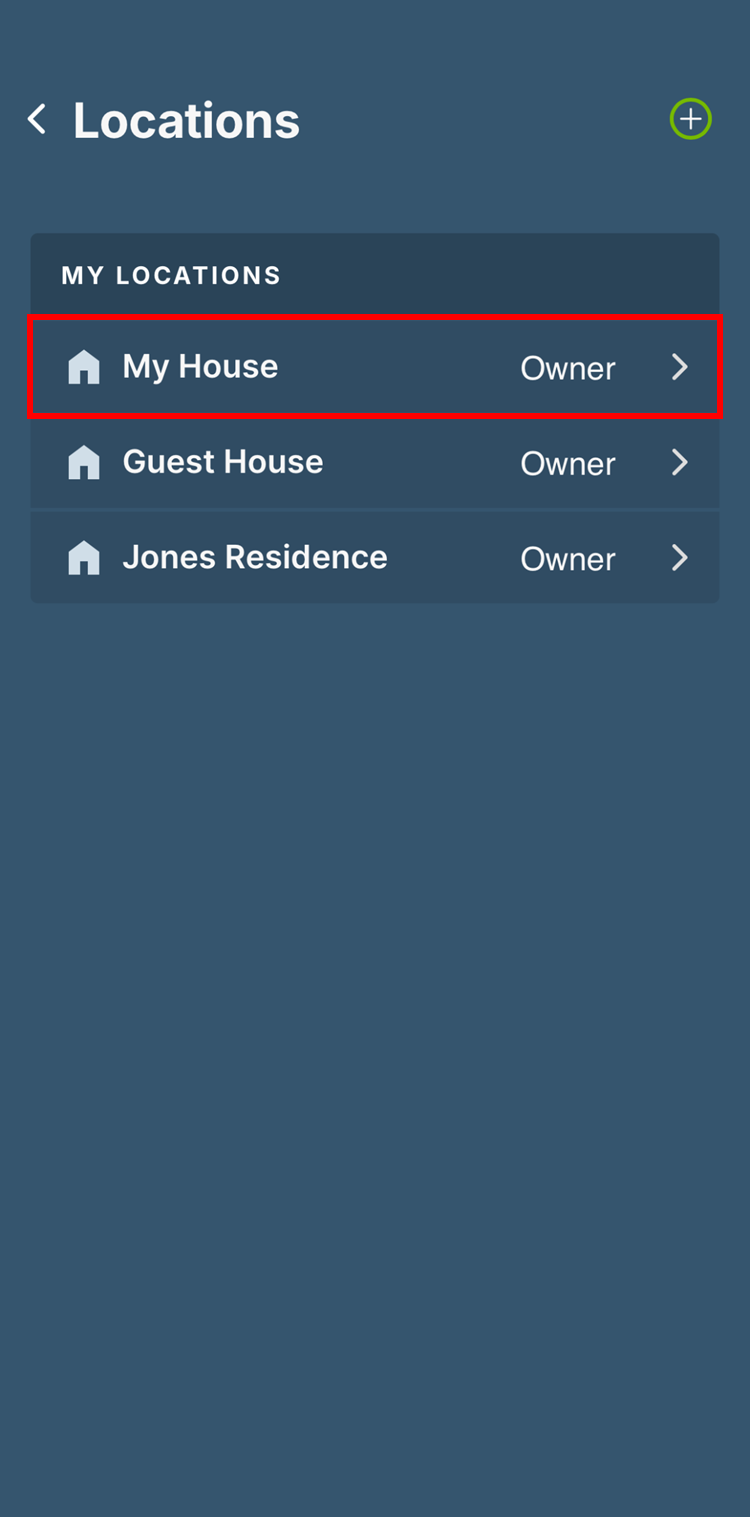
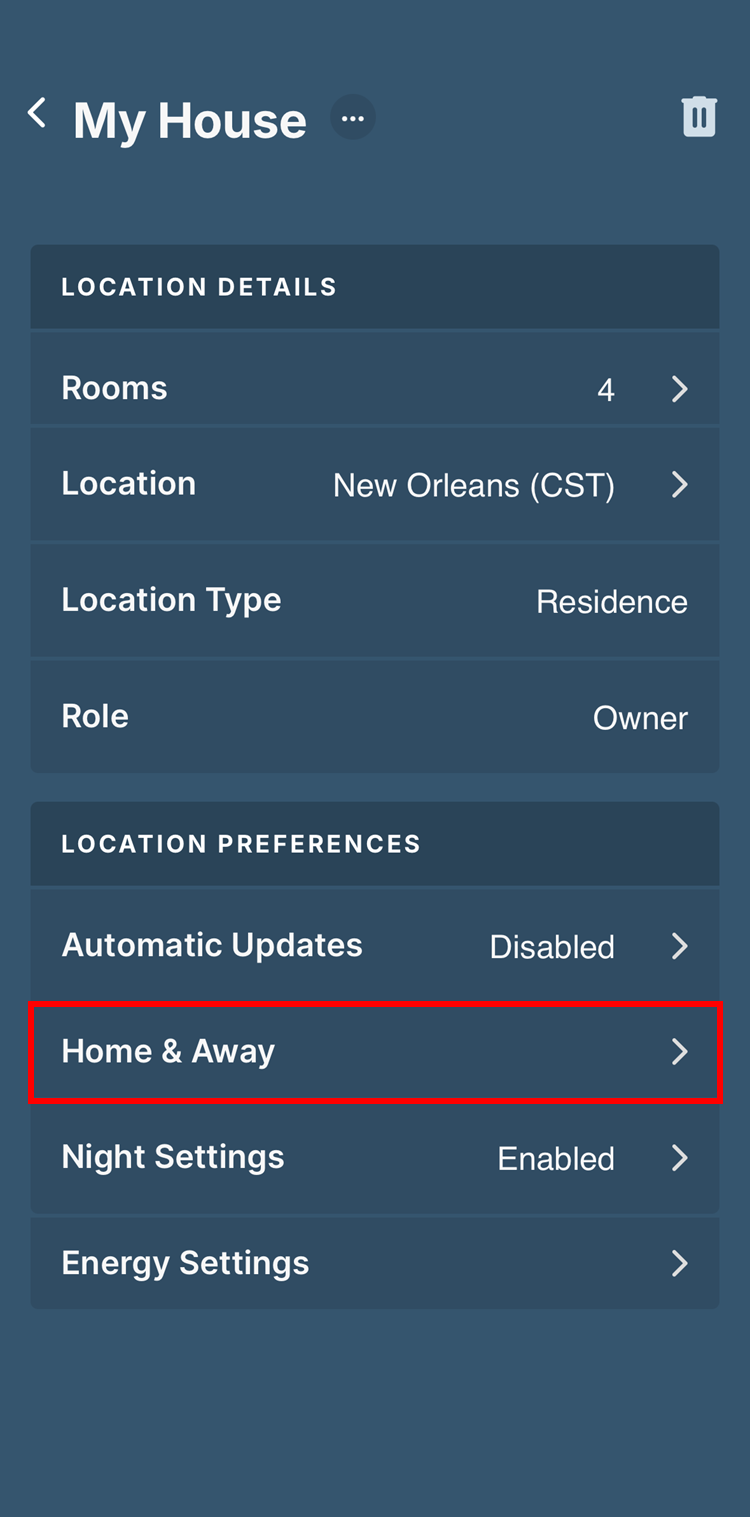
Choose the Residence you want to edit. Then select Home & Away.

Devices
Devices

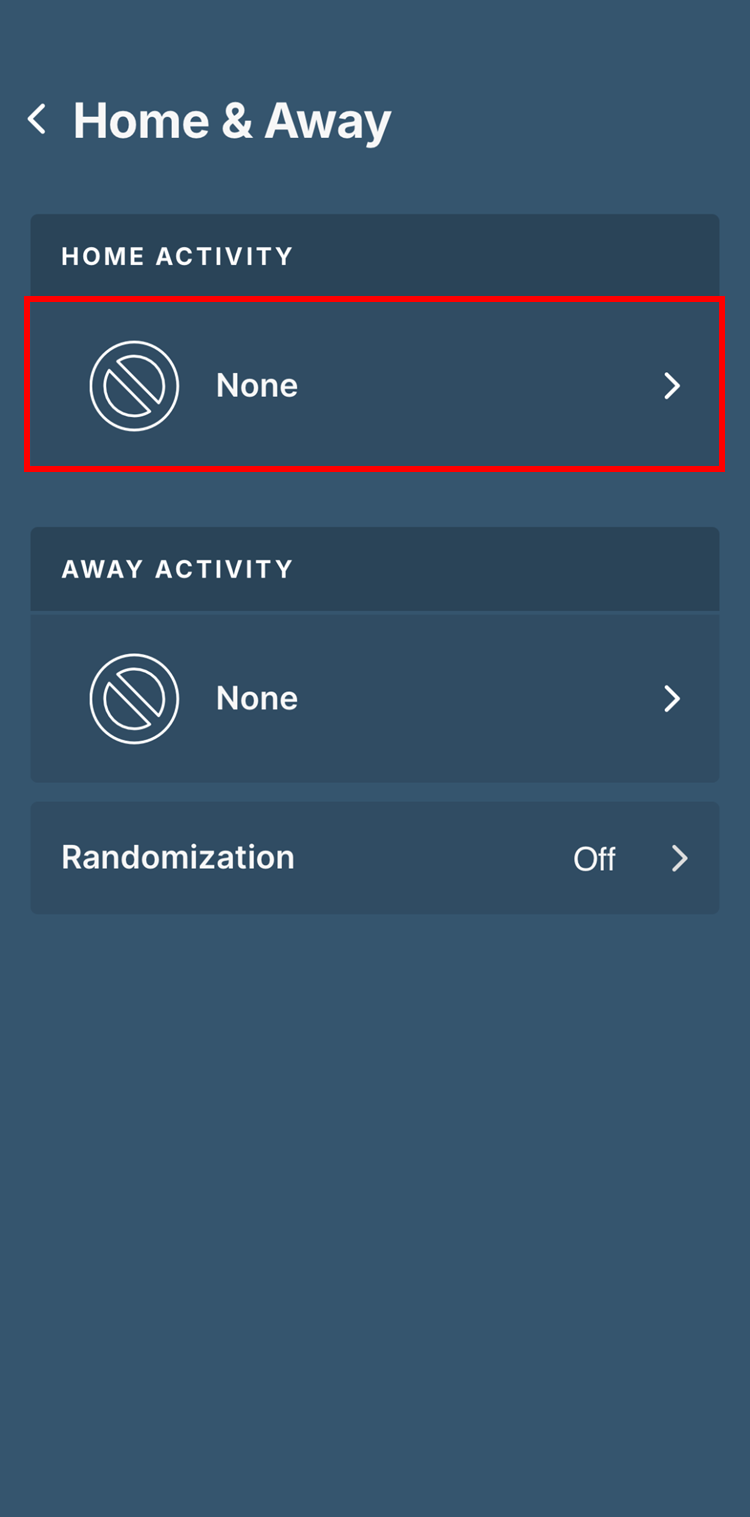
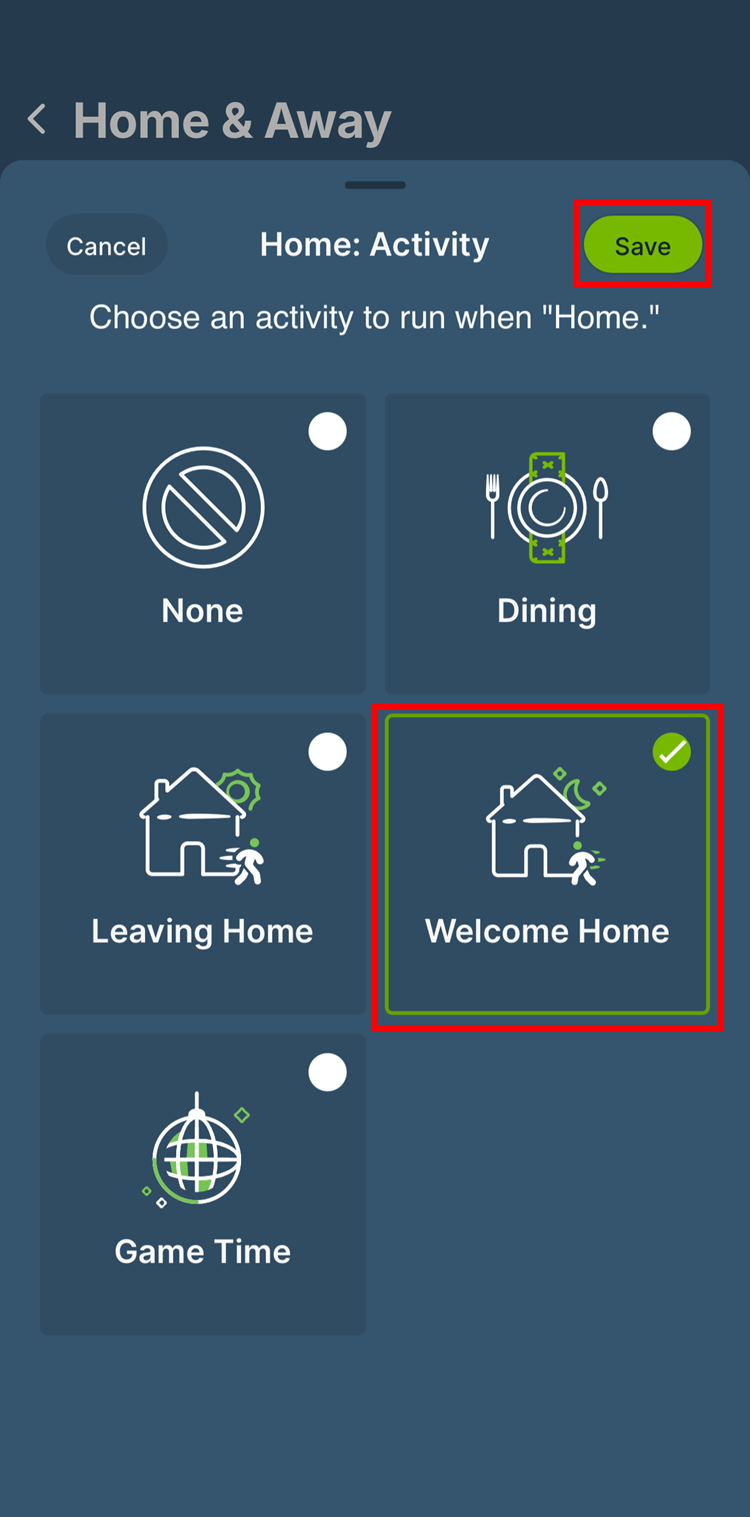
If you would like to run an activity when you change your status to Home, then under the section labeled Home Activity  tap right arrow next to None and choose the activity you would like to run when you come home.  Tap save when you are done.

If you have not setup an activity you can create one What is an Activity?

Devices
Devices

If you would like to run an activity when you change your status to Away, then under the section labeled Away Activity  tap right arrow next to None and choose the activity you would like to run when you come home.  Tap save when you are done.

Devices
Devices

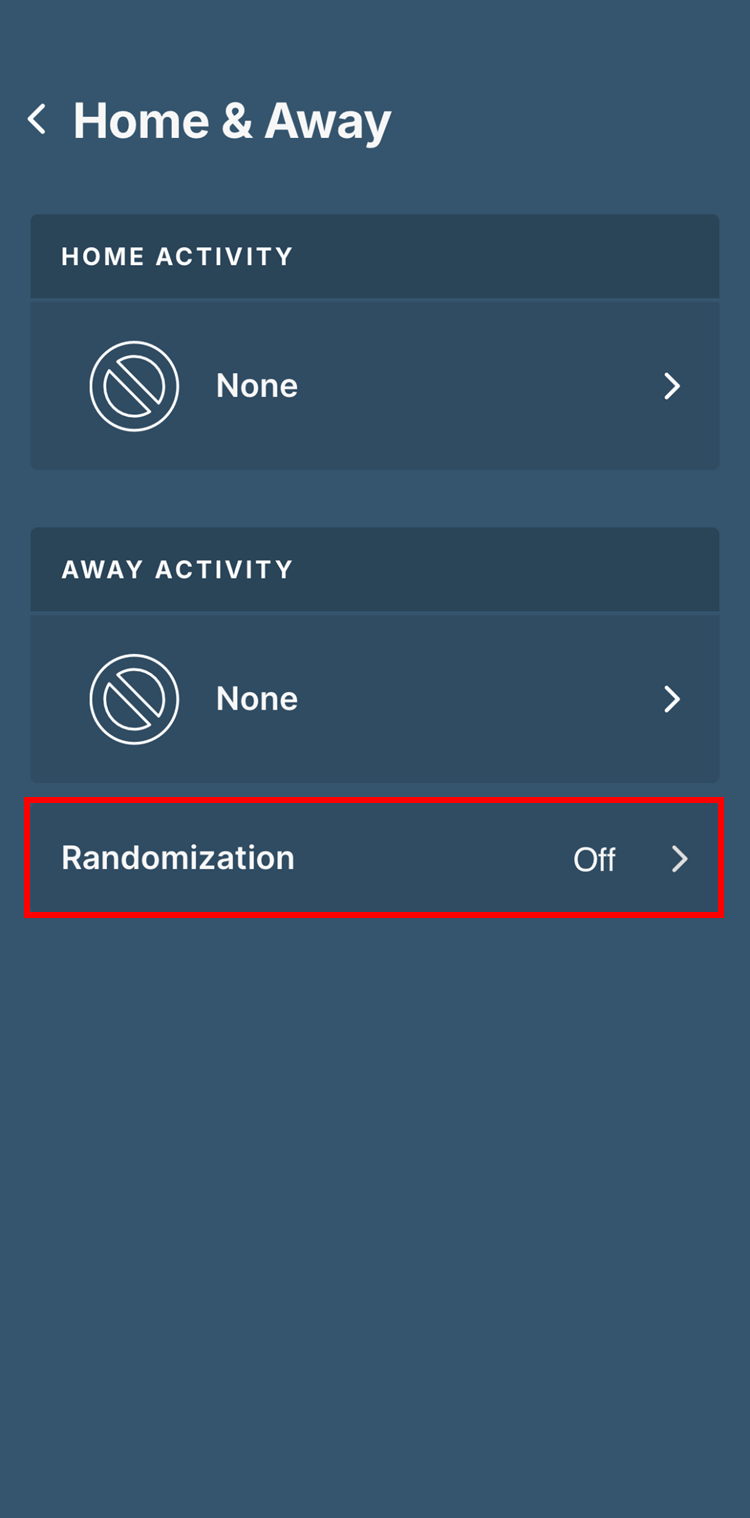
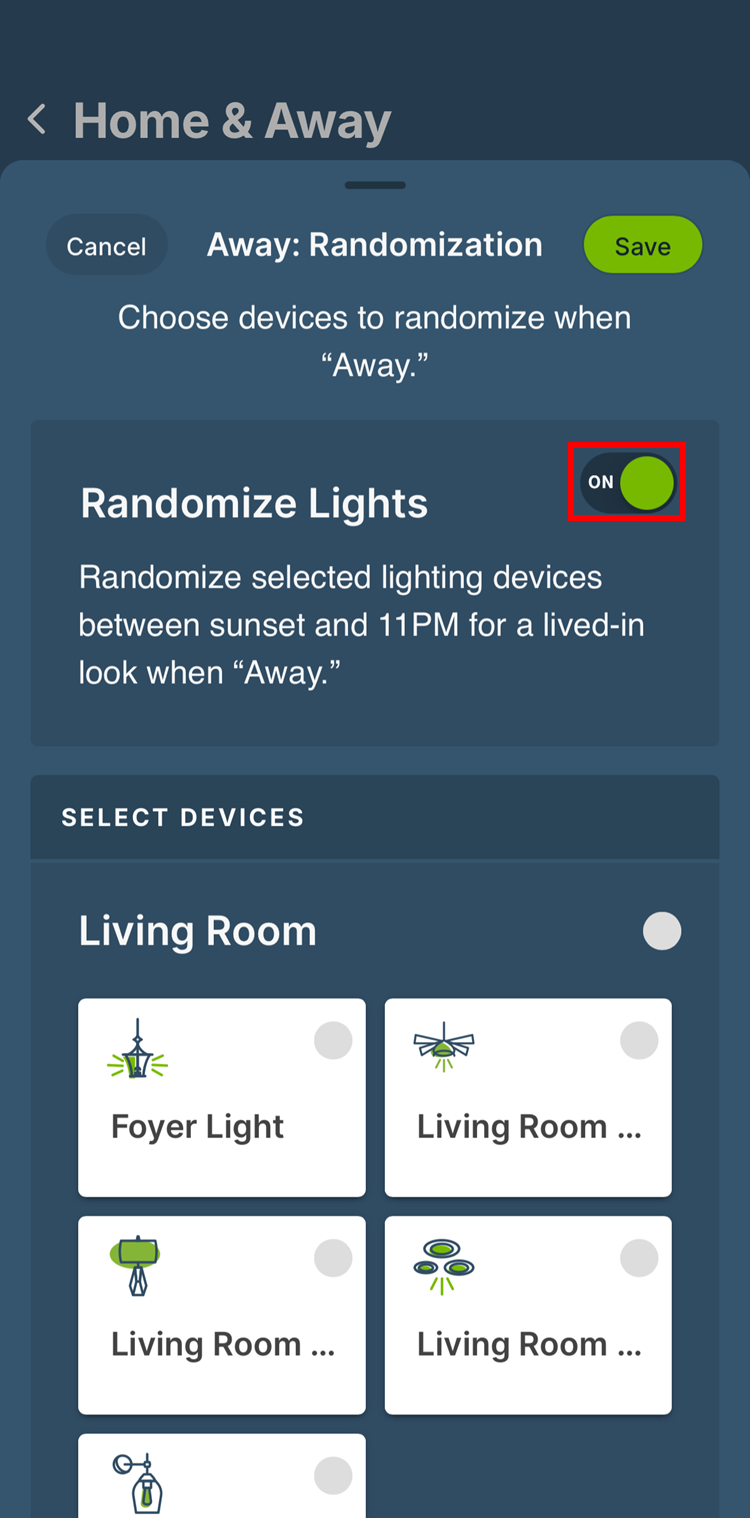
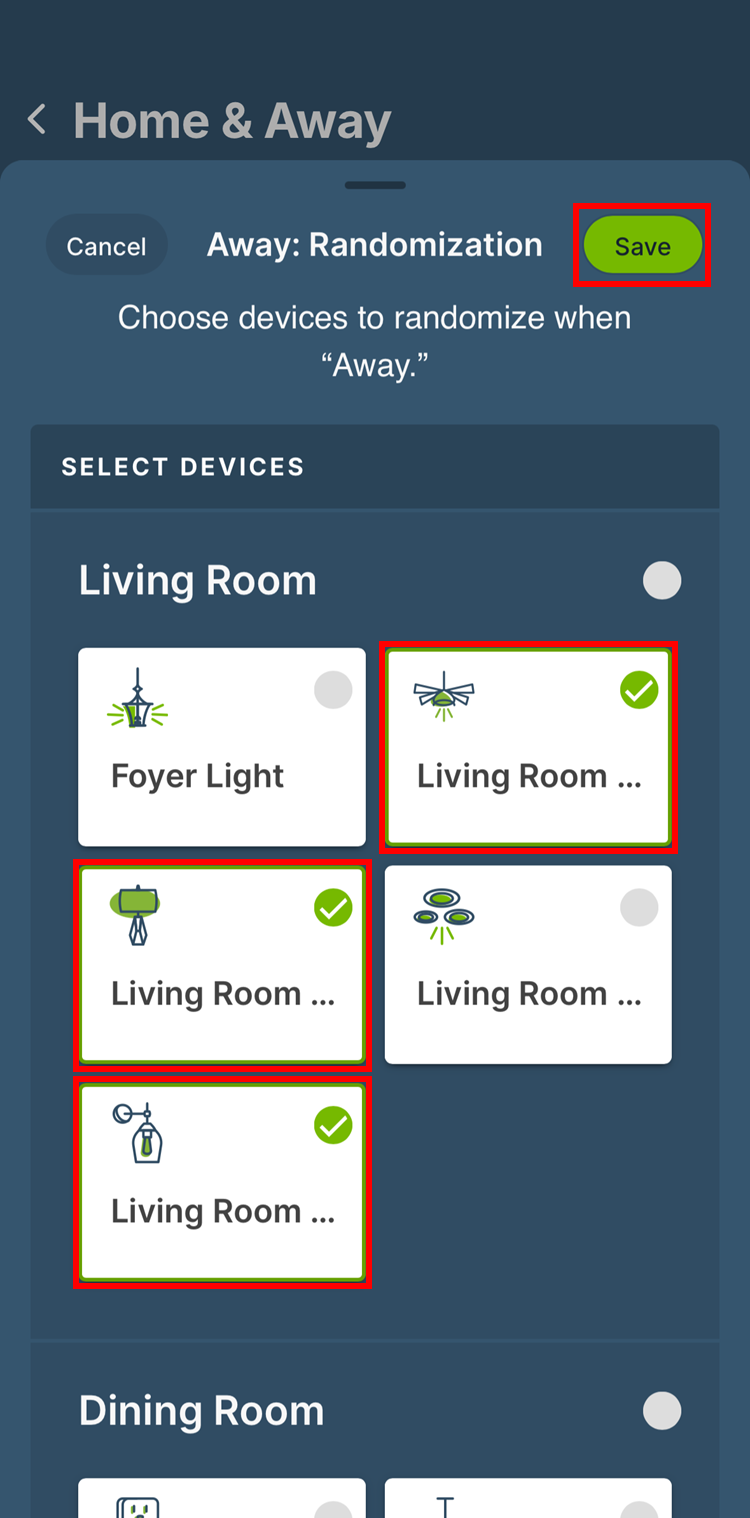
When you leave home you can setup Away actions as detailed above.  You can also choose to Randomize certain lights to give your home a lived in look.  Tap Randomization and then switch the Randomize Lights toggle to On.  Choose the lights you would like to be part of the randomization and then tap Save.  The lights you chose will randomly be turned on and/or off between sunset and 11:00 PM providing a lived-in look.

When the away settings have been selected tap Save.

Devices
Devices
Devices

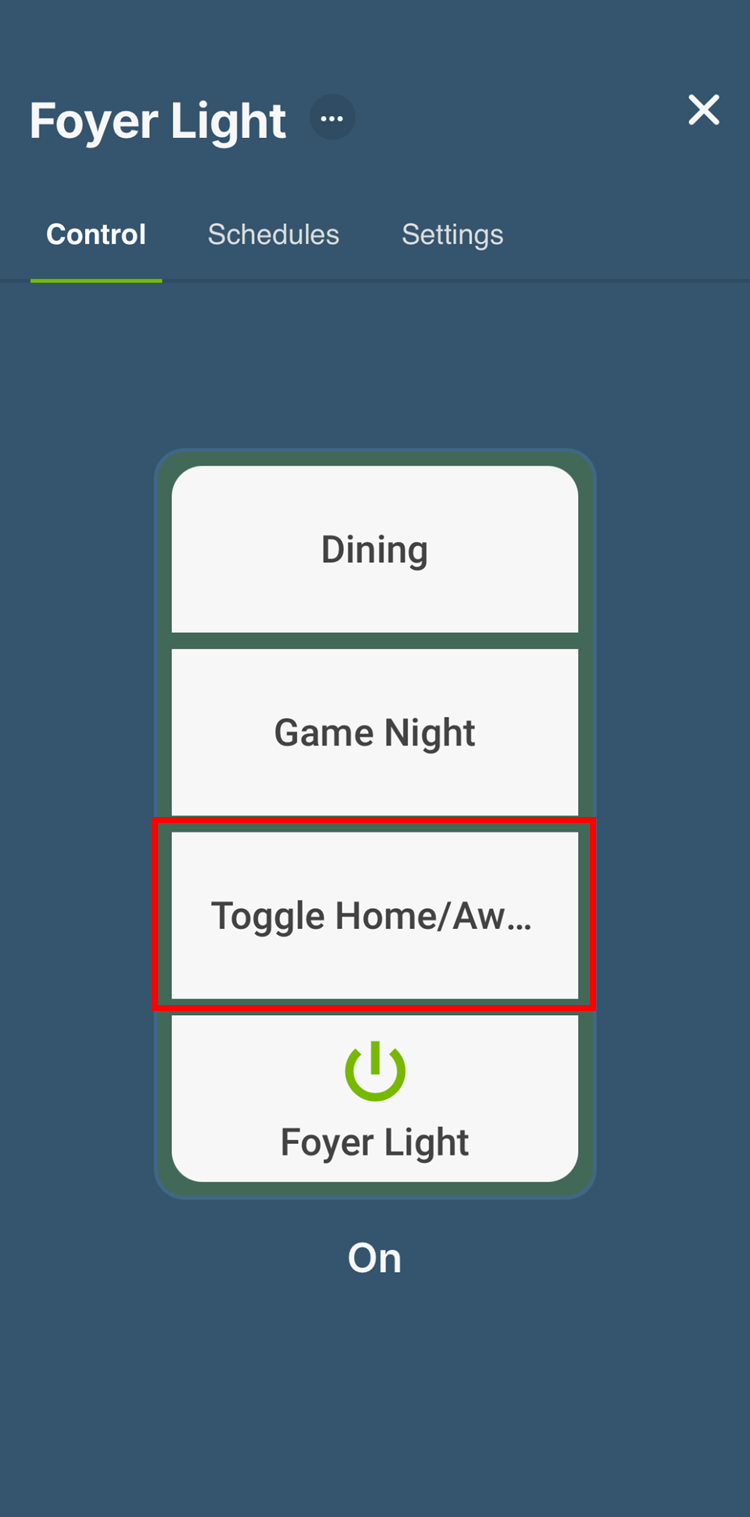
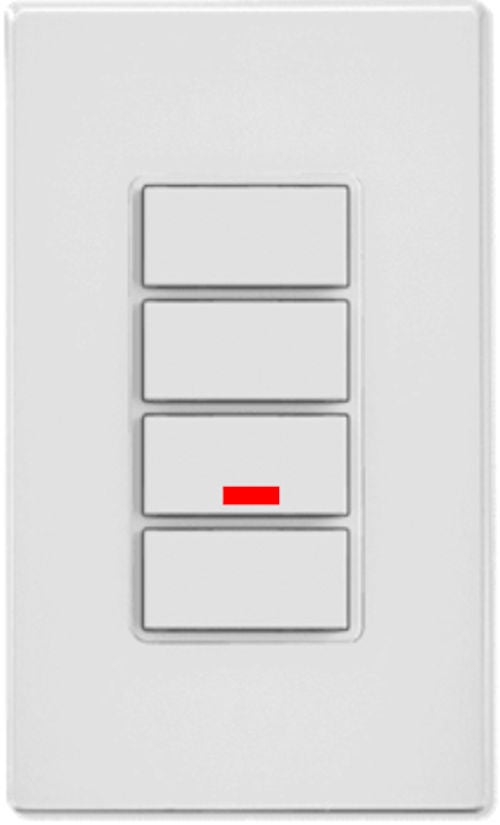
The Home and Away mode can be changed via the app on the Dashboard.  Additionally, you can configure a button on the DW4BC 4 Button Controller or the D2SCS Scene Control Switch to toggle between Home and Away."  

Devices

Pressing the 4 Button controller Home/Away button will turn the LED Red when in Away mode

Switch