The Samsung SmartThings is compatible with a long list of Leviton Z-Wave devices. A complete list can be found at https://www.smartthings.com/partners/leviton. This article is to assist customers with pairing Leviton Z-Wave Plus Certified products.
How do I add my Z-Wave switch or dimmer to my Samsung SmartThings system?
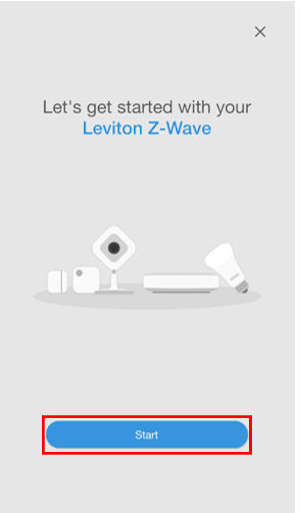
Open the Samsung App. Before starting, your app must be connected to your Samsung Hub. Press the + in the upper right of the Home Screen to Add a New Device. Choose 'Device' -> Choose 'Leviton' -> Choose the proper device. Then press Start.
Choose the hub and choose the room where the Z-Wave Device is located.
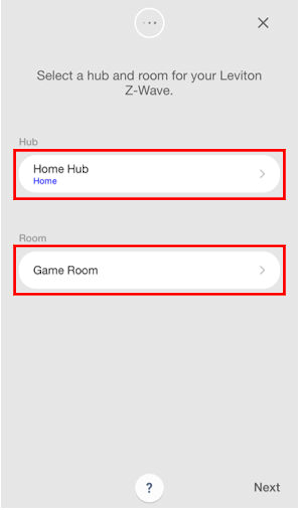
Before hitting next we will prepare the Leviton device to be paired with the Samsung hub.
- While not always necessary you can ensure the Leviton device is fully defaulted
- Hold the top of the paddle for a total of 14 seconds.
- After the first 7 seconds the LED turns amber
- The Locator LED will quickly flash red/amber after 14 seconds
- Release the the top of the paddle and the device will reset
- Hold the top of the paddle for a total of 14 seconds.
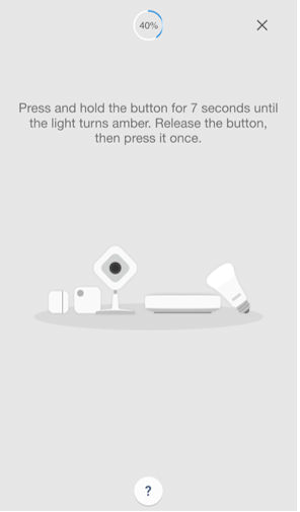
Before hitting Next place the Leviton device into include mode:
- Start with the devices closest to the hub and work your way outward
- Enroll only one device at a time
- To enter programming mode, hold the top of the paddle (or button) for 7 seconds.
- The status light will turn amber, release and the status light will blink.
- Tap the top of the paddle (or button) 1 time. The status light will quickly flash green.
- Your Leviton Z-Wave device is now ready to learn into the Z-Wave network.
Press Next
Upon successful addition to network the status light will turn on and then flash green 4 times. If it was not successfully added to the network, the status light will flash red 4 times. In most cases if the device does not learn it is too far from another Z-Wave powered (non-battery) device or the Samsung hub
Please note that Samsung began adding a message when learning any device that does not support S2 security.
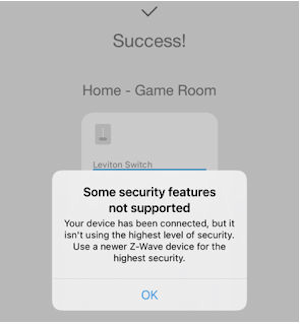
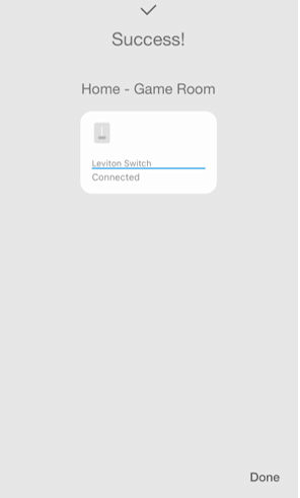
Your Z-Wave device has been successfully paired.
You can press Done and test communication by tapping the device on/off.