Loading...

How do I add my Z-Wave Switch or Dimmer to my Ring Security System?

The Ring security system has been tested with the Leviton DZ6HD dimmer, DZ15S switch, DZPD3-2BW plug-in dimmer, and DZPA1-2BW.  These products all feature network wide inclusion simplifying the installation. 

Start by entering the Alarm section of the Ring App:
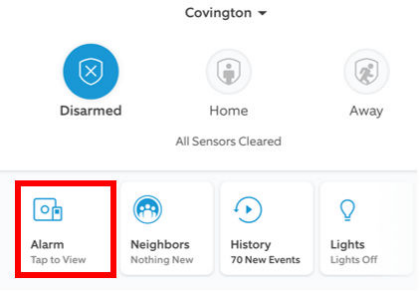
Z-Wave Alarm

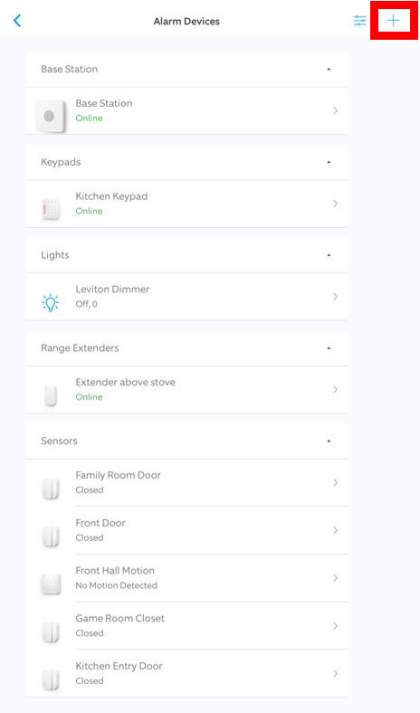
Choose the + in the upper right corner of the Alarm Devices screen:

Z Wave Alarm Devices

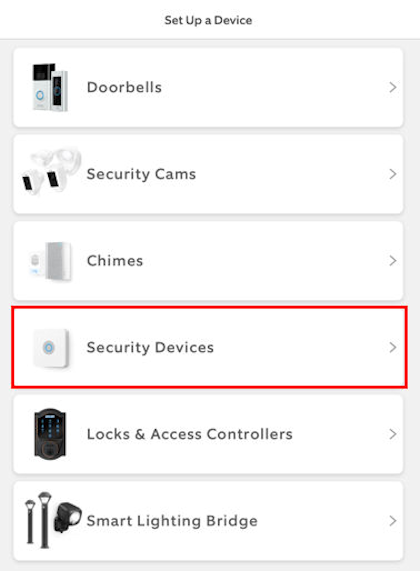
Choose Security Devices in the Set Up a Device screen:

Security Devices

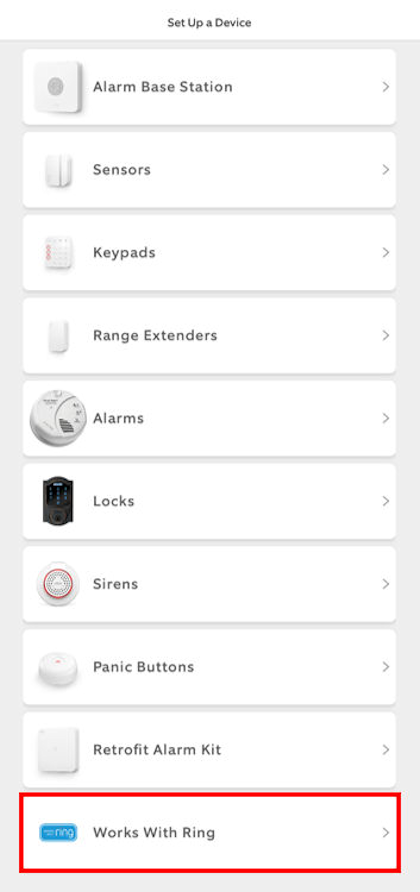
Choose Works With Ring:

Ring

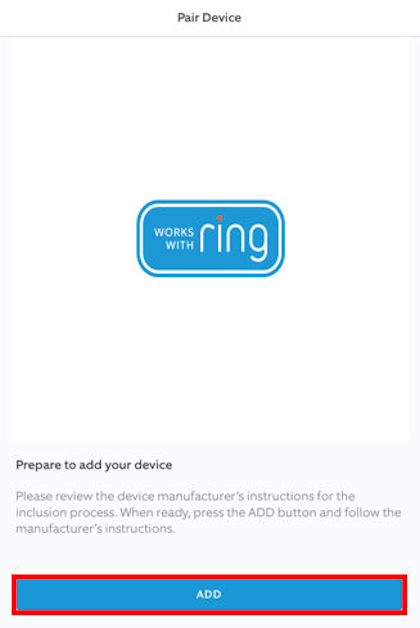
Before pressing ADD the Leviton Z-Wave device must be placed in include mode:

Start with the devices closest to the hub and work your way outward.

  1. To enter programming mode, hold the top of the paddle (or button) for 7 seconds. The status light will turn amber, release and the status light will blink.
  2. Tap the top of the paddle (or button) 1 time. The status light will quickly flash green.
  3. Your Leviton Z-Wave device is now ready to learn into the Z-Wave network.
  4. Press ADD in the Ring App
  5. Upon successful addition to network the status light will turn on and then flash green 4 times. If it was not successfully added to the network, the status light will flash red 4 times.  In most cases if the device does not learn it is too far from another Z-Wave powered (non-battery) device or the Ring base station
Ring Icon

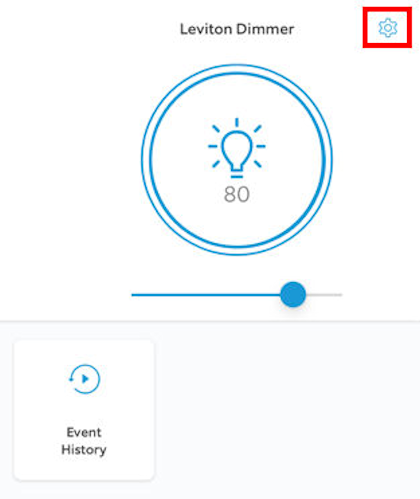
The Light will show in the security menu.  You can test control of the light by turning it on/ off or bright/dim if it is a dimmer.  Use the gear in the upper right corner you customize your device.

Dimmer

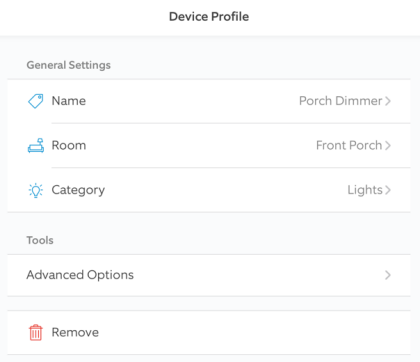
In the profile you can change the name, assign to a room and alter the category.

Device Profile