Loading...

Add a Leviton Whole Home Energy Monitor (LWHEM) and Smart Breakers To a Leviton Load Center

Each Leviton Smart Breaker has a built in radio that must be paired with the Leviton Whole Home Energy Monitor (LWHEM).  The LWHEM is the replacement for the Leviton Smart Breaker Data Hub (LDATA).  If you are installing an LDATA, please switch to the article Add A Leviton Smart Breaker Data Hub (LDATA) and Smart Breakers To a Leviton Load Center.   If you will be installing more than one Leviton Load Center with Smart Breakers, please read the article How do I setup 2 Leviton Load Centers with Smart Breakers Mounted Next To Each Other? before proceeding.

Follow the Get Started Guide to wire the LWHEM and install the Smart Breakers prior to proceeding.

Preparing to Install an LWHEM:

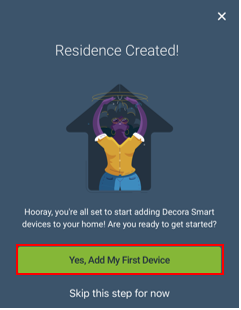
When no devices are currently enrolled, choose the 'Yes, Add My First Device' option.
Smart

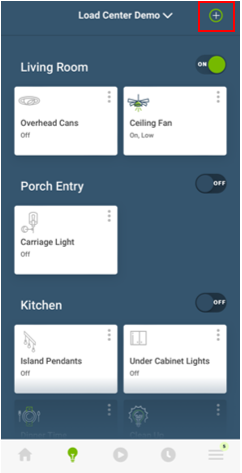
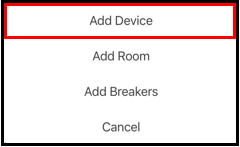
Note: If a device has been previously enrolled, choose the + button in the upper right corner, select Add Device, and advance to the Add procedure.


Step 1:  Adding A Leviton Whole House Energy Monitor (LWHEM):

Adding Devices
LWHEM

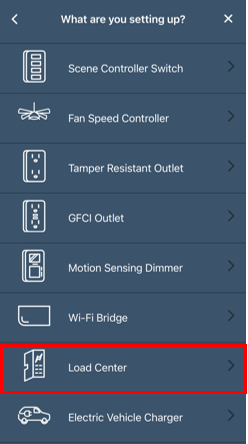
Choose Load Center

LWHEM

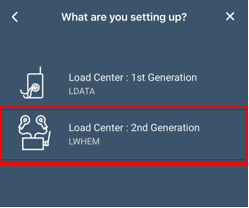
- Choose Load Center : 2nd Generation LWHEM

LWHEM

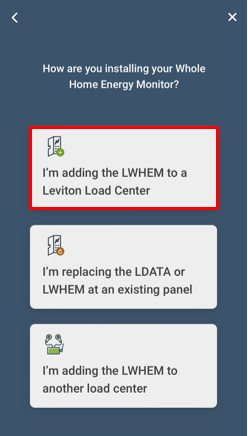
Step 2:  Select The Type Of Installation

LWHEM

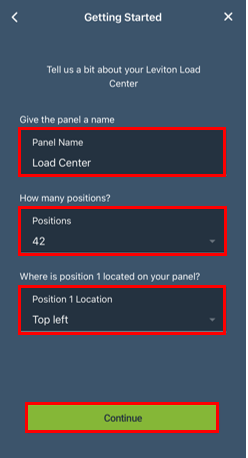
Step 3:  Enter The Load Center Information

  • Name the electrical panel
  • Choose the panel size
  • Based on how the panel is hung, choose the location for breaker position 1  

Press Continue

LWHEM

Step 4:  Connect To the LWHEM

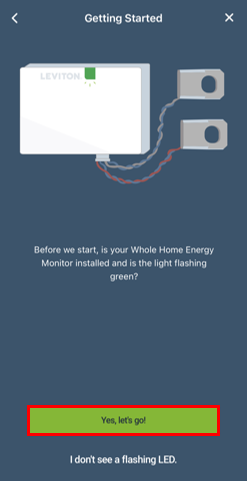
When a LWHEM is new, the LED will be flashing green.  If it was previously installed or if the LED has timed out you can press "I don't see a flashing light" to receive instructions to enter inclusion mode.

Confirm the LWHEM LED quickly flashing green, press "Yes, let's go!" 

LWHEM

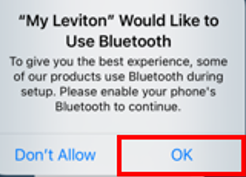
The first time you use the app to you may be asked to allow a connection via Bluetooth. 

Choose OK:

LWHEM

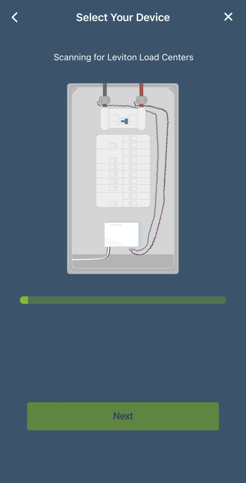
The mobile device will need to be in the same room as the LWHEM as the scan begins.  You will want to stay in the area during commissioning until the LWHEM is connected to Wi-Fi.

LWHEM

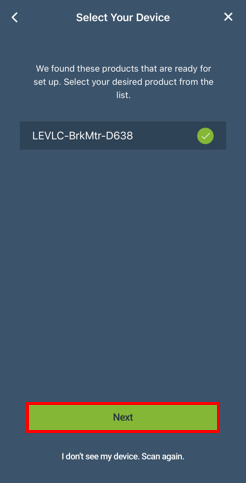
Only one LWHEM should show as available for commissioning, if more than one LWHEM appears, please reference the article How do I setup 2 Leviton Load Centers with Smart Breakers Mounted Next To Each Other?

Choose the LWHEM and press Next.

LWHEM

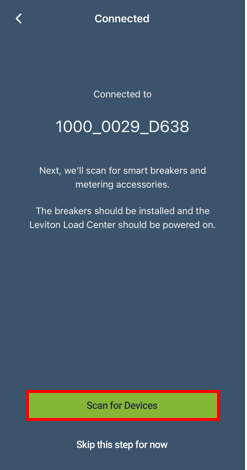
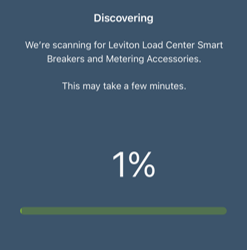
Once a connection is established the LWHEM will scan the Leviton Load Center for Smart Breakers. 

Press Scan for Devices.

LWHEM
LWHEM

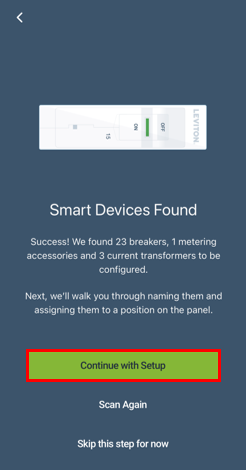
Once the scan is complete the app will show the number of Smart Breakers, LSBMAA metering accessories, and 3 Current Transformer ports.  The next steps will walk you through the commissioning of the Breakers, Metering Accessories (if installed), and Current Transformer ports.

Press Continue with Setup:

LWHEM

Step 5:  Breaker Configuration

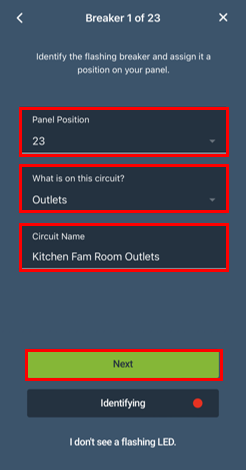
The app will show a setup screen for the first Smart Breaker to be paired to the LWHEM.

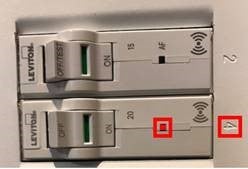
  • Look in the Leviton Load Center, the LED on one breaker will be flashing
Adding Devices
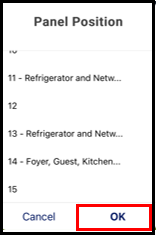
  • To the side of the breaker the position is embossed in the Load Center Dead Front
    • When pairing a 2 pole breaker, use the lower number and the app will know the second position 
LWHEM
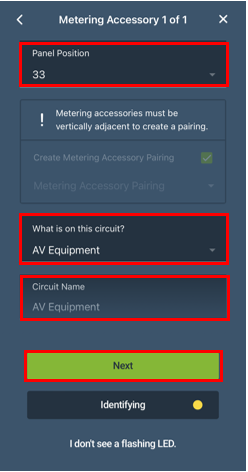
  • Choose the type of loads on the circuit.  If the circuit is mixed use it is recommend to choose the load type that represents the majority of the current draw.  The name field will be automatically populated with the circuit type.
  • Edit the Circuit Name to best identify the circuit.

Press Next.

LWHEM

The next available smart breaker ready for pairing will begin to flash.  Repeat the process until all breakers have been paired to the LWHEM.


Step 6:  LSMBA Metering Accessory Configuration

Not all installations will use LSBMA Metering Accessories.  It is designed to monitor non-smart breaker circuits and was used with the 1st Generation LDATA Smart Load Center Smart Interface.  Most LWHEM installations would use all 3 Current Transformer (CT) ports with LSMMA CTs prior to using the LSBMA metering accessory.  For more information on the LSMMA please refer to the article LSBMA: Smart Breaker Metering Accessory.

For information on installing the LSBMAs consult the installation instructions and the article I Am Receiving A Possible Miswire Condition Detected Message, What Do I Do?

LSBMAs should always be installed in pairs monitoring a 2 pole 240 VAC application.  One of the two LSBMAs will be flashing.  Choose the Panel position, identify the circuit type.  Repeat the process for the second LSBMA.  The second LSBMA should be immediately above or below the first LSBMA.  Choose Next when the enrollment is complete.

LWHEM

Step 7:  Current Transformer Configuration

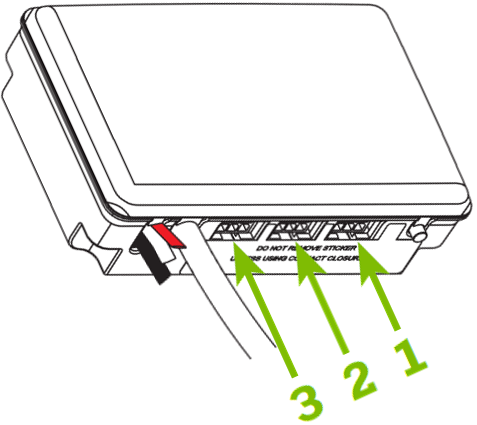
The LWHEM has 3 ports for use with LSMMA Current Transformers.  Note, port 1 is the furthest away from the power leads.  Please consult the LWHEM Get Started Guide for proper installation.

LWHEM

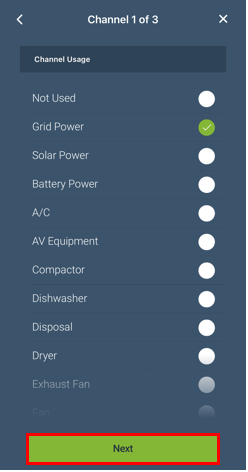
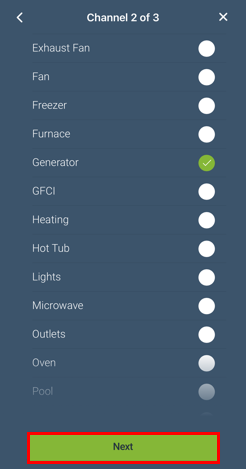
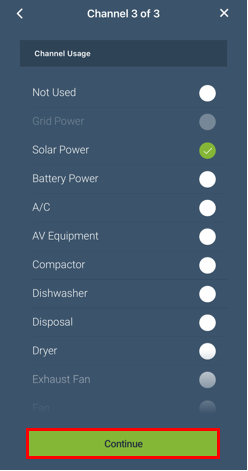
Not all 3 ports will be used in each installation.  The most popular application will be a grid connection plugged into Port 1.  This will be helpful showing and logging energy consumption.  If additional CTs are installed, choose the correct usage.  If a CT channel is not used, choose Not Used.

LWHEM
LWHEM
LWHEM

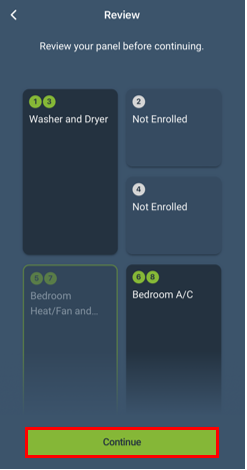
Step 8:  Review and confirm the configuration

Choose continue

LWHEM

Step 9: Connecting to Wi-Fi:  

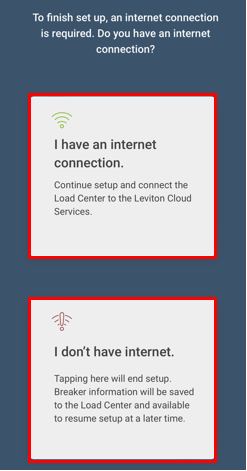
If Wi-Fi is available it is recommended to complete the LWHEM setup using the "I have an internet connection" option.  If the installation is completed prior to Wi-Fi being available in the home choose "I don't have internet."  The pairing information remains in the LWHEM and will be transferred to app using the add device process and connecting to the internet.
LWHEM

The app will connect to the LWHEM over Bluetooth and download all of the available Wi-Fi connections. 

Note, if you have any issues connecting during this step, please check if Bluetooth on your mobile device is connected to another product such as a Bluetooth headset or watch.  If Bluetooth is being used, please disconnect from the device and try again.

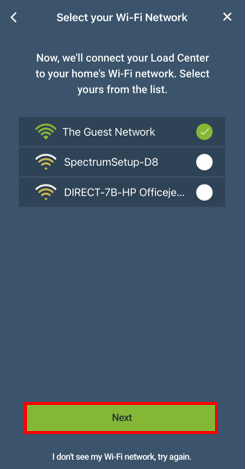
The app will provide a list of visible wireless networks available to the Leviton Wi-Fi devices. Choose the network with the best signal strength available that you are authorized to join.

Note: If your SSID is hidden it will need to be visible during the enrollment process.  Once the Decora Smart Wi-Fi is enrolled the SSID can be re-hidden. 

Press Next.

LWHEM

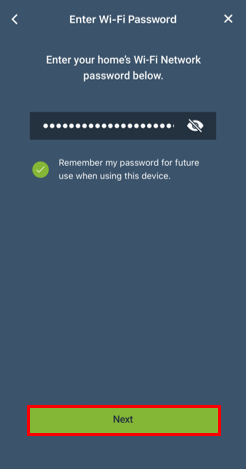
Enter the network password. Please note that passwords are case specific. If you are in a safe location to show your password, press the eye icon to see the text. 

Press Next.

LWHEM

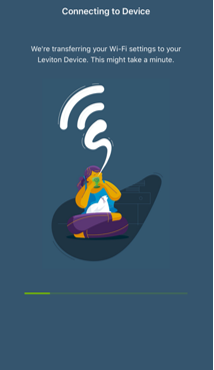
The app passes the Wi-Fi information to the LWHEM

During the process the LED on the device will indicate the current steps during in the enrollment.  

Watch the LED.   If your device does not successfully connect, move to step 9a.

Enrollment

Successful Wi-Fi connection:


Flashing green slows down to a slower rate:

  • This occurs shortly after the continue button is pressed

  • Wi-Fi Information is being transferred from the mobile device app to the LWHEM

LED Turns On Solid:

  • Wi-Fi information is correct and device is preparing to reboot

Quick Red, Amber, Green Flash:

  • Device is rebooting

LED is steady Green:

  • Device has successfully connected to the Wi-Fi network and the internet


Step 9a:

Enrollment

Using the Device LED to determine connection

Incorrect Wi-Fi Password:

Flashing green slows down to a slower rate:

  • This occurs shortly after the continue button is pressed

  • Wi-Fi Information is being transferred from the mobile device app to the LWHEM

LED Blinks Amber:

  • Wi-Fi information is incorrect

  • In most cases the password is incorrect

  • The wrong Wi-Fi network may have been chosen or signal strength is poor

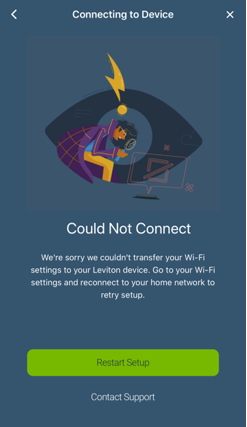
If the app is unable to connect:

- Be certain to default the device and return to the flashing green LED
    - Hold the Programming button for 14 seconds
    - After 7 seconds the LED will turn amber, continue to hold
    - After 14 seconds the LED will flash amber/red, release the button
  - The device will default and return to the flashing green LED
  - Press Restart Setup to start the enrollment process again.

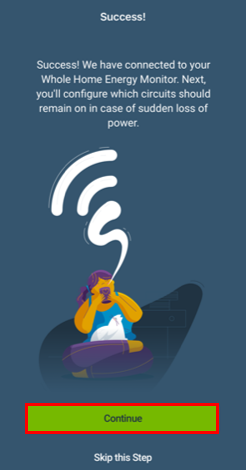
The LWHEM is now connected to Wi-Fi and the app. 

LWHEM

Step 10:  Loop Configuration

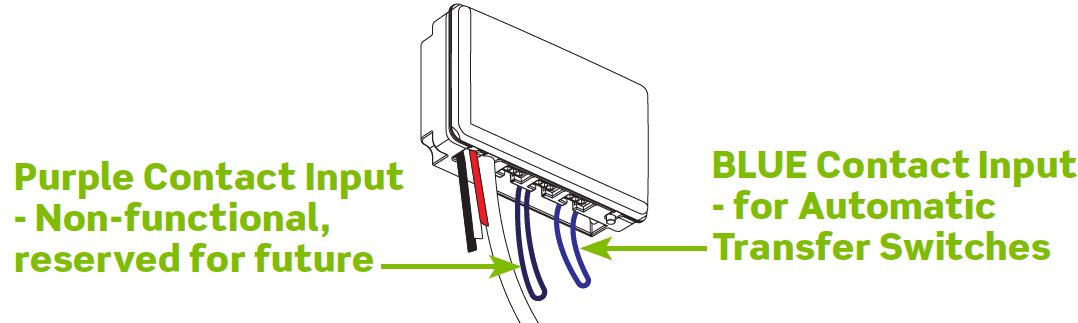
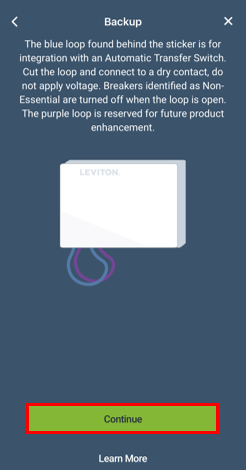
Behind a sticker, directly below the CT ports on the bottom of the LWHEM are two loops.  The Blue loop is used for connecting to an Automatic Transfer Switch.  The Purple loop is currently no used and is reserved for future applications.  For more information please read the article Connecting an Automatic Transfer Switch (ATS) To A Leviton Whole Home Energy Meter (LWHEM).

LWHEM

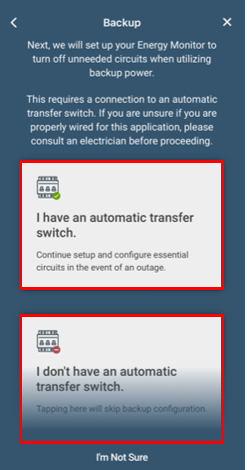
Choose if you are connecting the Blue Loop to an Automatic Transfer Switch.  If you are not connecting the installation is complete.

LWHEM
LWHEM

Step 11:  Setup Essential Circuits

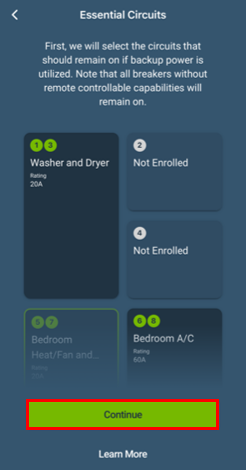
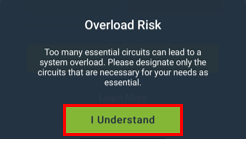
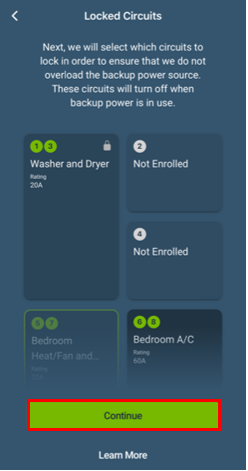
Leviton 2nd Gen Smart Circuit Breakers with Remote Control can be used to reduce the potential electrical demand when utilizing a generator.  All breakers that are not controlled with a 2nd Gen Smart Breaker will be On (Essential) when the generator is running.  All circuits controlled by a 2nd Gen Smart breaker have to ability to be Off (Non-Essential) when running on generator.  At default each 2nd Gen Smart Breakers will be Non-Essential.  Choose breakers that should be On (Essential).  Remember, the total potential load must remain under the generator's continuous rated output.

LWHEM
LWHEM

During installation an installer may wish to designate some 2nd Gen controlled breakers as 'Locked'.  The Locked Breakers feature is intended for large circuits that should not be energized with on generator (example, an A/C compressor or pool pump).  

LWHEM

Review the configuration and choose Continue.

LWHEM

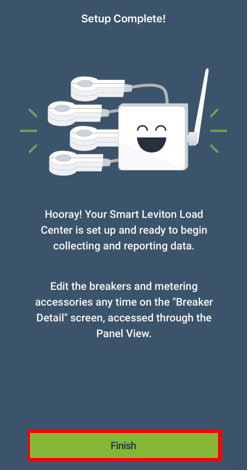
Setup is complete

LWHEM

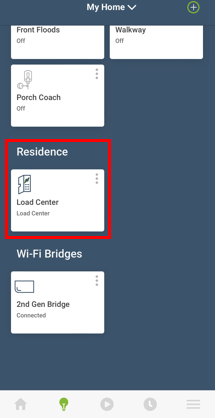
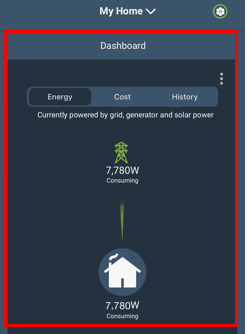
The Leviton Load Center and Smart Breakers can be accessed through the Load Center Icon or by tapping on the Grid image in the dashboard:

LWHEM
LWHEM