Loading...

Can I use HomeKit, Siri, Update Firmware, and Change Product Settings Without Setting Up A My Leviton Account?

Yes, both Gen 1 Decora Smart with HomeKit Technology (DH***) and Gen 2 Decora Smart Wi-Fi (D2***) products can update firmware and change device settings without creating a My Leviton account.   

Notes:

  • Decora Smart Wi-Fi Gen 1 products (DW***) do not support HomeKit technology
  • If you have been using the Leviton Decora Smart Home app with your Decora Smart with HomeKit Technology (DH***) products, you can now switch to the My Leviton app

Start by Downloading and installing the My Leviton for your iOS device from the Apple App Store. 

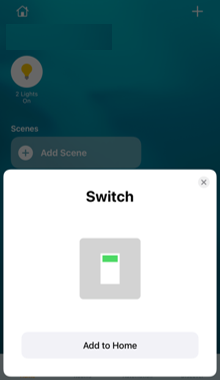
Add the Leviton Decora Smart accessories in the Apple Home App:

Apple Homekit

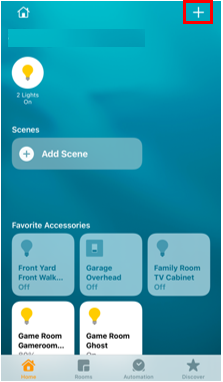
Press + in the right corner:

HomeKit

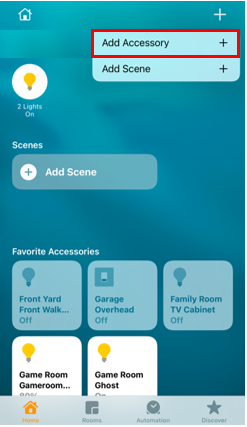
Choose Add Accessory:

HomeKit

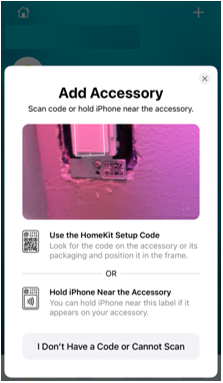
Scan the QR code:

HomeKit
HomeKit

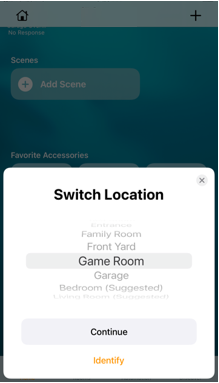
Choose the room:

HomeKit

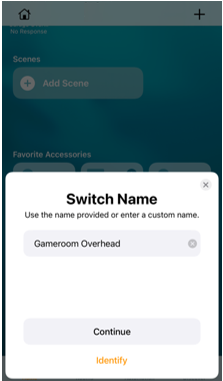
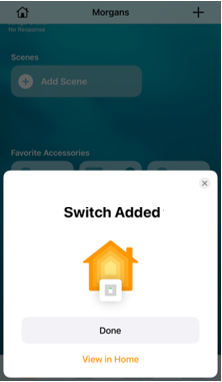
Name the Leviton Device:

HomeKit
HomeKit

With the Leviton device added to the Apple Home app launch the My Leviton app.

mceclip3.png

If you will only be using the My Leviton app for firmware updates and device configuration. You do not need to create a My Leviton account.

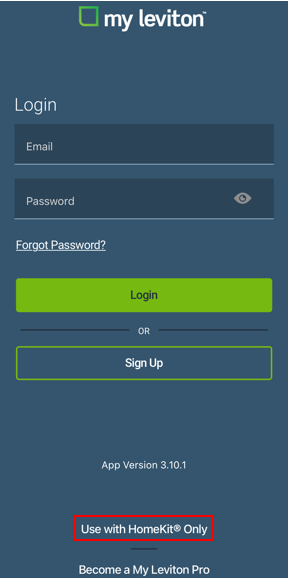
Scroll down below the Login options and choose 'Use with HomeKit'.

HomeKit

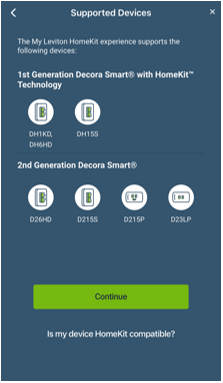
Verify the supported devices and choose Continue:

HomeKit

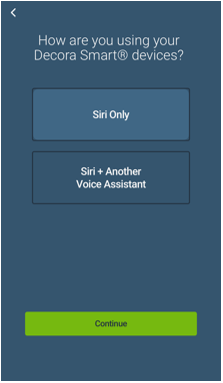
These instructions are for Siri/HomeKit only.  If you would like to use other voice service or My Leviton partners integration a My Leviton account is required. 

Choose Siri only:

HomeKit

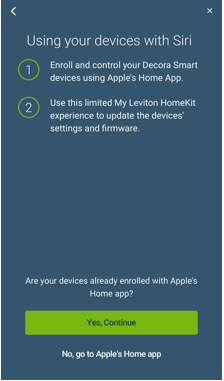
Choose Yes, Continue:

HomeKit

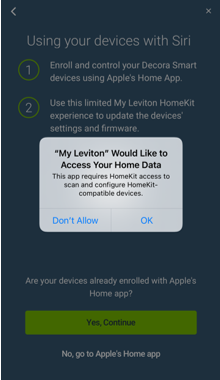
You will be prompted to allow the My Leviton app to access data from the Home app. 

Choose OK:

HomeKit

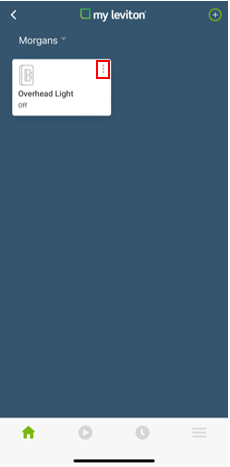
All Leviton products included in the Home app will be listed:

Press the 3 dots in the upper right corner of the icon.

HomeKit

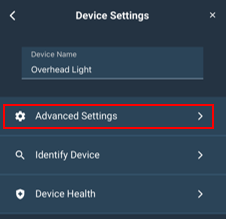
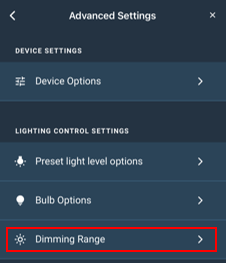
To change product settings press Advanced Settings:

HomeKit

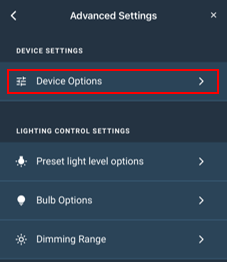
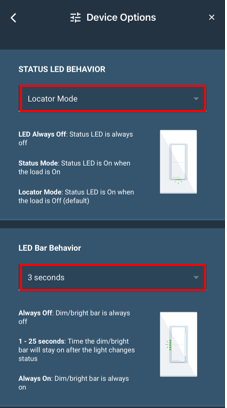
Press Device Options to change the LED indicators behavior:

HomeKit

The Status LED is the LED on the bottom of wall mounted devices and the side of plug-in devices.

  • LED Off: Status LED is always off
  • Status Mode: When the load is On the Status LED is ON
  • Locator Mode: When the load is off the Status LED is on to help you locate the on/off switch in the dark.

The LED Bar are the vertical LEDs on the left side of the dimmer.

  • Always Off: Dim/bright bar is always off
  • 1 - 25 seconds: Time the dim/bright bar will stay on after the light changes status
  • Always On: Dim/bright bar is always on
HomeKit

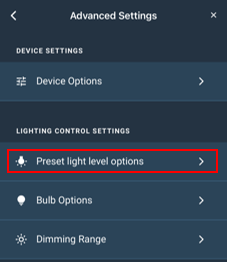
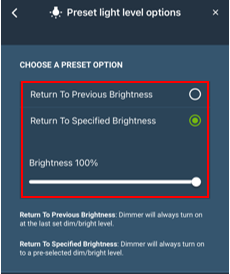
Press Preset light level options to change how the dimmer behaves when the light is turned on:

HomeKit

When the dimmer is commanded to turn on or the top of the rocker is pressed.

  • Return To Previous Brightness: Dimmer will always turn on at the last set dim/bright level.
  • Return To Specified Brightness: Dimmer will always turn on to a pre-selected dim/bright level.
HomeKit

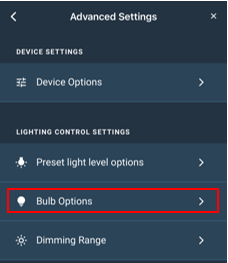
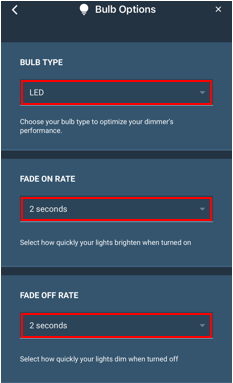
Press Bulb Options to change bulb types and fade rates:

HomeKit

You can customize Bulb options:

  • Bulb Type: Choose your bulb type to optimize your dimmer’s performance.
  • Fade On Rate: Select how quickly your lights brighten when turned on
  • Fade Off Rate: Select how quickly your lights dim when turned off
HomeKit

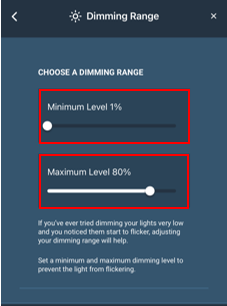
Press Dimming Range to set the maximum and minimum dim levels:

HomeKit

If you’ve ever tried dimming your lights very low and you noticed them start to flicker, adjusting your dimming range will help.

Set a minimum dim level at the lowest level without flicker.  This setting may differ between different bulbs.

The maximum dimming level can be used to prevent 'dead travel' a situation where the light does not begin to dim unless the dim rocker is pressed multiple times.  Set the maximum dimmer at a level just above where you can see the bulb bightness begin to dim.

HomeKit

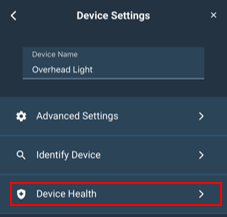
To update firmware:

Press Device Health.

HomeKit

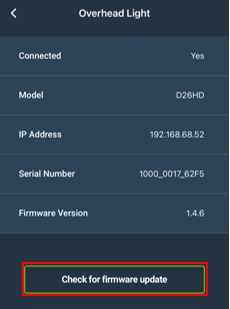
Choose Check for firmware update:

HomeKit

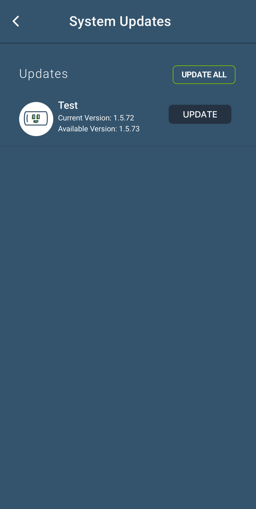
If an update is available you will be prompted for an update:

Updates

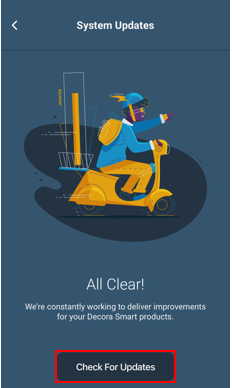
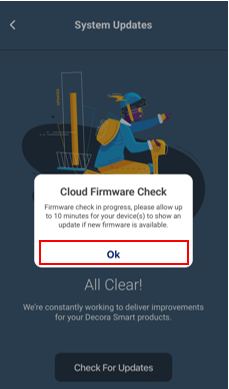
If an update is not readily available you can press Check for Updates

HomeKit

If an update is available it will appear within 10 minutes.

HomeKit

For more information on firmware updates see the article "Checking and Updating Firmware on Decora Smart® Wi-Fi Devices.