Loading...

Checking for and Updating Firmware on Decora Smart® Wi-Fi Devices

Updating Firmware on a Decora Smart Wi-Fi Device

Firmware is used to improve performance and add features to your Decora Smart Wi-Fi device.  The app keeps track of each device and will prompt you when an update is available.  Depending on the age of your Decora Smart Wi-Fi device and the current firmware, the update may follow one of two possible procedures.

Is an Update available?

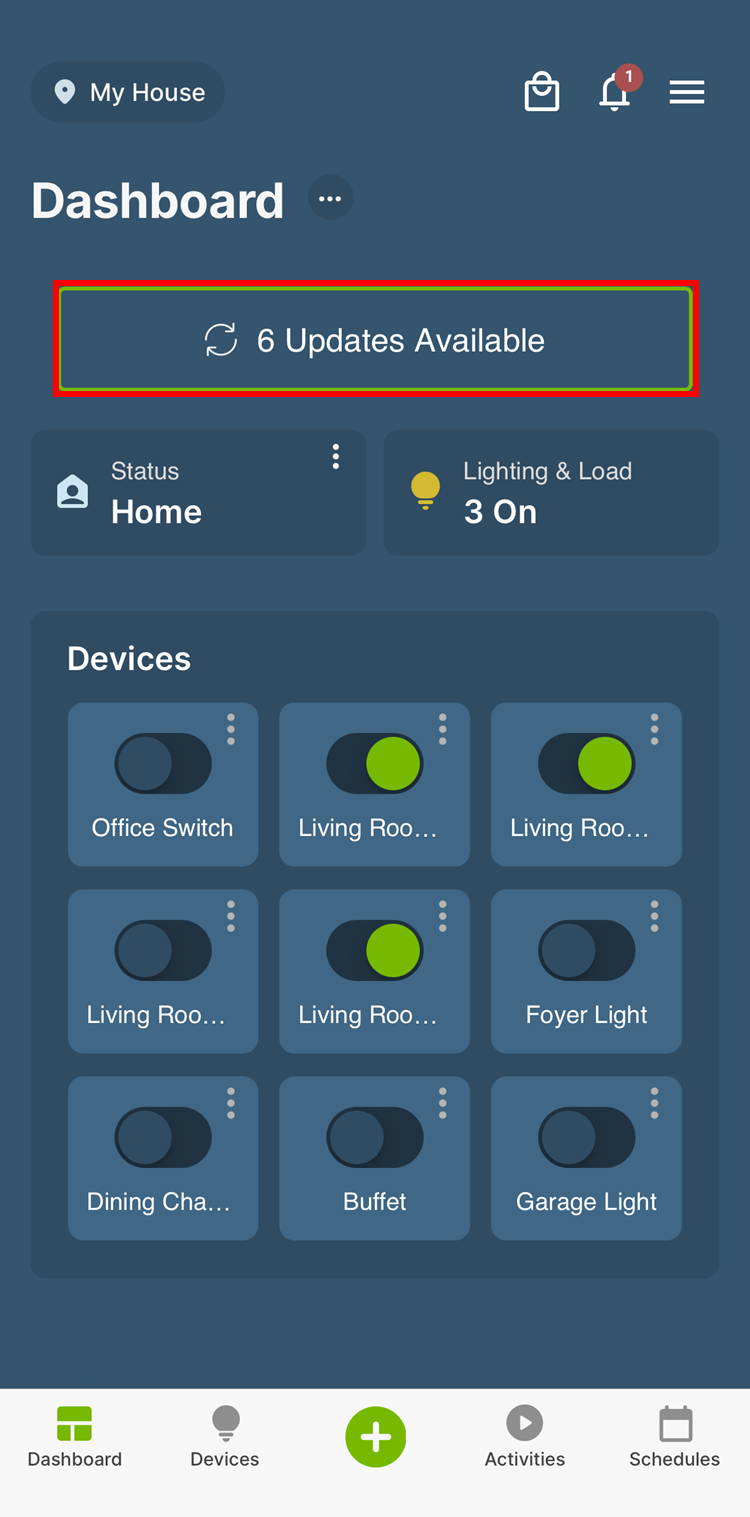
When a firmware update is available, the Updates Available widget will appear in the Dashboard to make updates quick and easy.
Dashboard

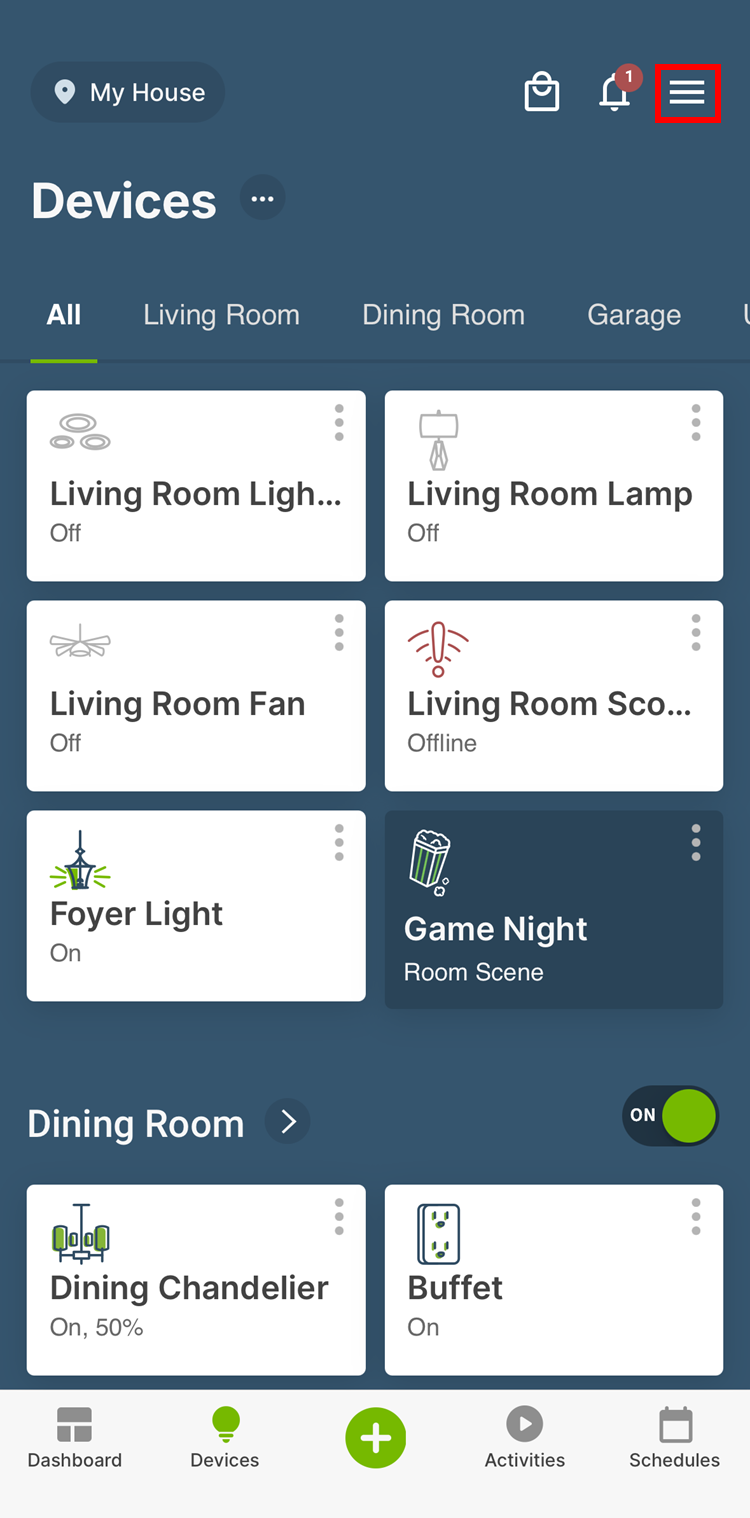
Also in the upper right corner of the My Leviton devices screen tap the Menu icon (). 

Devices

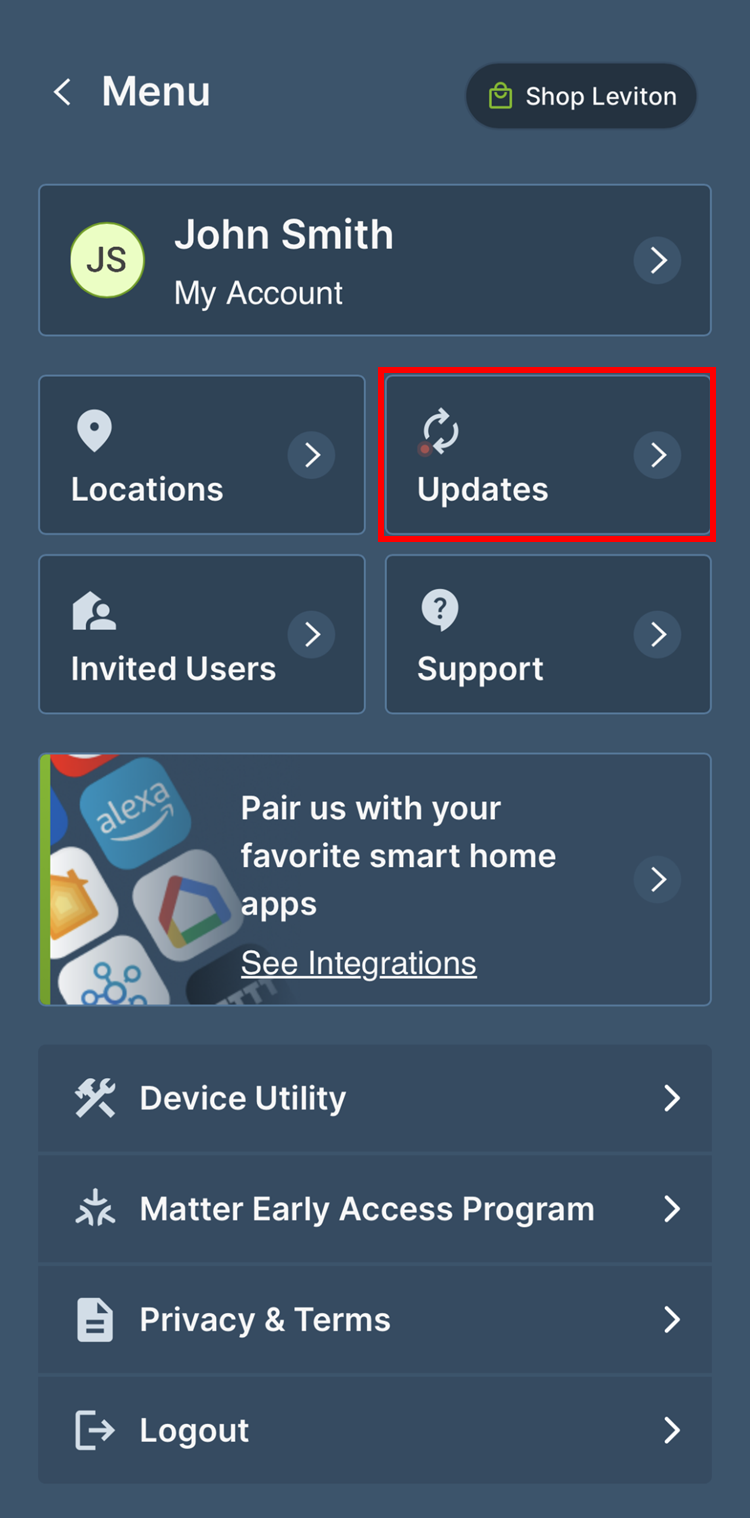
When a firmware update is available, a small bubble will appear on the Updates button. Tap Updates:

Dashboard

Most updates will be downloaded by the devices from the My Leviton Cloud prior to the update appearing in the My Leviton app.  Depending on the device and networking conditions, this typically takes around 10 minutes.  Under normal use, the download occurs in the background.  The only time a delay may be important to note is immediately after the product installation.

Notes for DN No-Neutral users:

  • The DN No-neutral devices may take considerably longer, it is best to budget approximately an hour prior to the update appearing in the My Leviton app
  • The MLWSB Bridge firmware is separate from the DN device firmware
  • An update for the bridge may appear earlier than a DN device after an installation

Setting Up Auto Updates

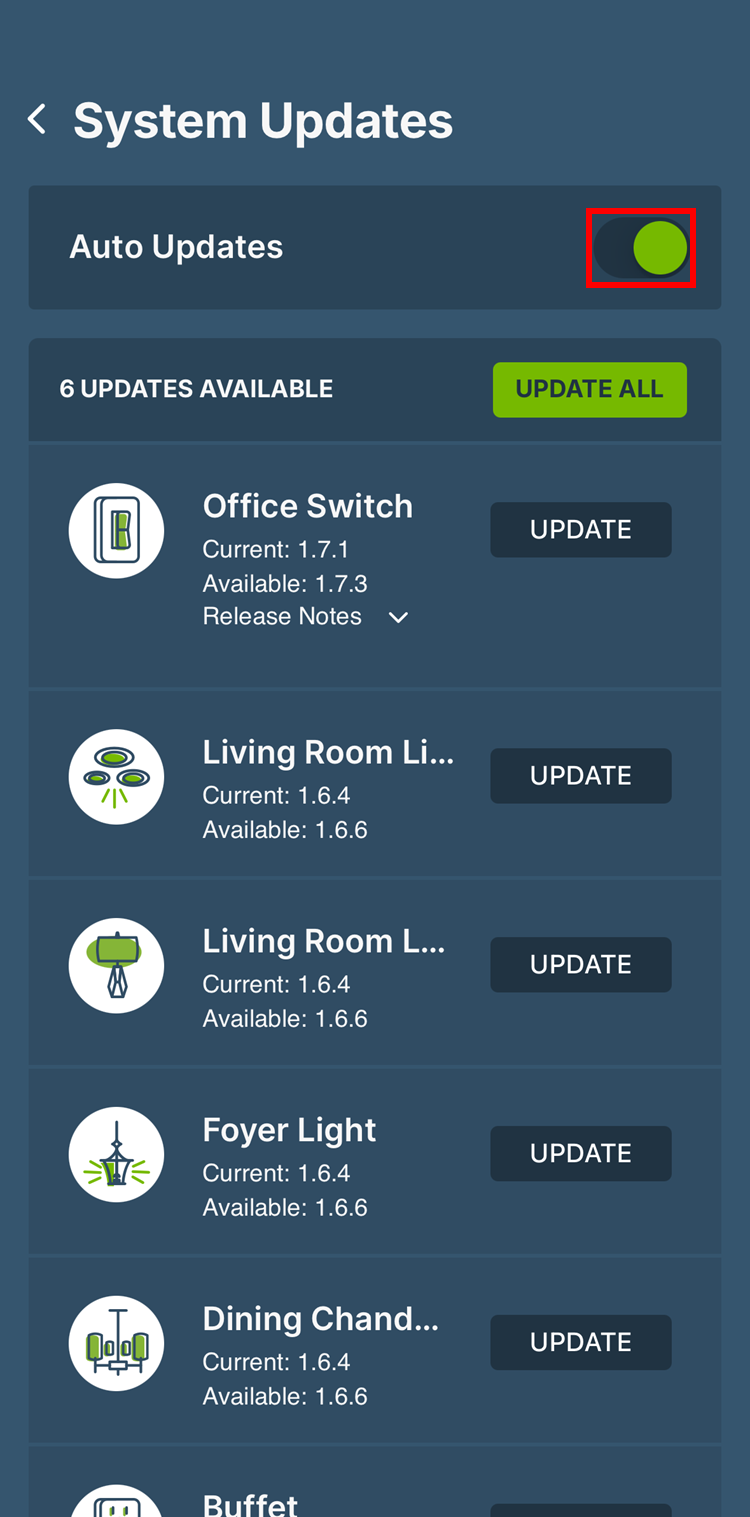
If you want to enable Auto Updates, make sure the Auto Update switch is on.

Update

Updates

Beginning August 2020, the firmware update process was enhanced to allow multiple devices to update firmware simultaneously.  

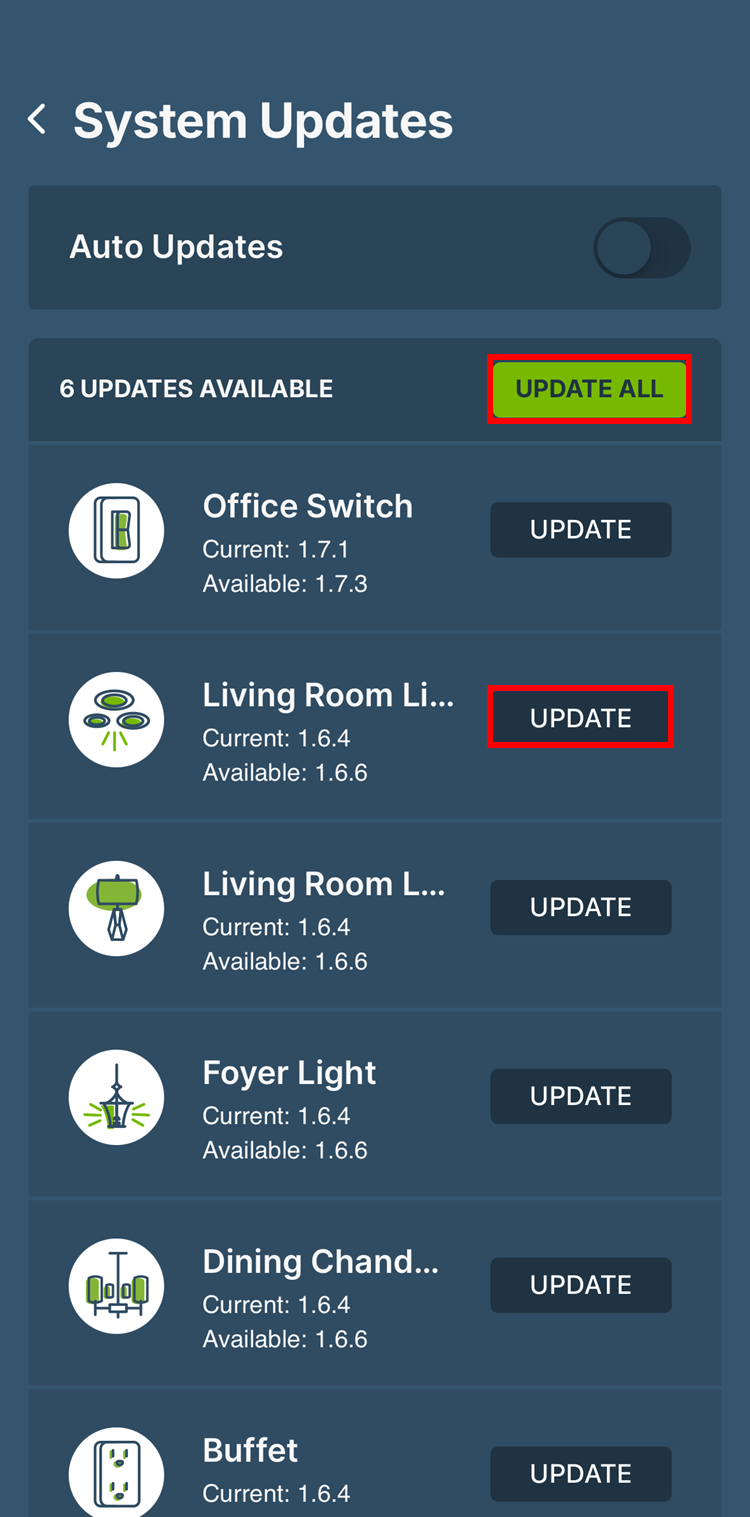
Select the UPDATE button next to each of the devices that you want to update, or press the UPDATE ALL button to update the firmware in all of your devices. Multiple devices can be updated at the same time. The process takes 45 seconds to a minute.

Update

As each device is updated, they will be removed from the list until all devices are updated.

Note: if a DWVAA, D26HD, DN6HD, D2MSD, or D23LP is ON during an update, the light will blink OFF momentarily when the device restarts.  If the light is already OFF, it will stay OFF when the device restarts.

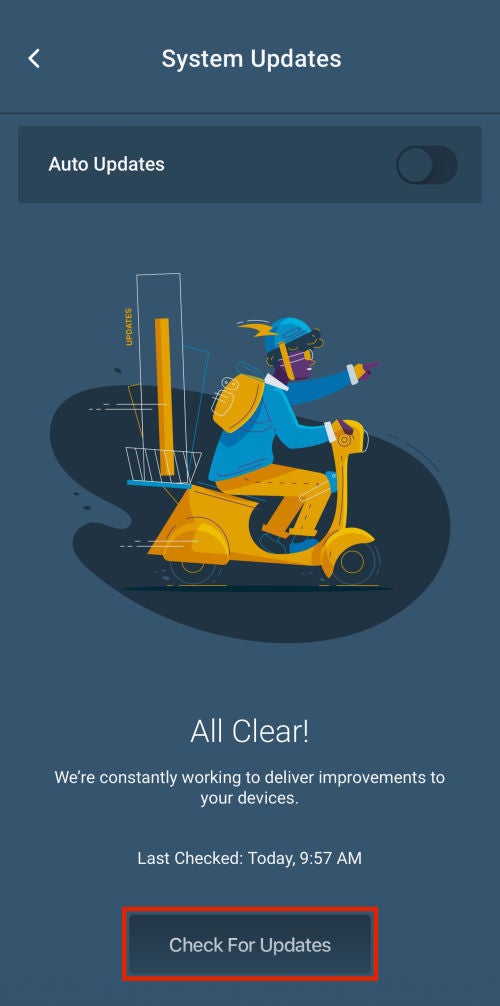
To initiate a check for firmware updates, press the Check for Updates button.

Update

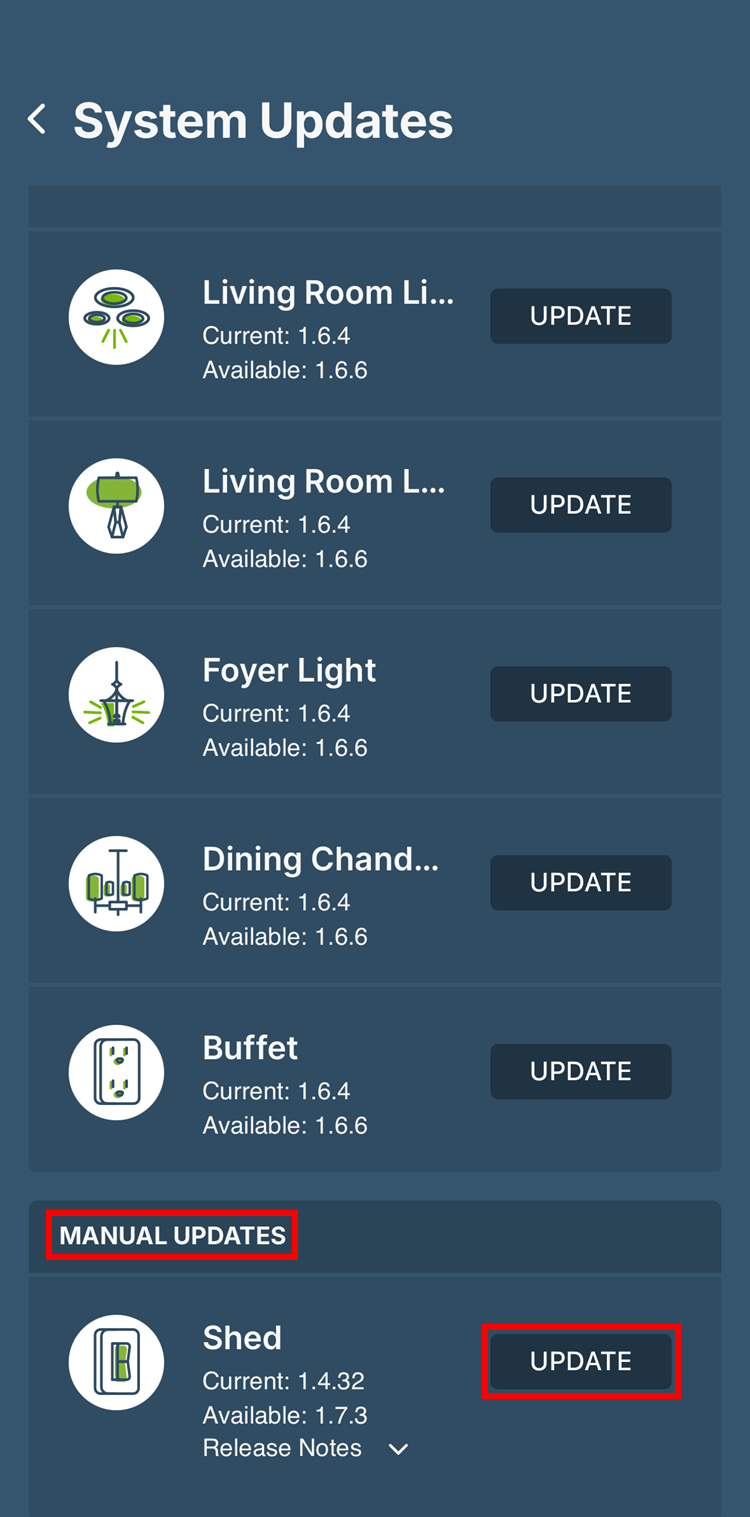
Manual Updates

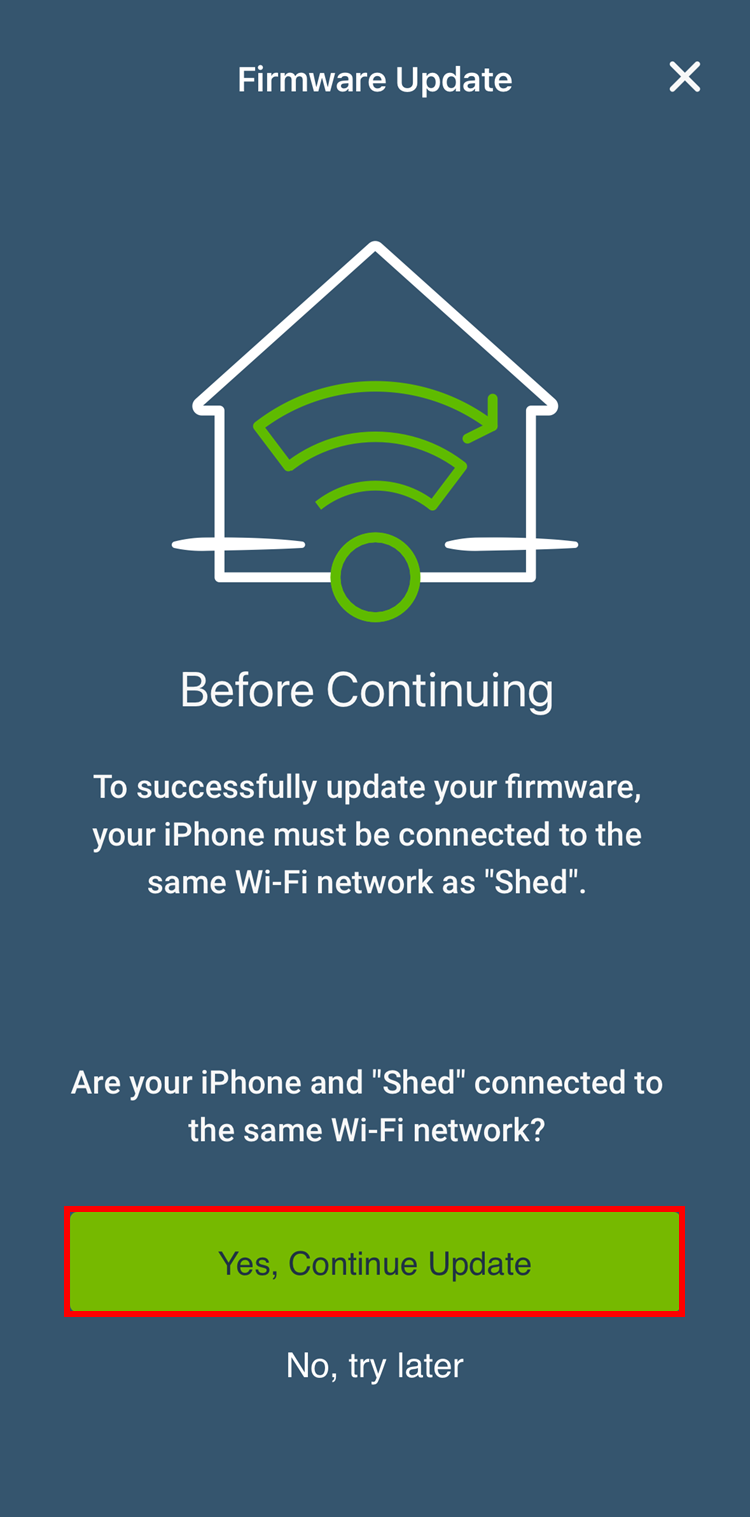
If a Manual Update appears, the mobile device must be on the same Wi-Fi network as the Decora Smart Wi-Fi device.  Updating to current firmware will allow you to use the newer firmware update process the next time an update is available.  Once complete, you will no longer need to use the manual update process for future firmware.

Each device that needs an update will be listed. Only one device can be updated at a time.

Update
Update

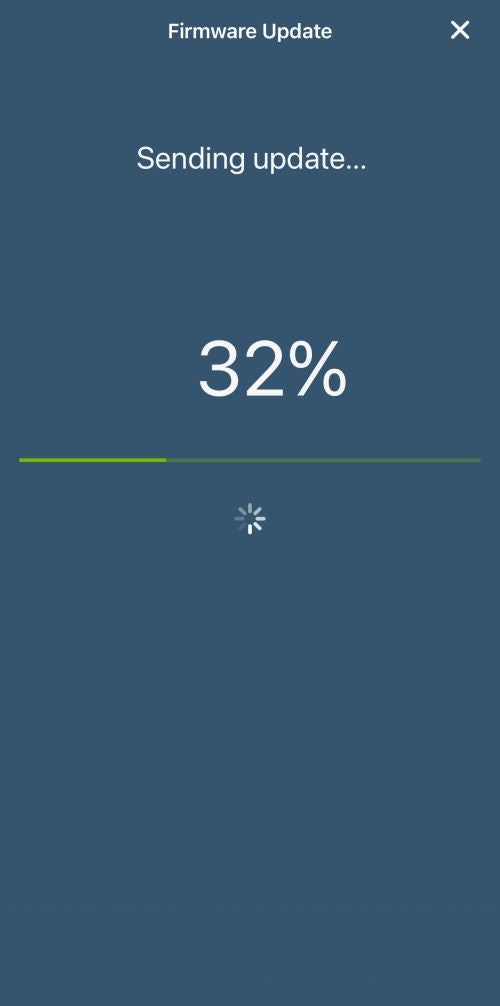
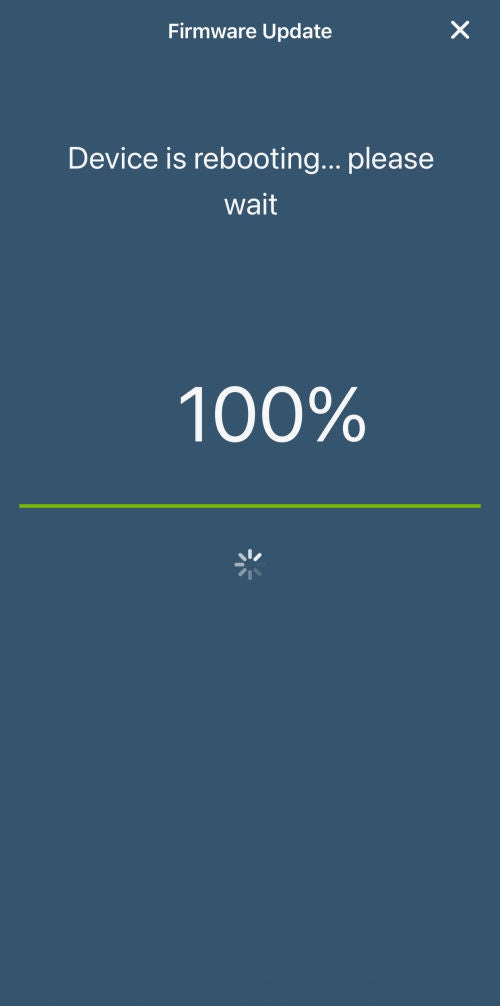
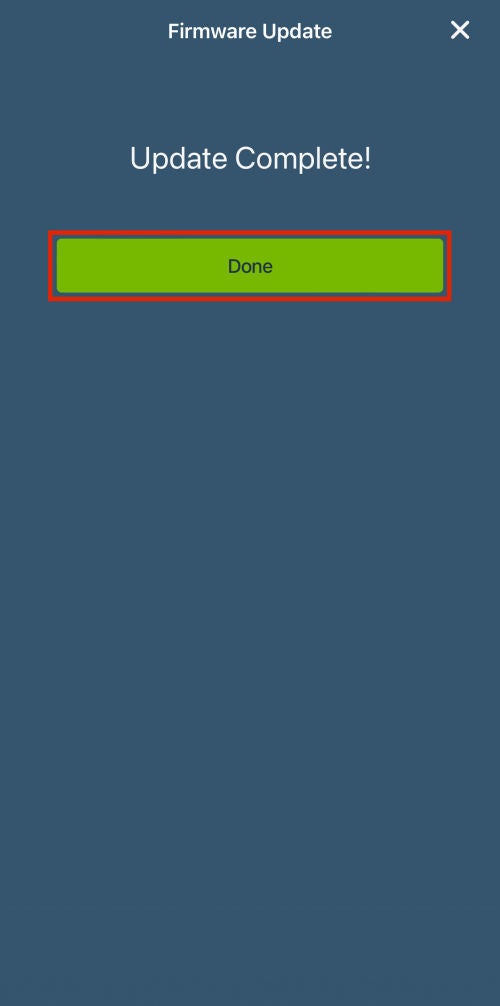
Press update and the mobile device will send the update and the device will reboot.  The process takes 45 seconds to a minute.  If you receive an error message "Local Wi-Fi Network Failure" please follow the link for more details.

Update
Update
Update