Loading...

Add a DWVAA Voice Dimmer to the My Leviton App

Before attempting to add a DWVAA Voice Dimmer to the My Leviton app, make sure that Bluetooth and Wi-Fi are enabled on the mobile device.  

Step 1.

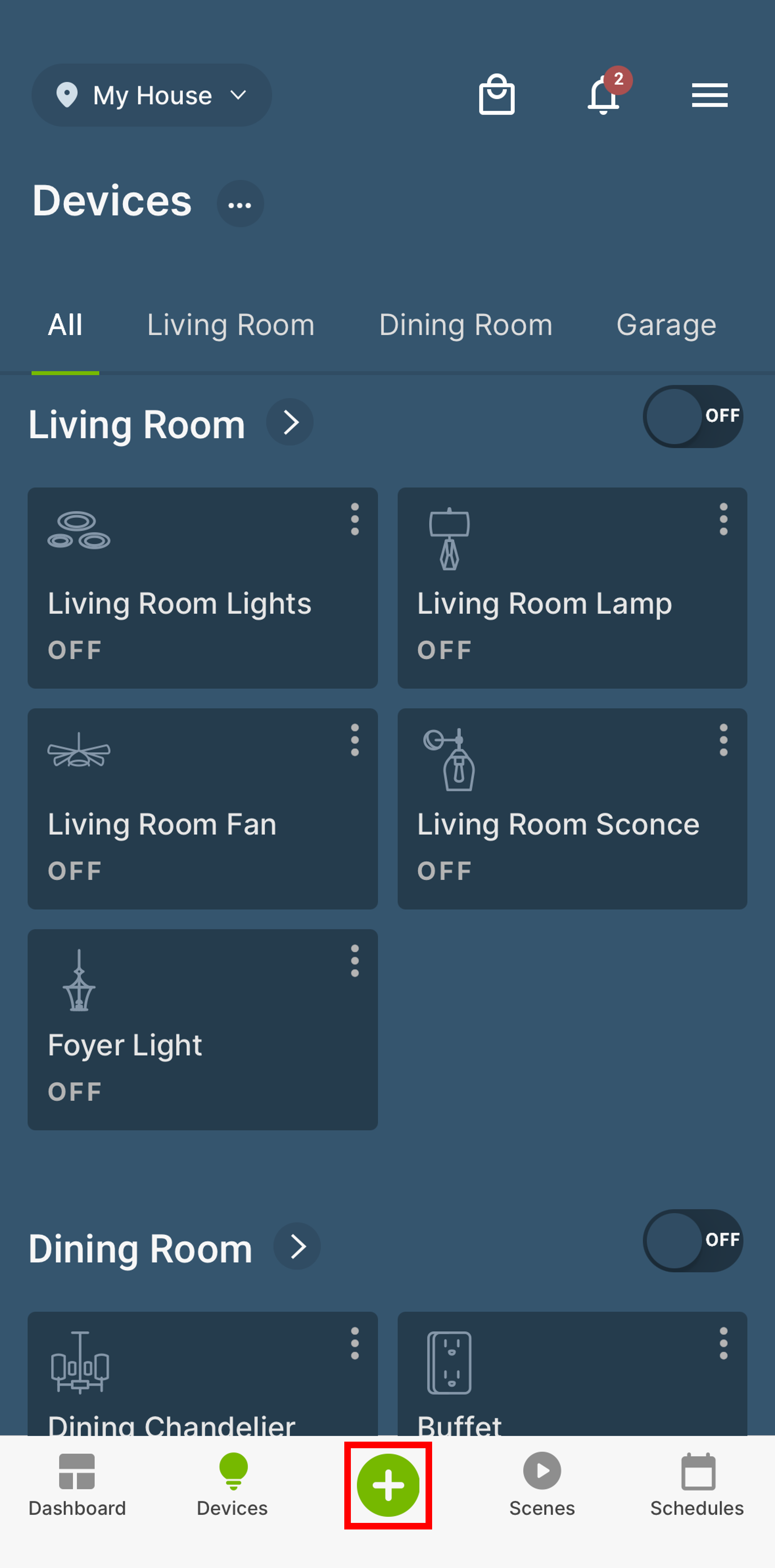
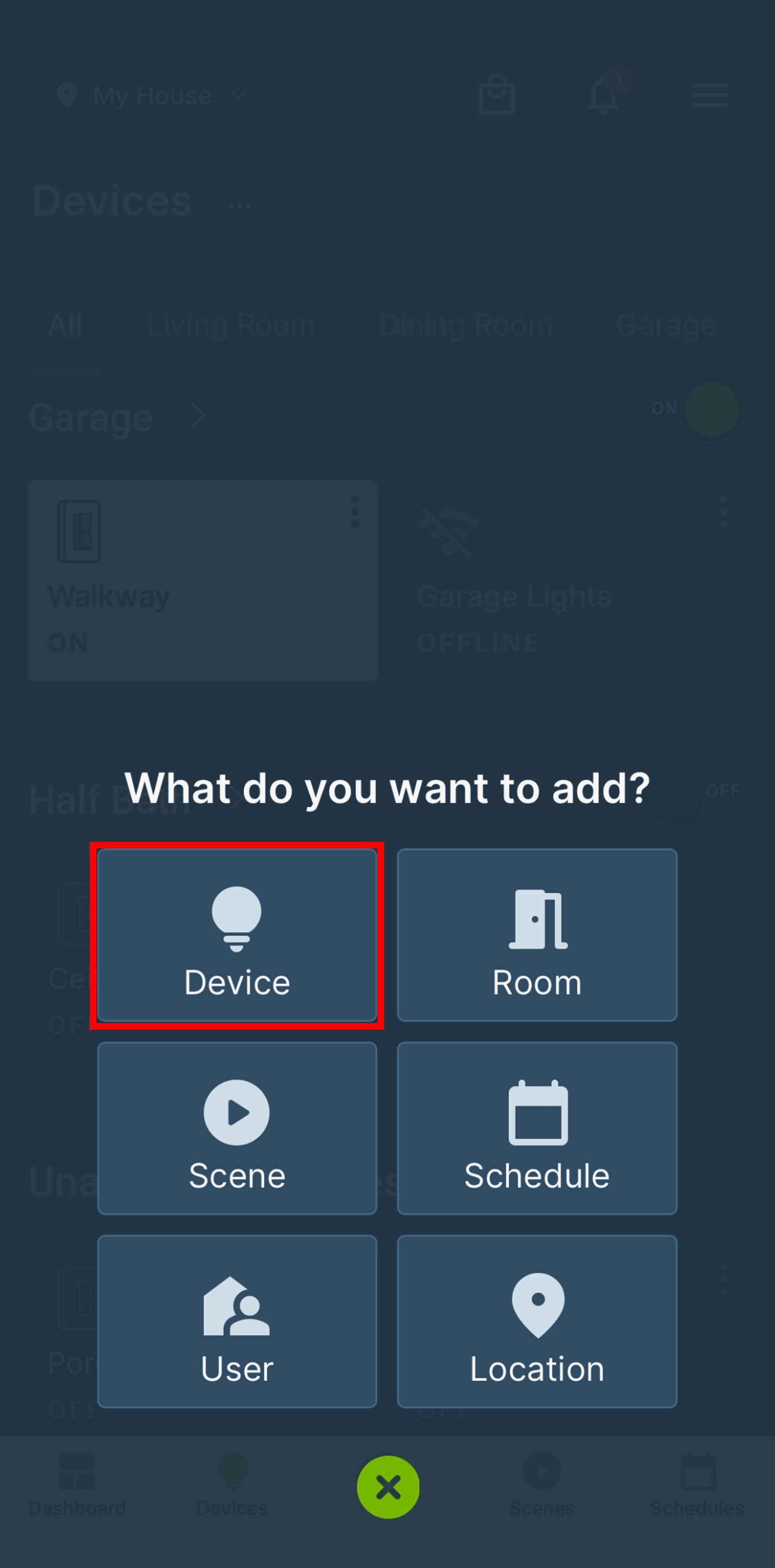
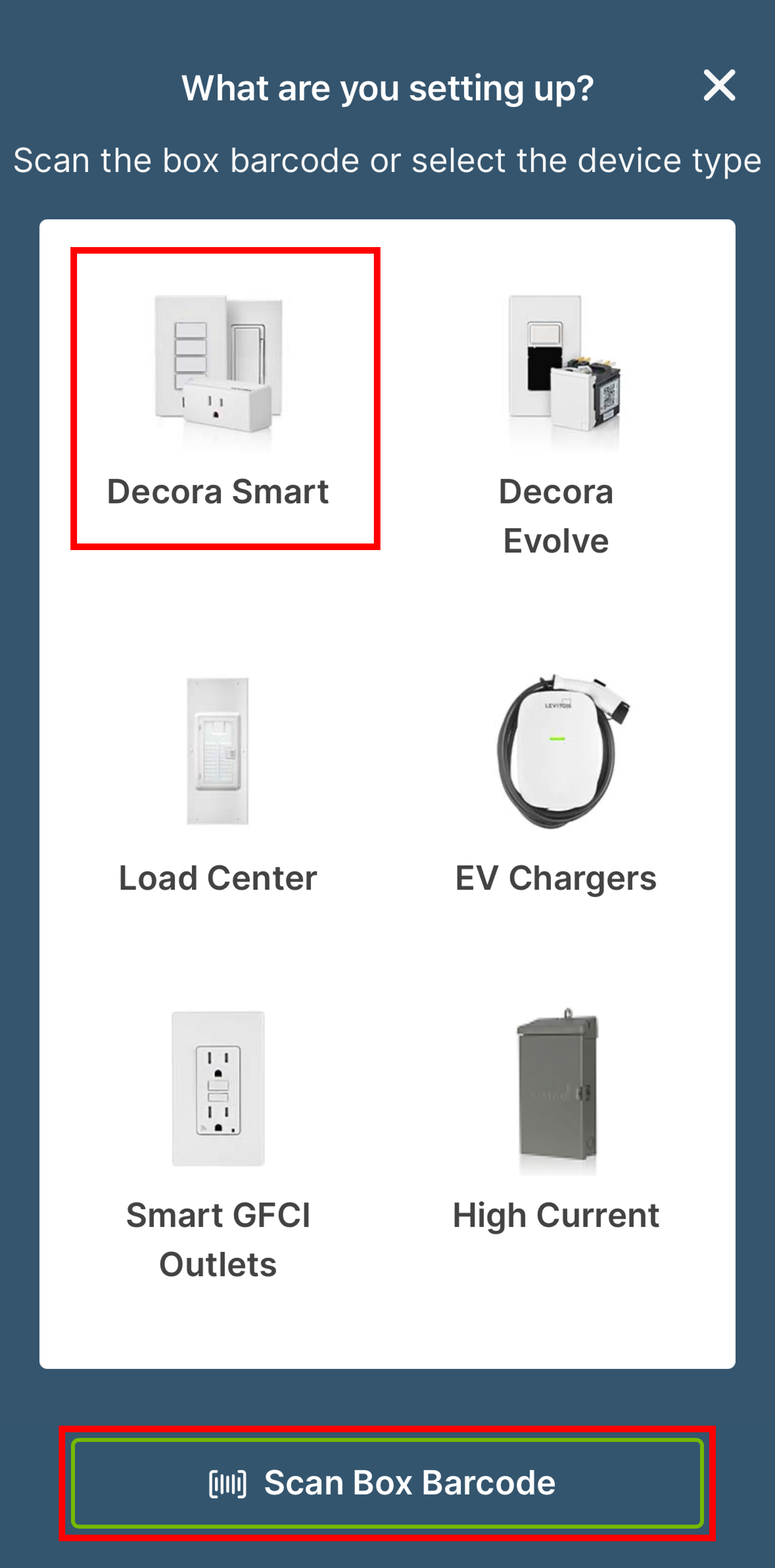
Tap the + in the middle of the bottom navigation bar and then select Device.  The app will then search for a device in set up mode.  If none is found then you will be given the option to select the product you are adding.  Select Decora Smart.

Voice Dimmer
Devices
Devices
Devices

Step 2.

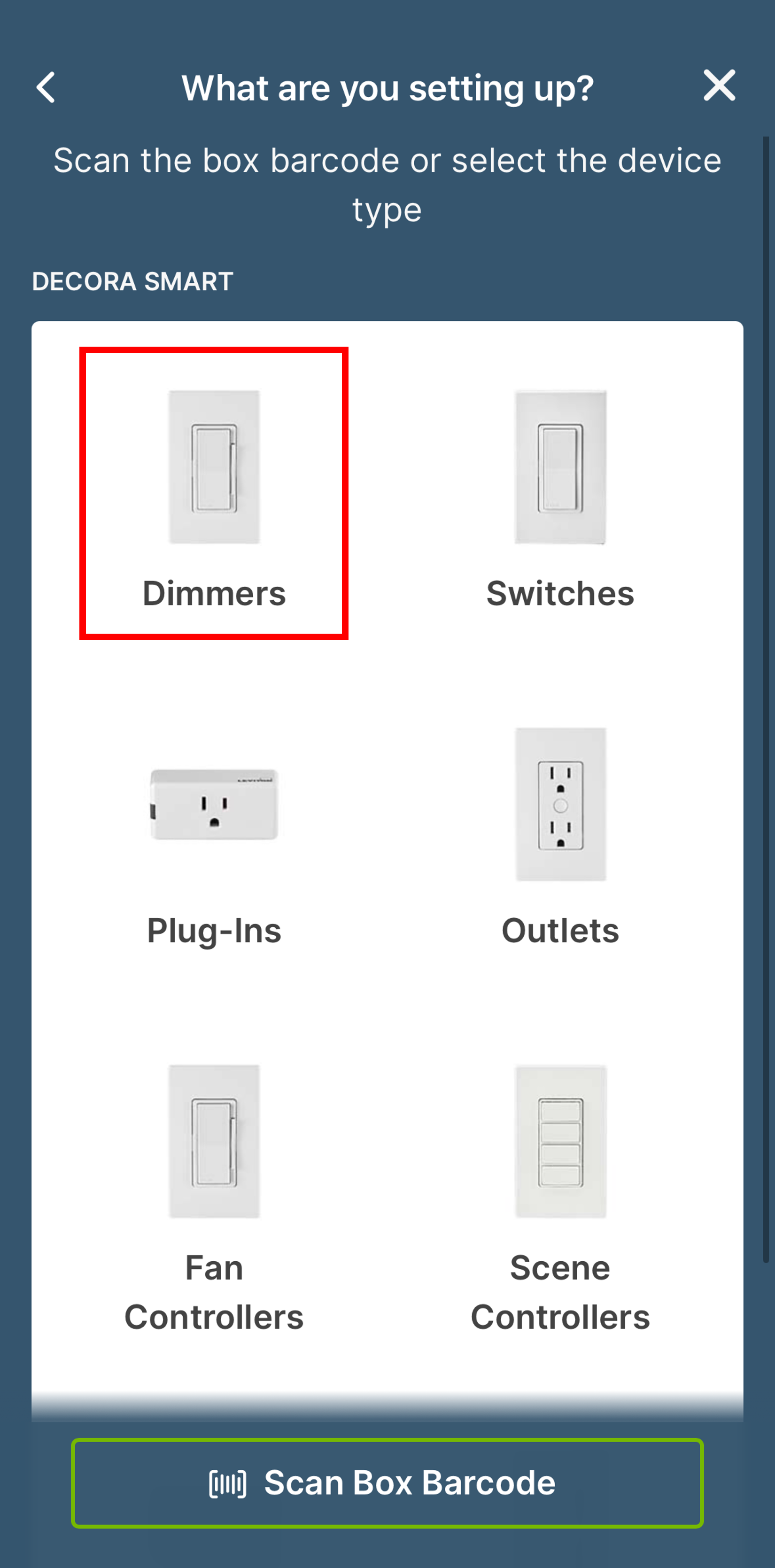
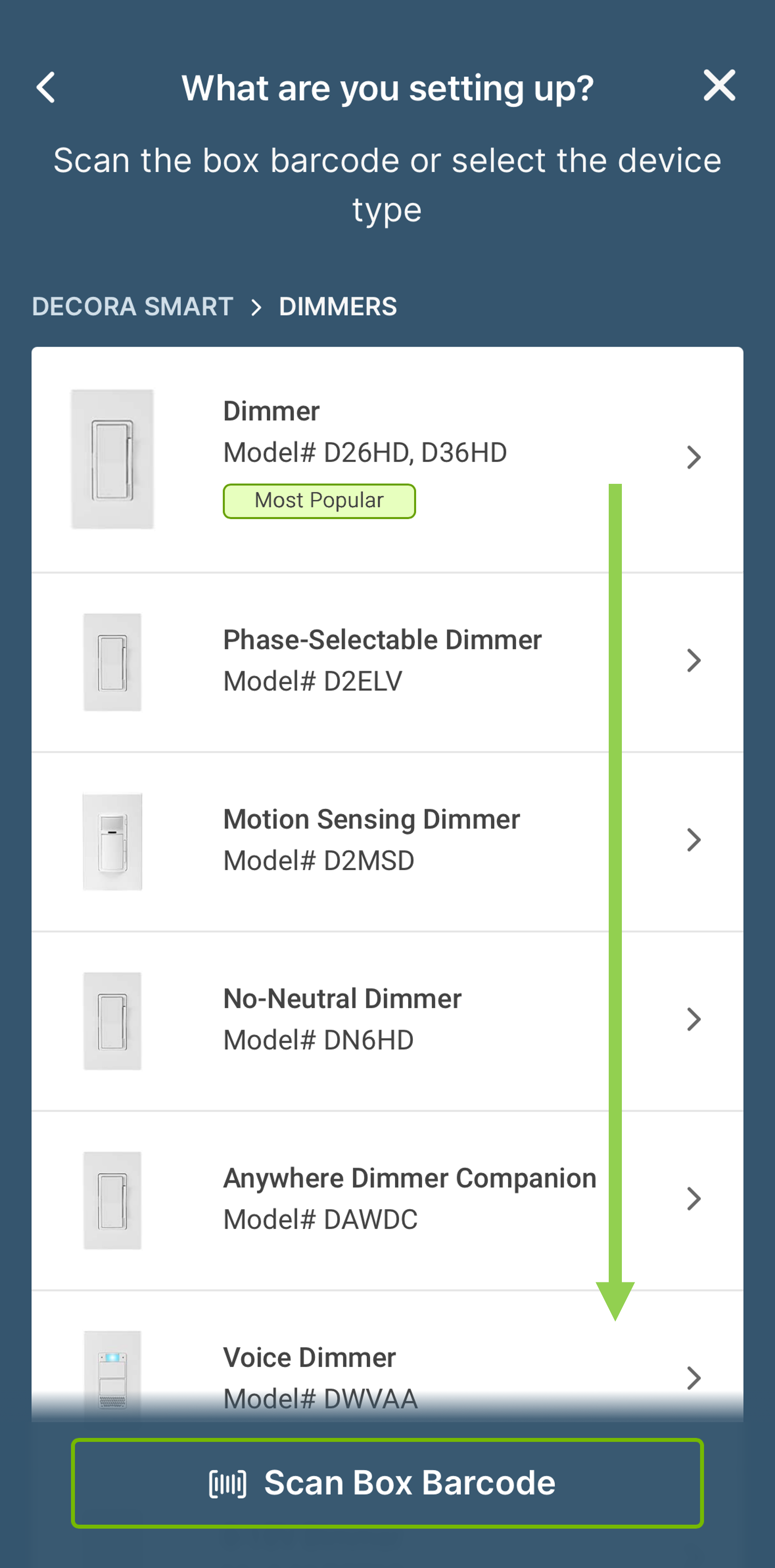
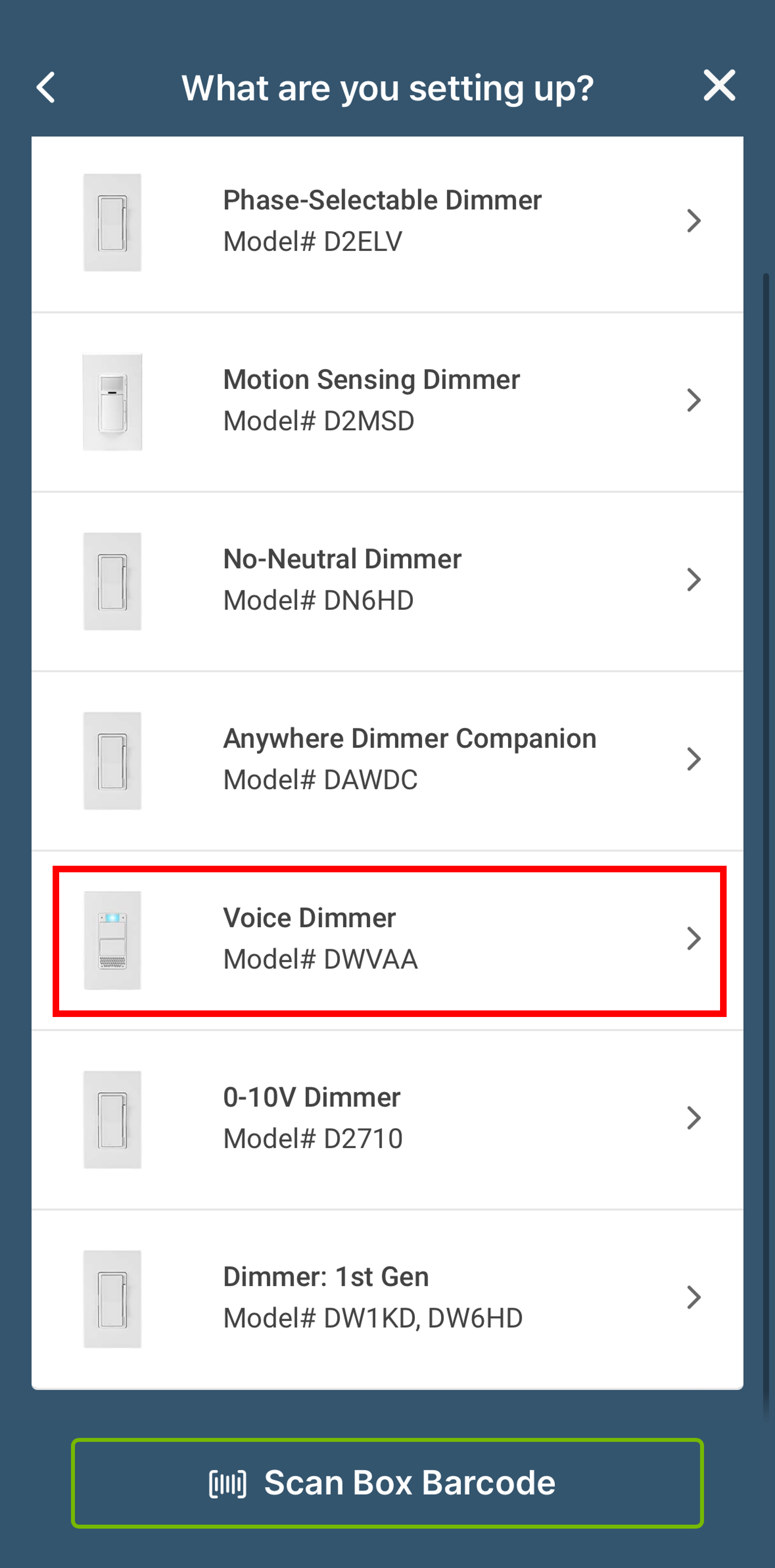
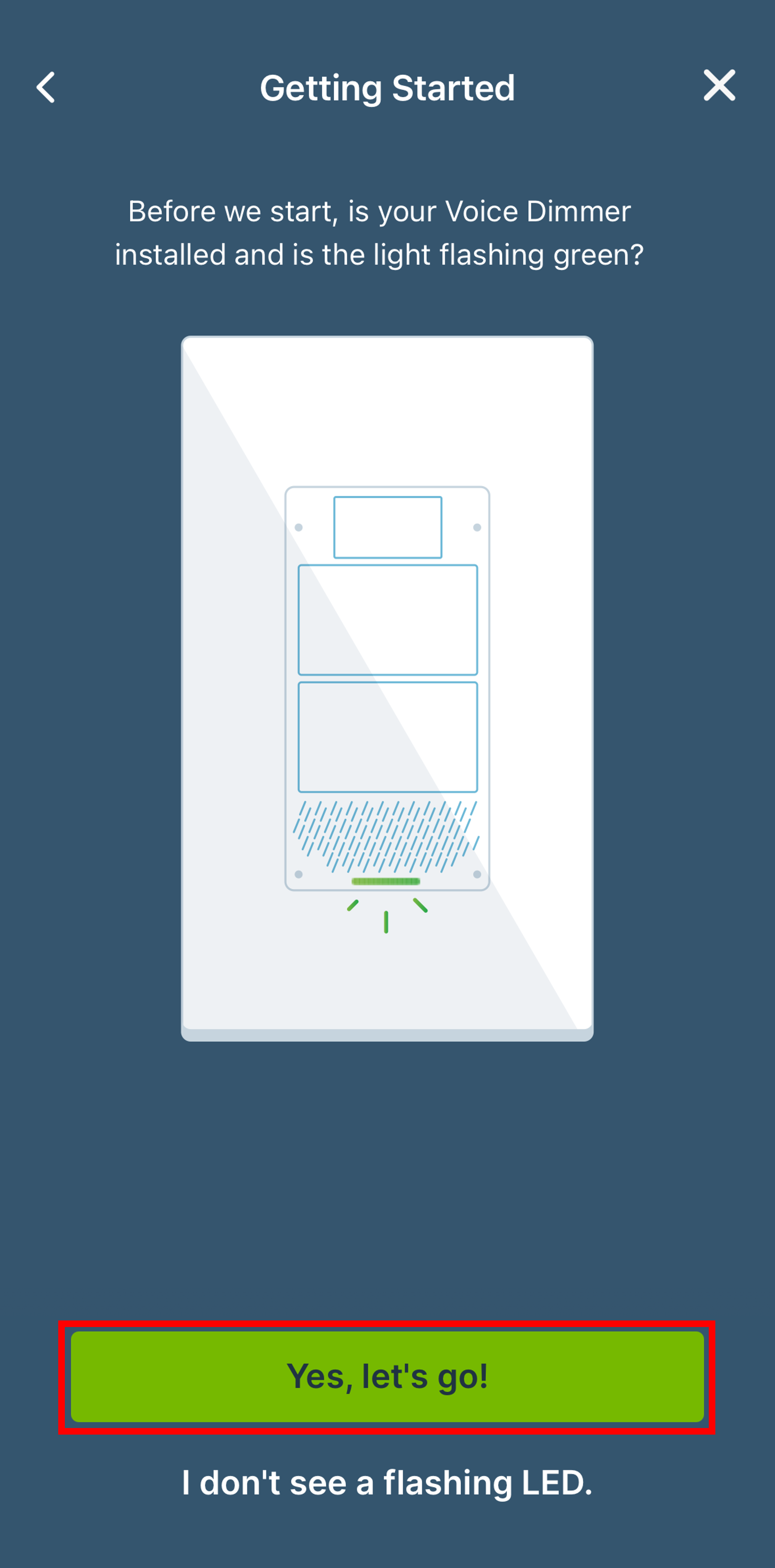
Since the DWVAA is a dimmer, select Dimmers from the menu.  Scroll down and select DWVAA Voice Dimmer.   Verify that the status LED on the DWVAA is flashing green indicating that the device is in setup mode.  When a DWVAA is first installed the status LED will be flashing green rapidly.  If the device has been previously installed or if the status LED has timed out you can press I don't see a flashing LED to receive instructions to enter inclusion mode.  If the status LED is flashing green rapidly then select Yes, let's go!

Voice Dimmer
Enrollment
Devices
Devices

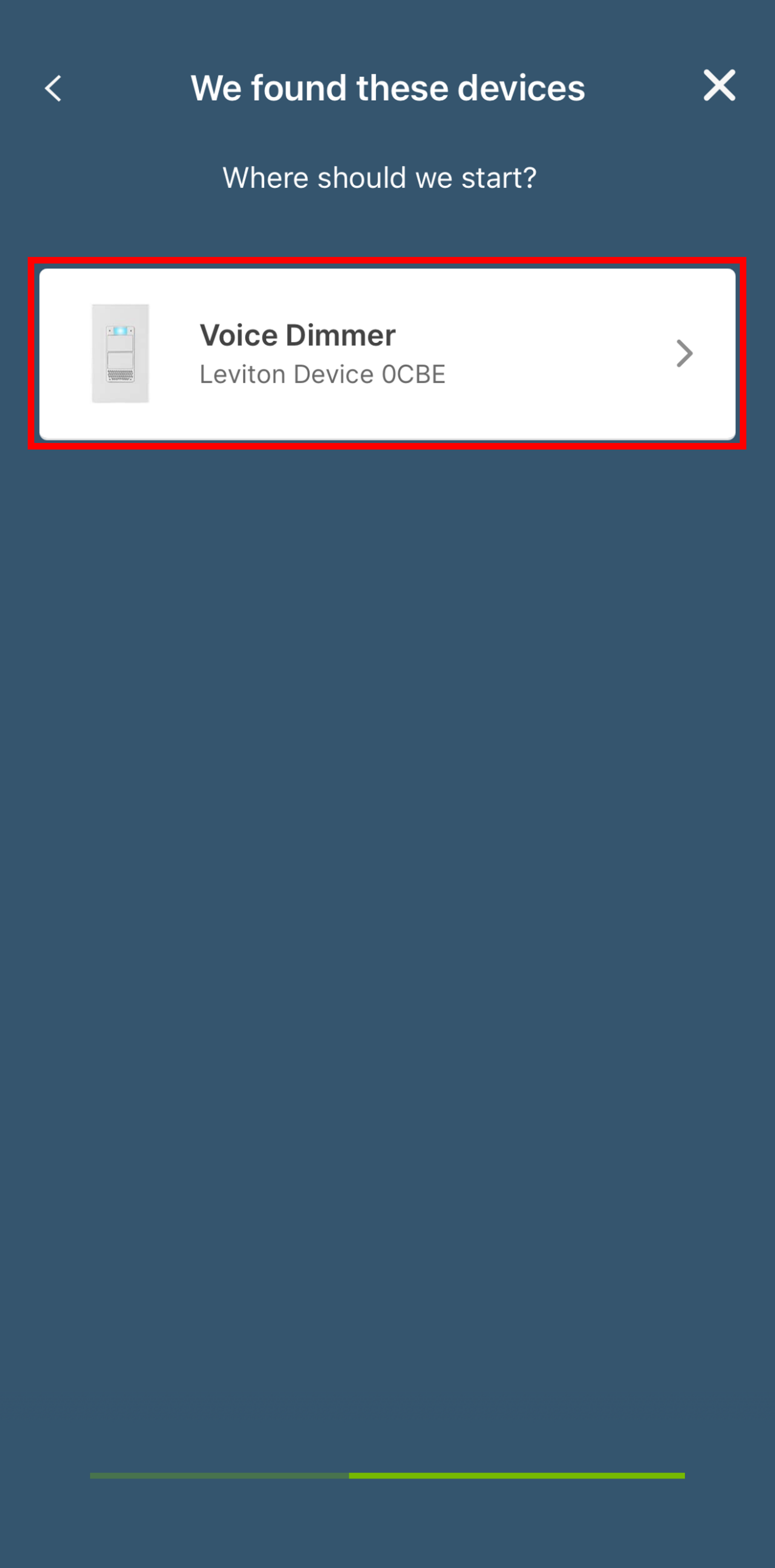
Your mobile device will use Bluetooth to find your DWVAA.  Note, Bluetooth must be turned on in your mobile device and the LED on the DWVAA must be flashing green.  Select your DWVAA.  The app will show that the device is connecting.

Voice Dimmer
Voice Dimmer

Step 3:
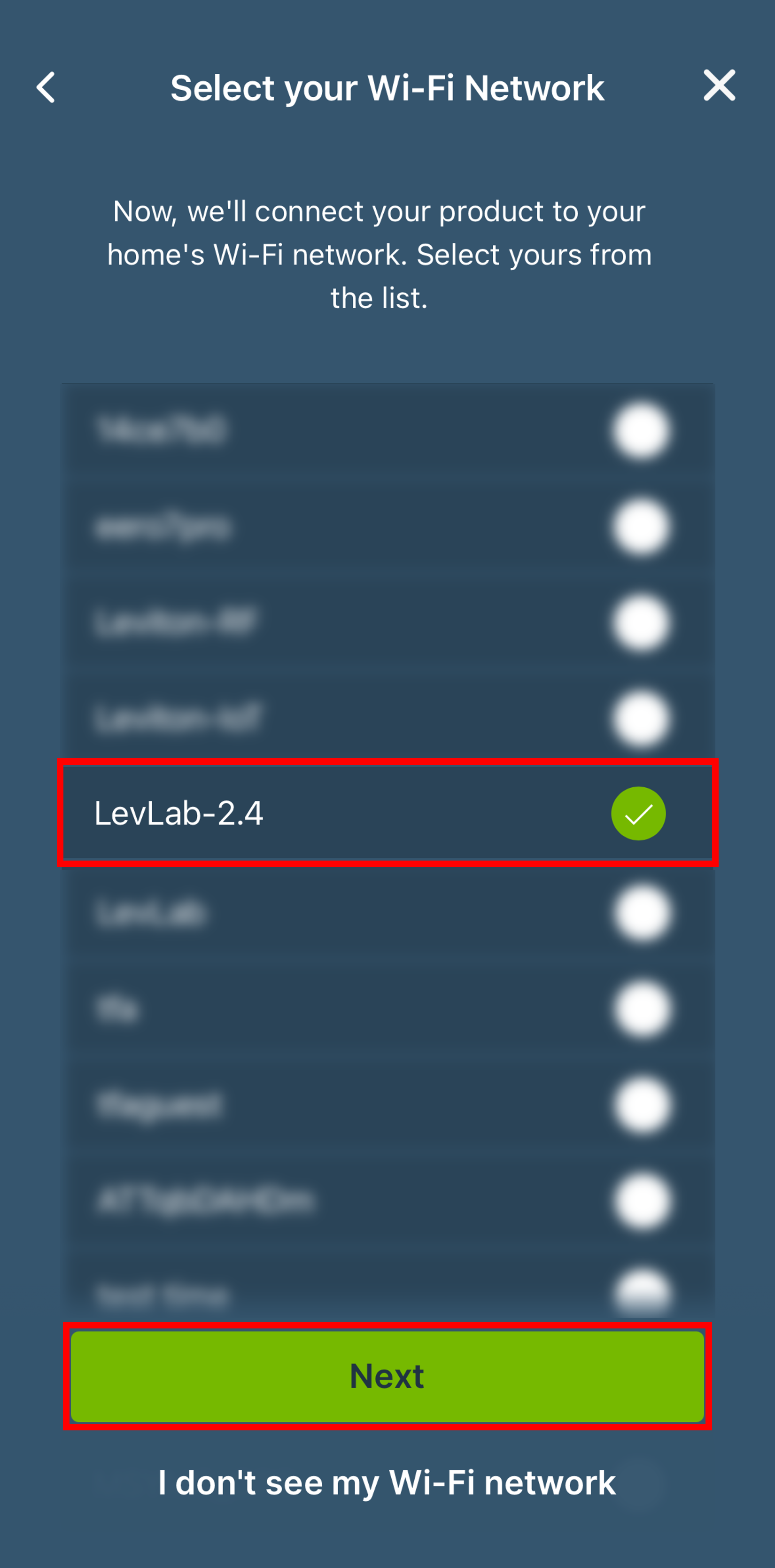
The app will provide a list of wireless networks available to the DWVAA. Choose the best network to join.

Note: If your SSID is hidden it will need to be visible during the enrollment process.  Once the Decora Smart Wi-Fi is enrolled the SSID can be re-hidden. 

Press Next.

Voice Dimmer

Step 4:

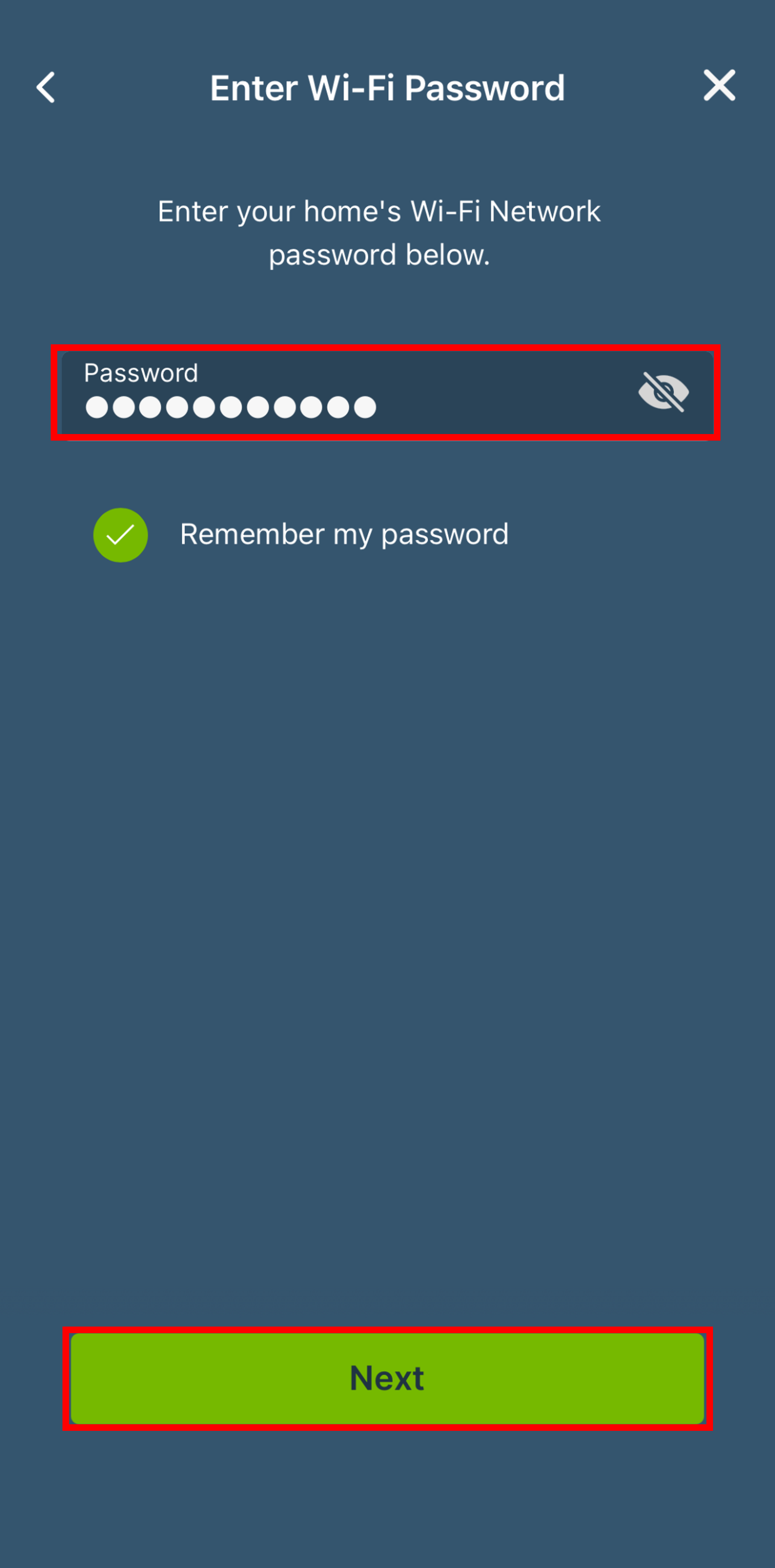
Enter the network password. Please note that passwords are case specific. If you are in a safe location to show your password, press the eye icon to see the text.

Press Next.

Enrollment

Step 5:
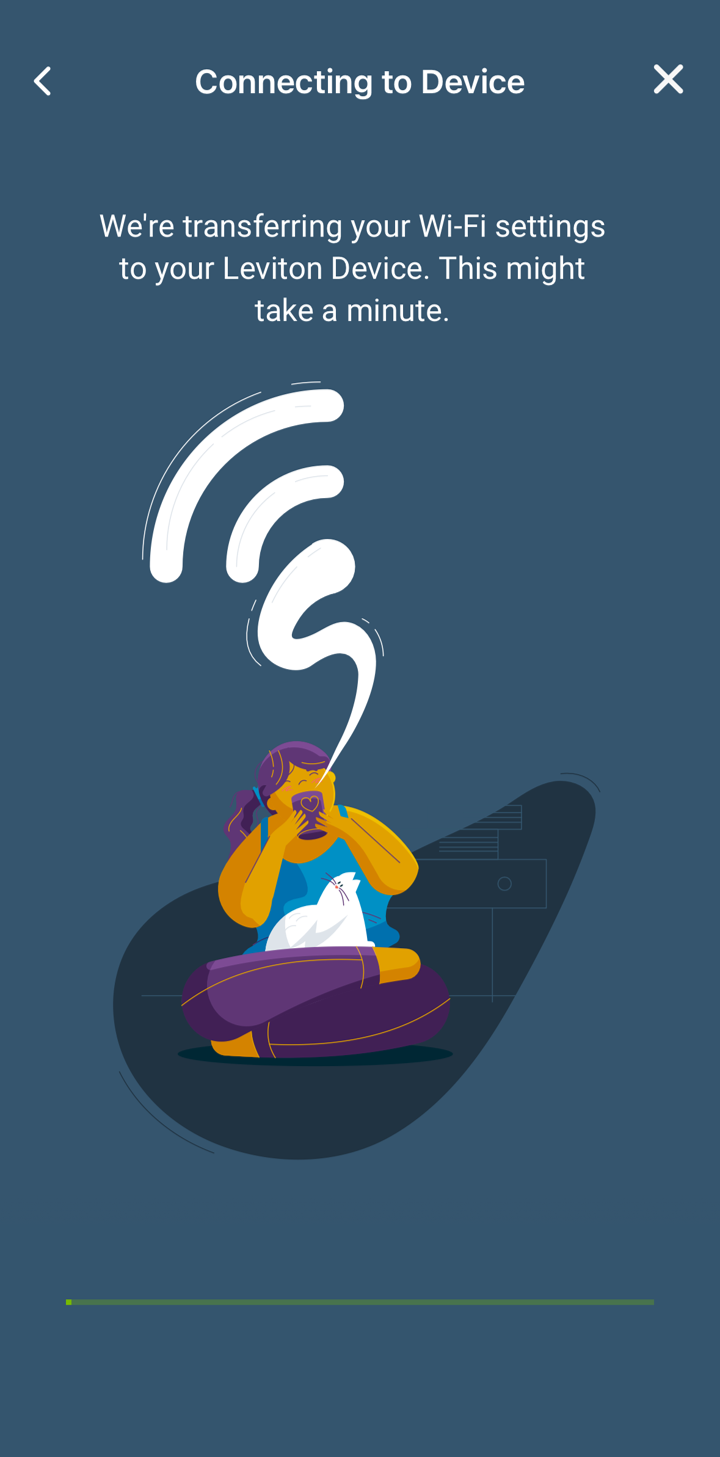
The app passes the Wi-Fi information to the DWVAA.

During the process the LED on the device is used to indicate the current steps during in the enrollment.  If the load is not in the off state when starting, the LED indications below may not be an exact match.

Watch the LED during Step 5. If your device does not successfully connect, move to step 5a.

Enrollment

Successful Wi-Fi connection:


Flashing green slows down to a slower rate:

  • This occurs shortly after the continue button is pressed in step 4

  • Wi-Fi Information is being transferred from the mobile device app to the Leviton Wi-Fi device

LED Turns On Solid:

  • Wi-Fi information is correct and device is preparing to reboot

  • Note: if the load was not placed in the off state prior to starting this step, the LED will be solid off

Quick Red, Amber, Green Flash:

  • Device is rebooting

LED is steady Green:

  • Device has successfully connected to the Wi-Fi network and the internet

Step 5a:

Enrollment

Using the Device LED to determine connection

Incorrect Wi-Fi Password:

Flashing green slows down to a slower rate:

  • This occurs shortly after the continue button is pressed in step 4

  • Wi-Fi Information is being transferred from the mobile device app to the Leviton Wi-Fi device

LED Blinks Amber:

  • Wi-Fi information is incorrect

  • In most cases the password is incorrect

  • The wrong Wi-Fi network may have been chosen or signal strength is poor

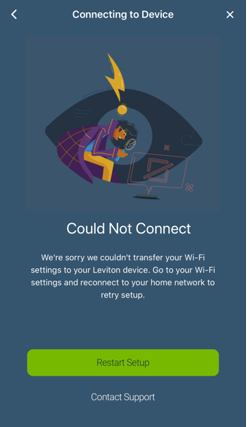
If the app is unable to connect:

- Be certain to default the device and return to the flashing green LED to reset the DWVAA to factory settings requires two different button sequences in order:

First Sequence:

1. Hold the ON and OFF button together for 7 seconds.

2. Release when the status light starts flashing green.

Second Sequence:

3. Press and hold the ON button for 7 seconds, the status light will flash red/amber

4. Release the top of the paddle and it will reset.

- Hold the LED button or top of the paddle for 14 seconds

- After 7 seconds the LED will turn amber, continue to hold

- After 14 seconds the LED will flash amber/red, release the button

- The device will default and return to the flashing green LED

- Press Restart Setup to start the enrollment prcoess again.            

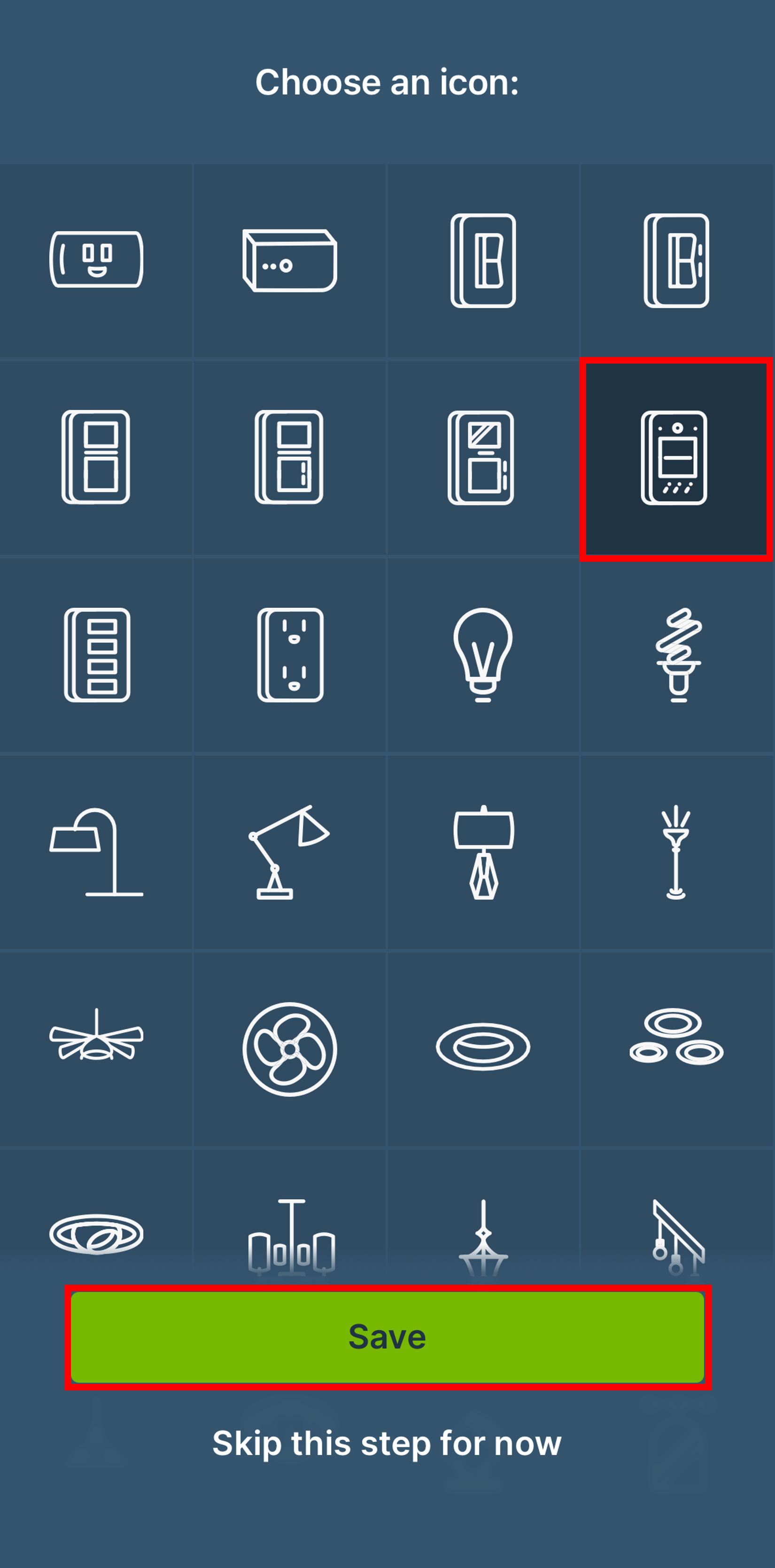
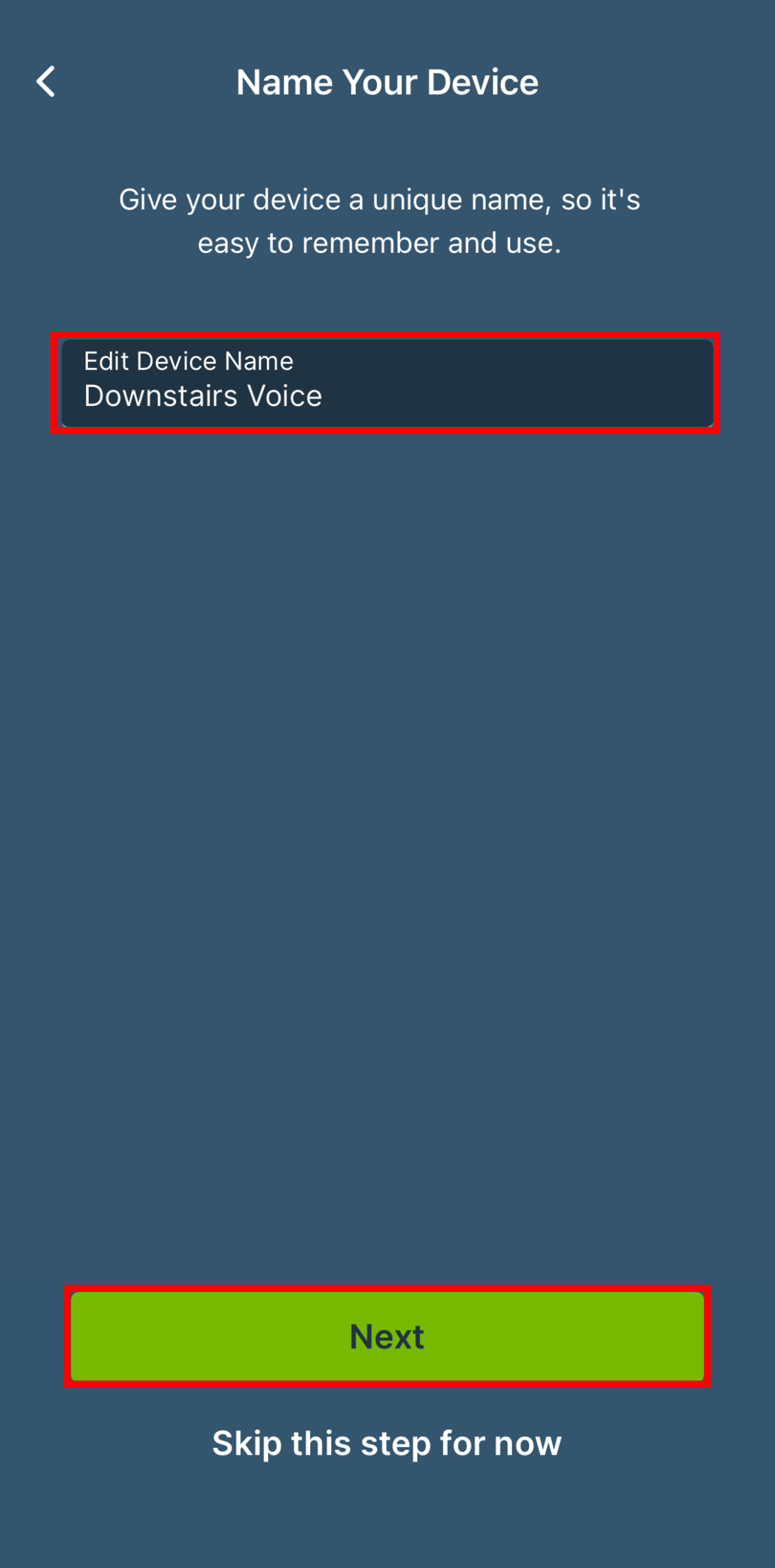
Step 6: Choose the icon and name your device

Voice Dimmer
Enrollment

The Default name for the device will be the name and device identification Leviton-xxxx. Change the name of the device.  

Note that you do not need to include the room name in the description.  

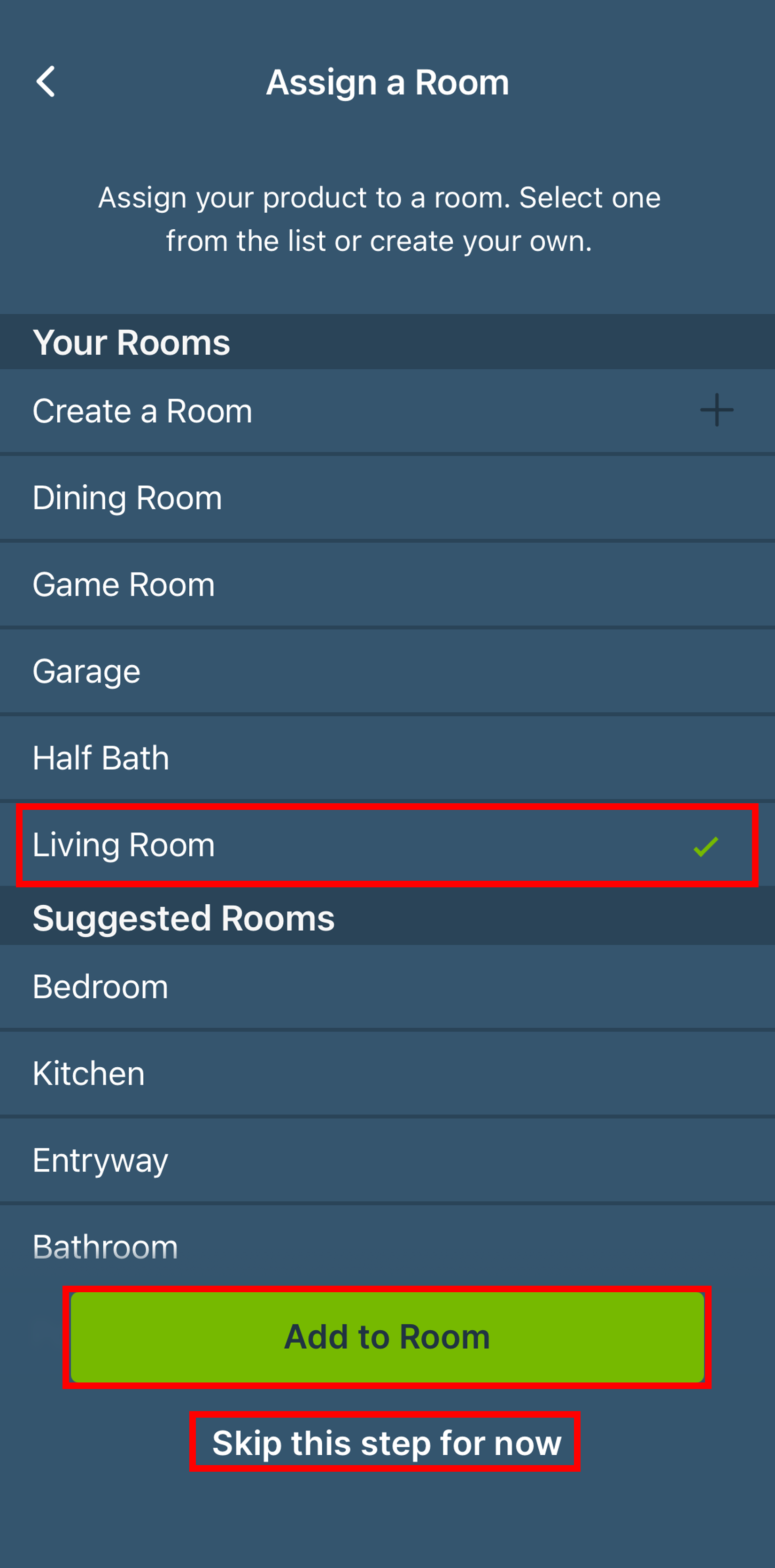
Once the device is included you will be able to place it in a Room to better organize your devices.

Step 7: Place your device in a room.  You can choose from a list of Suggested Room names or create your room.  If you do not wish to use rooms you can click on "Do this Later." 

Enrollment

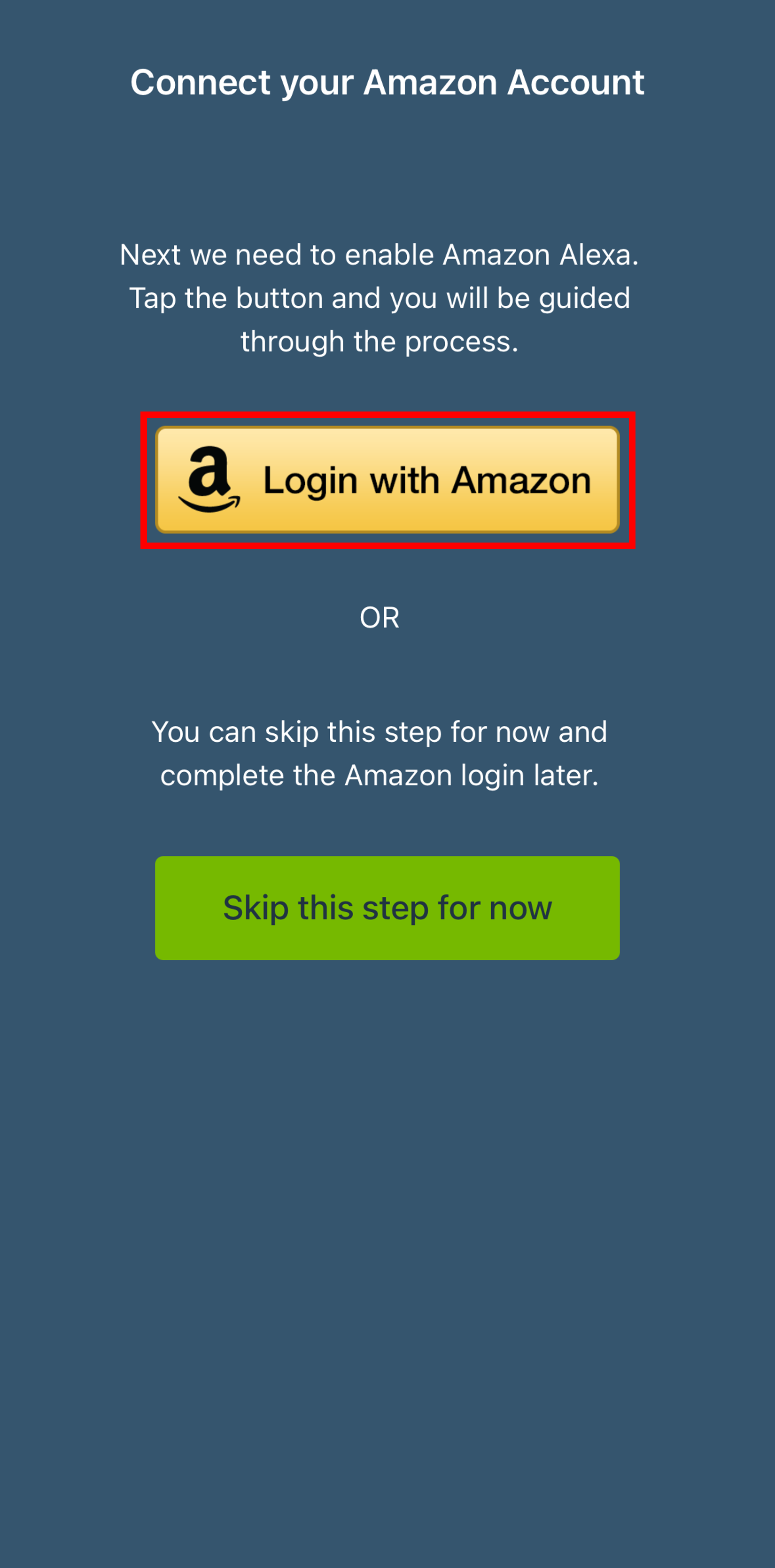
Step 8: Connect to Alexa

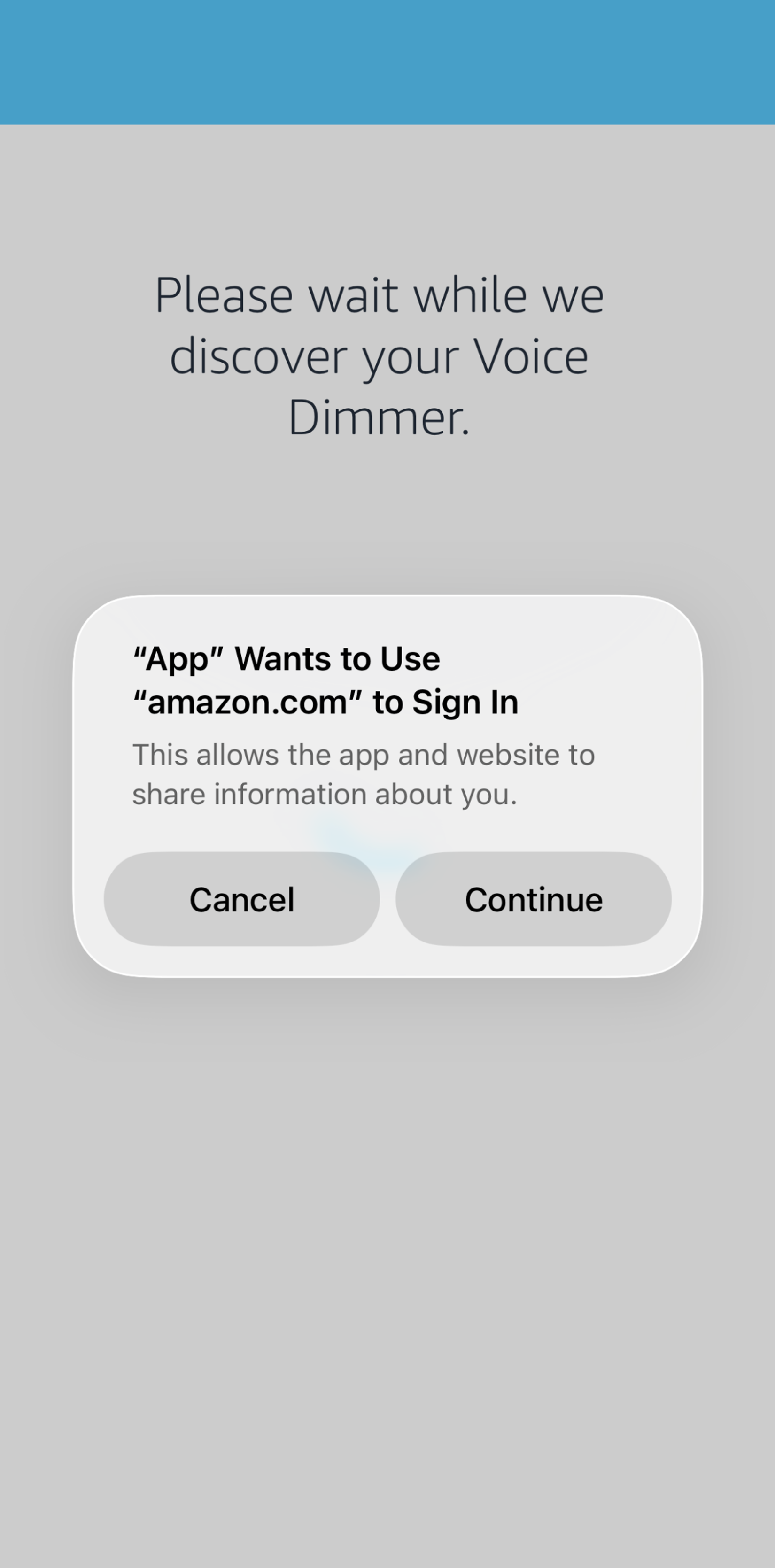
Your DWVAA has been added to the My Leviton app and cloud.  To enable the Amazon Alexa capabilities the DWVAA has to be connected to your Amazon Alexa account.  Press Login with Amazon and Continue.

Voice Dimmer
Voice Dimmer

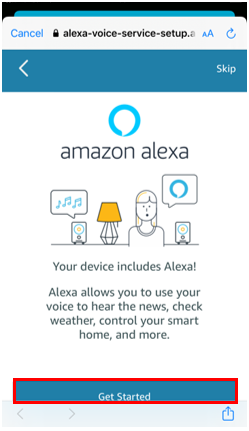
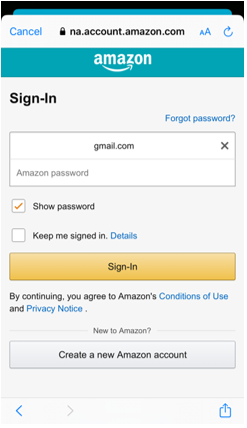
Choose 'Get Started' and enter your Amazon credentials.

Voice Dimmer
Voice Dimmer

Step 9: Discover Devices

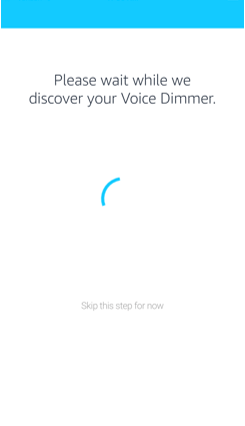
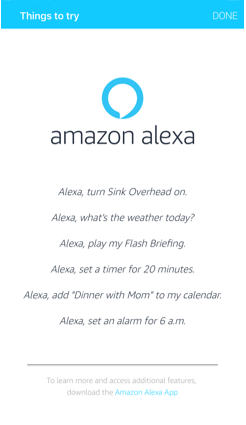
When the My Leviton and Amazon accounts are connected Amazon will initiate a Device Discovery followed by a message offering things to try.

Voice Dimmer
Voice Dimmer

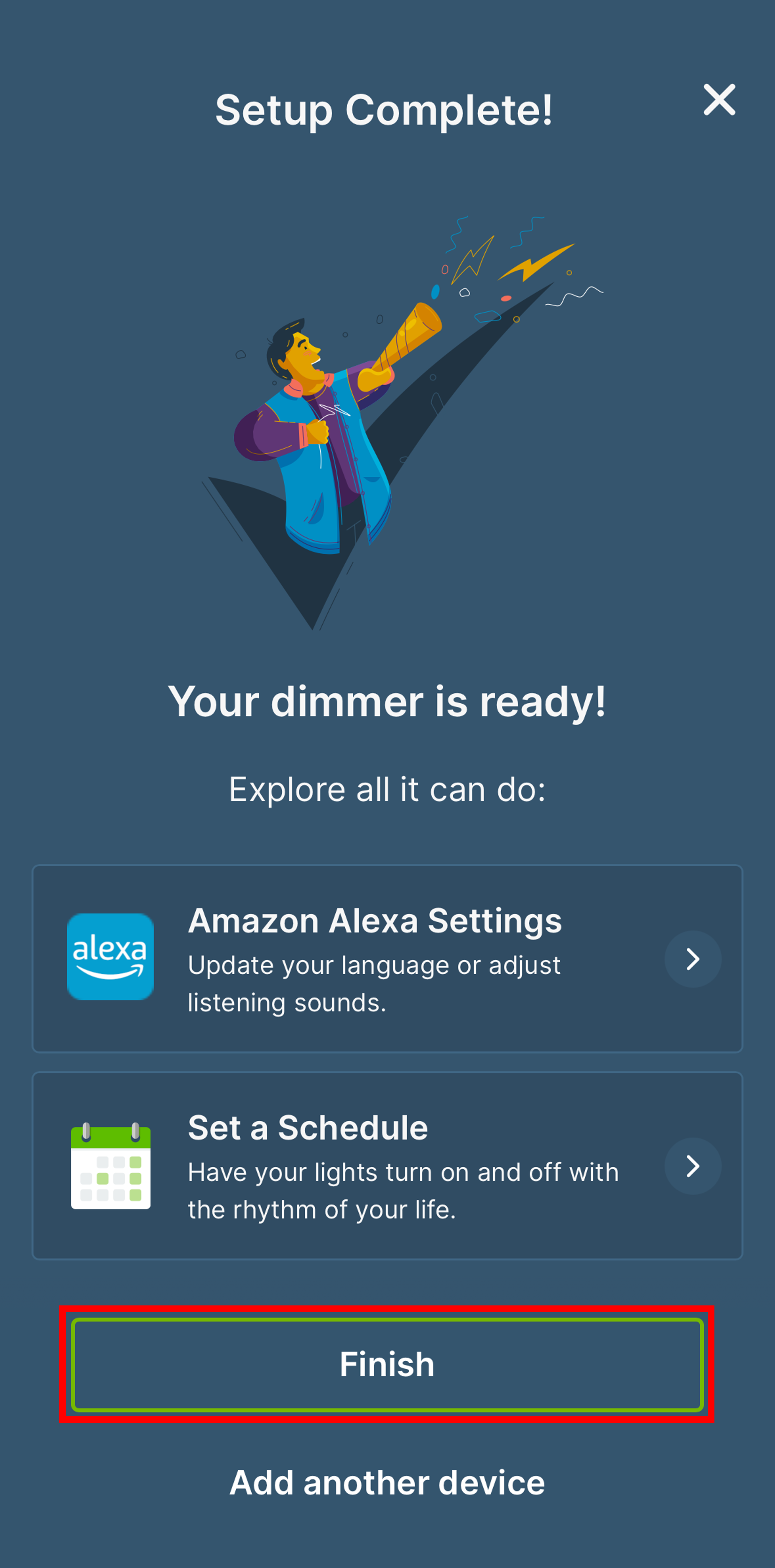
Complete:

Your DWVAA has now successfully connected to your My Leviton App and the Amazon Alexa service.  The dimmer capabilities of the DWVAA is compatible with Alexa but Google Assistant and IFTTT as well.  You can click on a service to receive instructions to add the service to you My Leviton account.

Enrollment